Blog
QR Code in PowerPoint and Google Slides: How Big to Make It
On this page
How wide does a QR code in PowerPoint need to be for the back row to scan it? In our test, a code 10% as wide as the slide read from 3 meters and failed from 6. The steps themselves are short: make the code as an image in a QR code generator, then paste it onto the slide or place it with Insert, Pictures. Google Slides works the same way through Insert, Image, and neither app needs a plugin.
Google SlidesFor PowerPoint and Google Slides decks: inserting the code, file types and size
The test below measured how wide a code has to be on a projected slide, and on a printed handout, before a phone camera reads it.
The test: how big a QR code must be on a projected slide
We built a 1920 × 1080 slide with a code in the bottom right corner, at 10 widths from 5% to 40% of the slide’s width. Then we simulated what a phone sees from 3, 6 and 10 meters away and read every frame with Apple’s Vision framework, the barcode reader Apple ships in iOS and macOS.
The setup, so you can judge it:
- 2 links. A 28 character short link, which makes a 29 × 29 grid, and a 68 character page link, which makes a 37 × 37 grid. Both at error correction level M, with the standard white margin around the code.
- A screen 2.5 m wide, with the slide filling it and the projector’s black showing as gray, as it does in a lit room.
- A phone camera with a 70 degree field of view reading a frame 1920 pixels wide, with slight blur, sensor noise and JPEG compression. That is the cautious case: a full 4032 pixel photo does better.
- 3 tries per size, at the distance, a step closer and a step back. A size counts only when all 3 tries read and every larger size read too.
Smallest code that read, by distance
| Short link, 28 characters | Page link, 68 characters | |
|---|---|---|
| From 3 m | 7.5% of the slide's width (19 cm on the screen) | 10% (25 cm) |
| From 6 m | 15% (38 cm) | 20% (50 cm) |
| From 10 m | 25% (63 cm) | 30% (75 cm) |
With a full 4032 pixel photo in place of the 1920 pixel frame, every code read at a smaller size: 5% from 3 m, 10% from 6 m, and 15% to 20% from 10 m. You cannot know which phones are in the room, so plan with the table.
The printed handout
Next we laid the same slide out 6 per page on a Letter page, each slide 3 inches (7.6 cm) wide, printed at 300 dpi with a little ink spread, and read it from 15, 20 and 30 cm.
| Short link, 28 characters | Page link, 68 characters | |
|---|---|---|
| Phone 15 cm from the page | 12.5% of the slide's width (9.5 mm on paper) | 12.5% (9.5 mm) |
| Phone 20 cm from the page | 12.5% (9.5 mm) | 15% (11.4 mm) |
| Phone 30 cm from the page | 20% (15.2 mm) | 20% (15.2 mm) |
What that means for your slides:
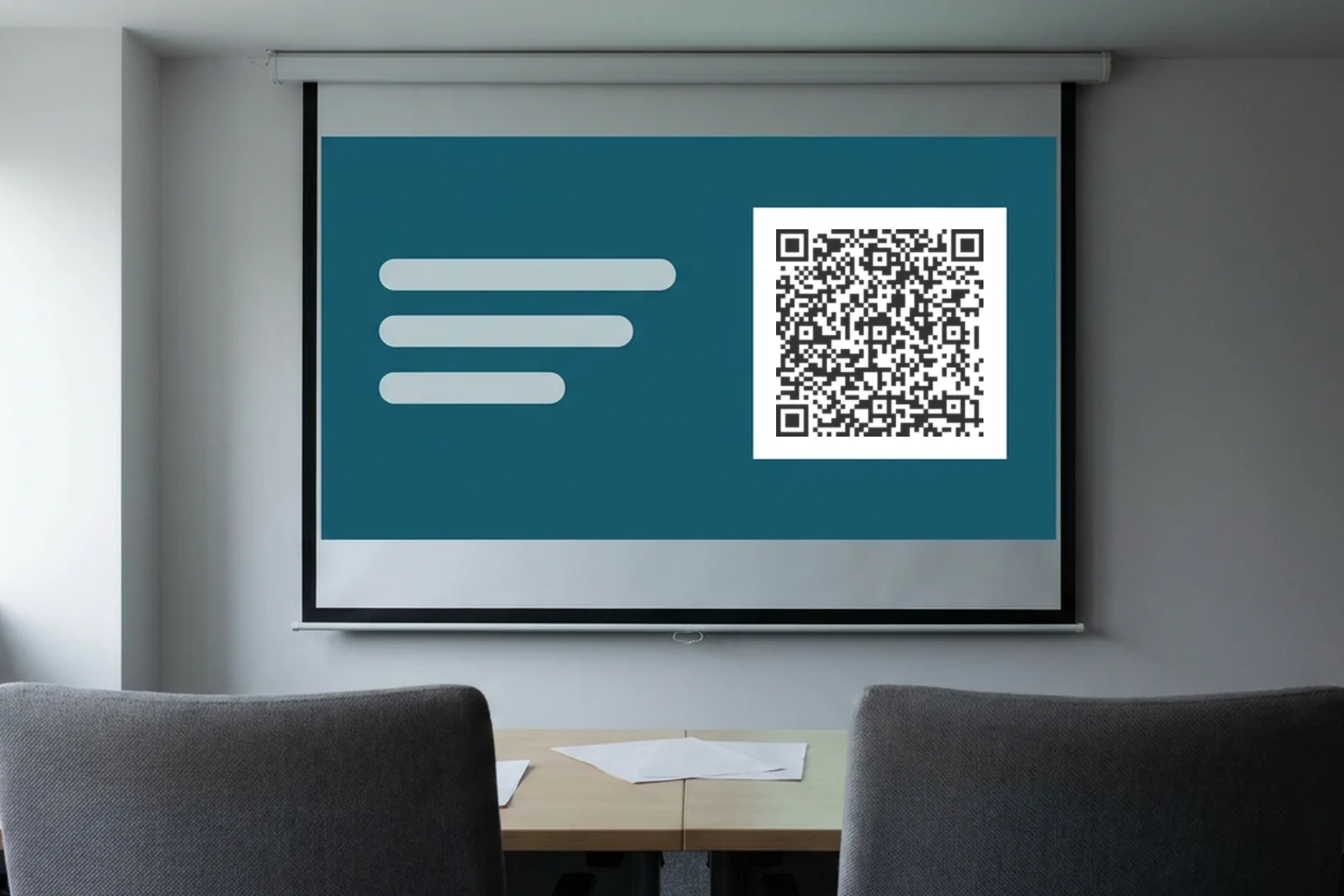
- Size the code for the last row. Measure from the screen to the back seats. For a room up to 6 m deep, make the code at least a fifth of the slide’s width. For 10 m, a quarter with a short link and close to a third with a long one.
- A code sized for the room also works on paper. Every size that read from 6 m also read on the 6 per page handout, with the phone held 20 cm away.
- A shorter link buys distance. In the table, the 28 character link read at a smaller size than the 68 character one at every distance. Our Shopify link test shows how each extra part of a link grows the grid.
- Give a big code its own slide. A quarter of the width crowds a busy layout. Your closing slide has the room.
Microsoft’s own QR options, and when they are enough
Microsoft documents 2 QR features near PowerPoint. Copilot Chat makes a QR code when you ask it for one that points to a URL. You then copy or download the image and paste it onto your slide like any other picture.
PowerPoint for the web also had Present Live, which opened with a QR code your audience scanned to follow the deck on their phones. Microsoft’s help now says Present Live is deprecated in PowerPoint for the web and points presenters to PowerPoint Live in Teams.
| Copilot Chat | QRplify | |
|---|---|---|
| Opens | A URL | Any link |
| Files | Copy or download the image | Copy, or PNG, JPG and SVG up to 4096 px |
| Change the link after the deck goes out | Not stated on the page | Yes, with a dynamic code |
| Scan counts | Not stated on the page | Scans by city, device and time, plus UTM tags for your analytics |
Pick by the job:
- A link that will not change, in a deck you present once: Copilot Chat or any free generator is enough.
- A deck you send, print or reuse, or want scan counts from: use a dynamic code from a QR code generator.
QRplify has no PowerPoint add-in and no Google Slides add-on, and you do not need one. Both apps take the code as a plain image.
How to add a QR code in PowerPoint
- Make the code. Paste your link into the free URL QR code generator. It needs no account and makes a static code: the link sits inside the pattern.
- Copy or download it. Click Copy to put the image on your clipboard, where your browser allows it. Or download it: SVG for the sharpest result, PNG for anything else. The generator offers SVG while the card layout is off, and PDF in its place when the card is on.
- Put it on the slide. Click the slide and paste with Ctrl+V, or Command+V on a Mac. For a file, Microsoft’s steps are Insert, Pictures, This Device, then pick the file and choose Insert.
- Size it. Use the tables above for the width, and check the code is still square after you resize it.
- Test it. Start the slide show and scan the screen from the back of the room. Or take a screenshot of the slide and open it in the free QR code decoder, which shows the link inside.
Why SVG works well here: Microsoft’s SVG help says PowerPoint for Microsoft 365 on Windows, Mac and Android inserts SVG files, and that you can resize an SVG image without any loss of image quality. PowerPoint for iPhone and iPad cannot insert an SVG, only edit one already in the deck, so paste a PNG there.
To show the code on every slide, add it to the slide master. Microsoft’s picture help says a picture placed there appears on every slide of that type.
How to add a QR code to Google Slides
- Make the code in the generator, as in step 1 above.
- Copy it, or download it as a PNG.
- Add it to the slide. Paste the copied image, or click Insert, Image, Upload from computer and pick the PNG. Google’s steps also cover adding an image from Drive, or by dragging it in.
- Size and test it the same way as in PowerPoint.
Use PNG or JPG, not SVG. Google’s developer guide to adding images to a slide lists PNG, JPEG and GIF, under 50 MB and 25 megapixels. A 4096 × 4096 PNG is 16.8 megapixels, inside that limit.
A deck that keeps pointing to the right page
Decks travel. You email the file, share its link, print handouts, and someone opens it again months later. A static code holds the link itself, so when the page behind it moves, every copy of the deck sends people to the old address.
A dynamic QR code holds a short link instead. You change where it points in your account, and the code in every copy, on screen and on paper, opens the new page. A free QRplify account includes unlimited dynamic codes.
The same short link helps with counting:
- Scan counts. Each dynamic code counts its scans, with city, device and time, so you can see how many people scanned during the talk and how many came back to it later.
- UTM tags. Add tags to the destination, such as
?utm_source=qr&utm_medium=slides&utm_campaign=spring2026. Google Analytics, and any report that reads UTM tags, then shows those visits as coming from your deck. The tags sit in the destination, not in the code, so they do not make the code any denser. QR codes and UTM tags shows the setup, and how to track QR code scans compares the ways to count them.
The limit, before you plan a big event around it: on a free account, once your codes pass 100 scans in a month, scans show a QRplify screen for 3 seconds before the page opens. Premium skips that screen on 5 codes, and the Unlimited and Lifetime plans never show it. Pricing lists what each plan adds.
Where to put the code in your deck
- On the slide you show longest. A closing or Q&A slide gives people time to take out their phones.
- On a light background. On a dark theme, give the code its own white box with the margin kept clear. QR code best practices covers color, contrast and logos.
- With the link written under it. People watching on a laptop cannot scan their own screen, and a short link they can type reaches them too.
- Checked against the handout. PowerPoint’s print settings print handouts with several slides per page, and Google Slides has a Handout layout under Print settings and preview, so the code prints smaller than on screen. How small QR codes can be has the measured print minimums.
FAQ: QR codes in PowerPoint and Google Slides
How do I add a QR code in PowerPoint?
Make the code in a QR code generator, copy it or download it as an SVG or PNG, then paste it onto the slide or use Insert, Pictures, This Device. Make it at least a fifth of the slide’s width for a room up to 6 m deep.
Does Microsoft have a QR code generator?
Yes, in Copilot Chat: ask it for a code to a URL and download the image. Word for Windows can also draw one with a field code, as how to create a QR code in Word shows. In PowerPoint, you add the code as a picture.
Can you put a QR code in Google Slides?
Yes. Copy the code and paste it, or use Insert, Image, Upload from computer with a PNG or JPG. Google’s developer guide to adding images lists PNG, JPEG and GIF, not SVG, so a large PNG gives the sharpest result.
Can I change a QR code after I share the deck?
Only if the code is dynamic. A static code holds the link and cannot change, so a new link means a new image in every copy. A dynamic code holds a short link you point somewhere new from your account, so the decks you already sent and the handouts you already printed keep working.