Blog
How to Create a QR Code in Word

On this page
In Word for Windows, press Ctrl+F9, type DISPLAYBARCODE "https://qrplify.com" QR \q 3 between the braces Word adds, then right-click the field and choose Toggle Field Codes. Word draws the QR code in place of the text. On a Mac or in Word for the web, make the code as an image and insert it as a picture.
Microsoft’s help says the barcode field works in Word for Windows, the desktop app. The steps and switches below come from Microsoft’s help for the DISPLAYBARCODE field, the MERGEBARCODE field, Word’s keyboard shortcuts and the field’s file format specification. We have not tested these steps in Word ourselves. Before the document goes out, scan every code in it once. The last section shows how.
What Microsoft’s help says
- The field:
{ DISPLAYBARCODE data type [switches] }. The data comes first, in quotes, then the barcode type:QRfor a QR code. Field codes are not case sensitive, soDisplayBarcodeworks too. - Where it works: the help page says the field is supported in Word for Windows (desktop), and lists Word for Microsoft 365, 2024, 2021, 2019 and 2016. Microsoft’s general help on fields adds that full insertion and editing of fields is supported only in Word for Windows desktop. The specification notes the field does not apply to Word 2010.
- The braces: press Ctrl+F9 to insert them. Microsoft says typing curly brackets from the keyboard will not work.
- Showing the code: right-click the field and choose Toggle Field Codes, or press Shift+F9 for the selected field. Alt+F9 switches every field in the document between code and result. F9 updates the selected field.
- Ctrl+Shift+F9 unlinks a field. Word’s shortcut list names it “Unlink a field”. Use Toggle Field Codes to show the code.
- Bad data: if the data does not meet the requirements of the barcode type, the barcode may not render.
Make a QR code with the DISPLAYBARCODE field
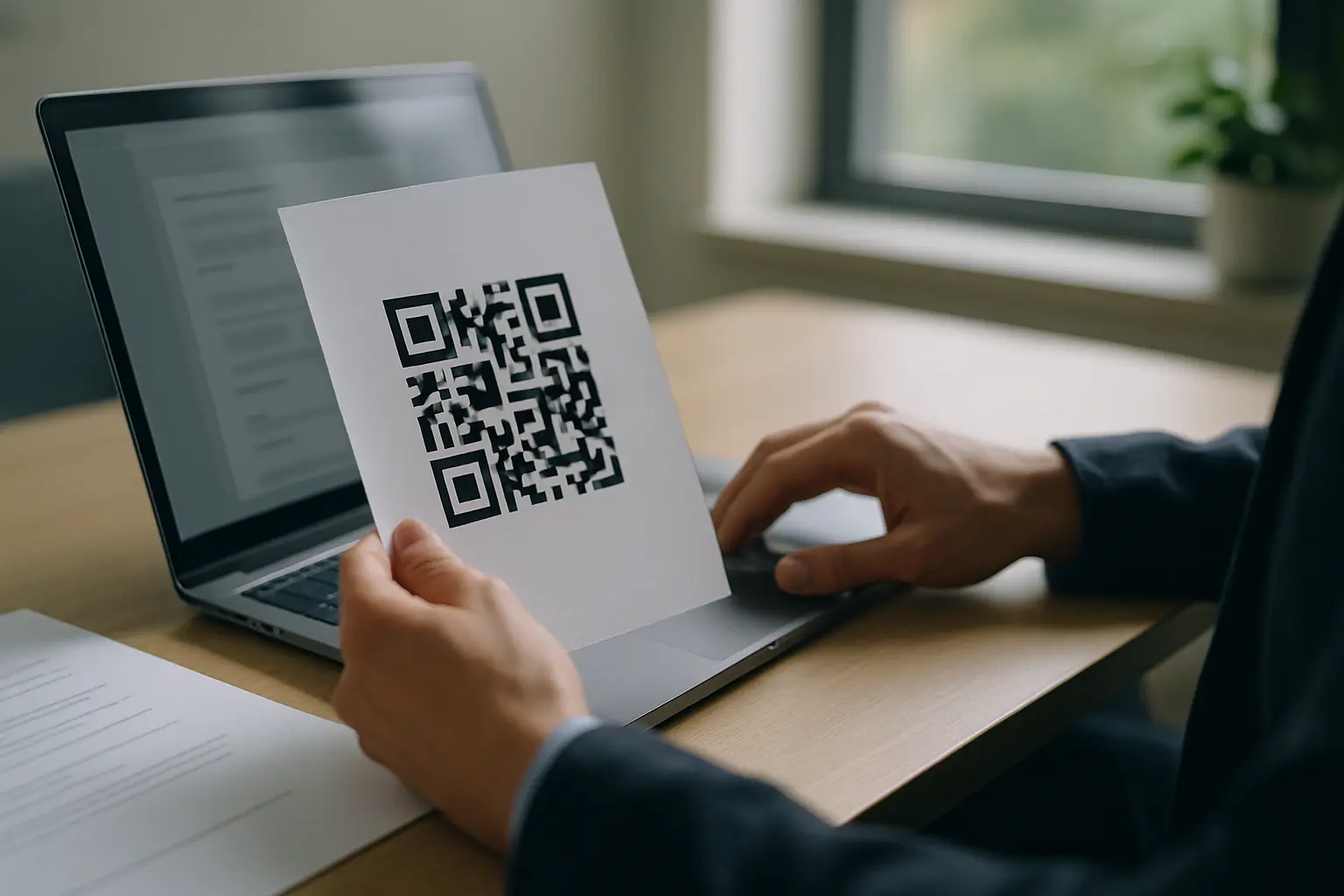
These steps are for Word for Windows.
- Click where the code should go: a header, a footer, a cover page or next to a line that says what the code opens.
- Press Ctrl+F9. Word inserts a pair of field braces with the cursor between them.
- Between the braces, type the field with your own link inside the quotes:
DISPLAYBARCODE "https://qrplify.com" QR \q 3 - Right-click the field and choose Toggle Field Codes. The QR code appears.
- To change the link later, toggle the field back to its code, edit the text in the quotes and press F9 to update it.
- Scan the code before you share or print the document.
If no code appears, check 3 things: the braces came from Ctrl+F9, the link is inside quotes, and the type reads QR.
Switches for the QR code
Add switches after QR to change how the code looks. Each line shows a switch from Microsoft’s help, with an example value:
\q 3: the error correction level. The help page gives the values 0 to 3. The specification names the levels L, M, Q and H and uses\q hfor the highest.\s 200: scaling, in whole percentage points from 10 to 1000.\h 1440: height, in twips. 1,440 twips make 1 inch.\r 1: rotation, from 0 to 3.\f 0x0A0226: foreground color, an RGB value from 0 to 0xFFFFFF.\b 0xFFFFFF: background color, the same range.\t: shows the data as text with the code.
Error correction lets a reader rebuild part of a dirty or damaged code. Denso Wave, the company behind the QR code, says a higher level improves error correction but makes the code larger, and that level M is the one most often chosen. Microsoft’s own example uses \q 3.
If you change the colors, keep the code dark on a light background. In our test of 24 color pairs on 2 QR readers, every dark color on white read on both readers, while light codes on dark backgrounds read on 1 reader and failed on the other.
Make 1 code per row with MERGEBARCODE
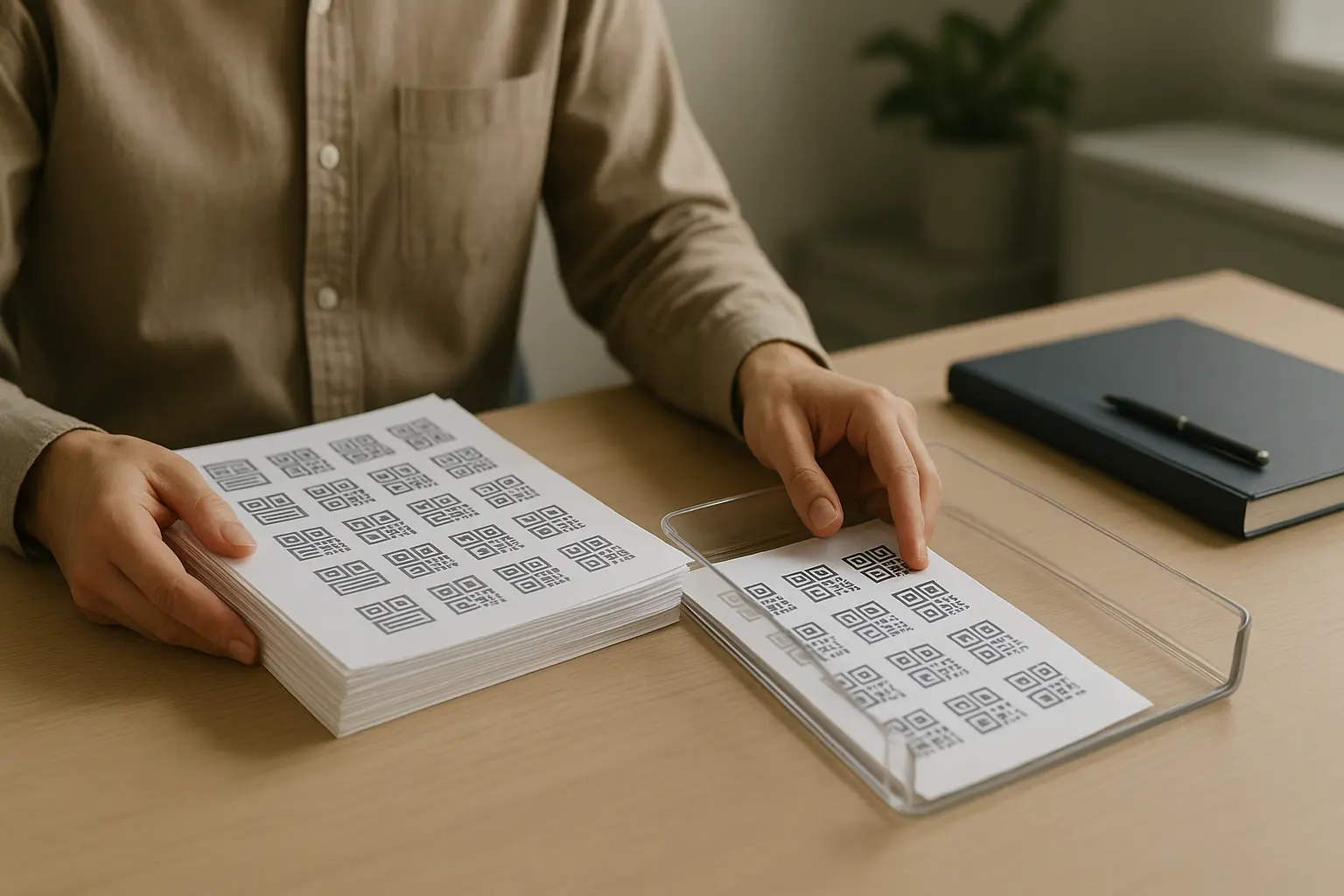
For labels, badges or letters where each copy needs its own code, use a mail merge with the MERGEBARCODE field. Its first part is the name of a column in your data, and Word makes a code from that column for each record.
-
Put the links in a spreadsheet with a header row, 1 link per row, in a column named, for example,
URL. Microsoft’s mail merge help asks for the data on the first sheet, with column names that match the field names you insert. -
In Word, start a mail merge for labels or letters and connect the spreadsheet as your mailing list.
-
Click where the code goes, press Ctrl+F9 and type the field with your column name:
MERGEBARCODE URL QR \q 3 -
Go to Mailings > Preview Results and step through a few records. Microsoft says MERGEBARCODE builds a DISPLAYBARCODE field for each record, so check the codes in the merged document.
-
Finish the merge with Finish & Merge, then scan the codes on 3 records before you print the whole run.
Need the codes as image files instead, 1 per row? See how to generate a QR code in Excel or the bulk QR code guide.
On a Mac or in Word for the web: insert the code as a picture
Word for Mac and Word for the web can show some fields, but Microsoft supports full field editing only in Word for Windows desktop. On those, add the code as a picture:
- Make the code in the free QR code generator. For a link, the URL QR code generator is set up for it. No account, no card.
- Download it as a PNG (up to 4096 by 4096 pixels) or an SVG, or copy it to your clipboard.
- In Word, insert the file as a picture, or paste it.
- Size it on the page and keep the empty margin around it clear.
A picture does not change when the link does. If the destination may change after the document goes out, use a dynamic QR code: a free account adds a dynamic code you can edit after printing. Static and dynamic codes compared.
Test the code before the document goes out
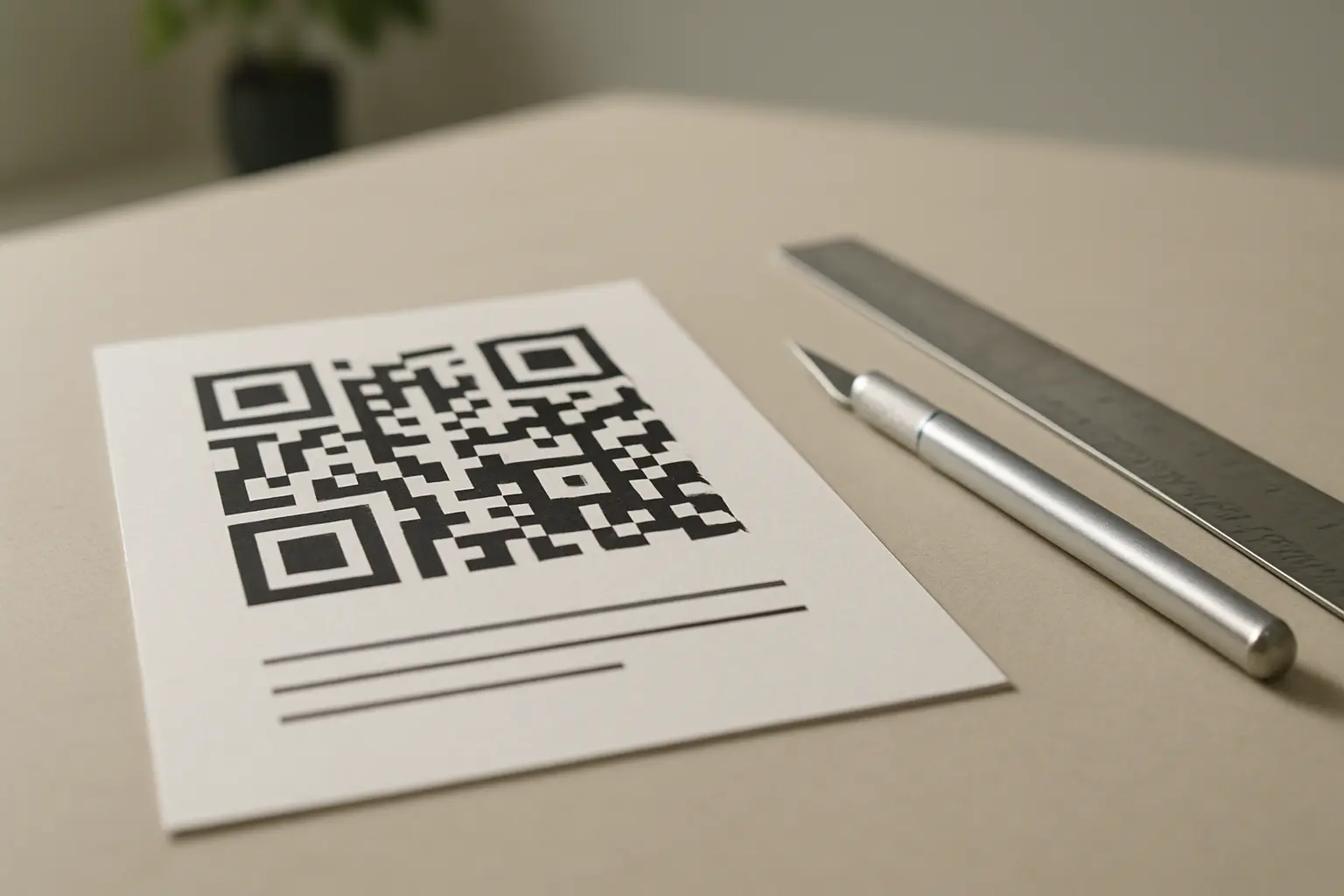
- Keep the margin clear. Denso Wave says a QR code requires a margin 4 modules wide on all sides. Table borders, wrapped text and background images can cut into it.
- Read the exported file. Save the document as a PDF, take a screenshot of the code and open it in the free QR code decoder. It reads the code in your browser and shows the link before you open it.
- Scan the print. Print 1 page and scan it with a phone camera (how to scan a QR code on iPhone and Android).
- Check the size. A code with a long link packs in more modules and needs more room on the page. How small a QR code can be and still scan has the sizes from our own decode test.
FAQ: QR codes in Word
How do I generate a QR code in a Word document?
Use the DISPLAYBARCODE field in Word for Windows, with the 6 steps above. Anywhere else, make the code in a generator and insert it as a picture: the field needs the Windows desktop app.
Does Microsoft Office have a QR code generator?
Word for Windows has 2 fields that make QR codes: DISPLAYBARCODE for a single code and MERGEBARCODE for 1 code per record in a mail merge. In Excel, a formula can show a code made by an online service: see how to generate a QR code in Excel.
Can I generate a QR code for a document?
Yes. Paste the file’s link into the PDF and file QR code generator, or upload the file with a free account. A document’s share link also works in the URL QR code generator. Check the share link opens for people outside your account before you print the code.
What is the easiest way to generate a QR code?
Paste the link into the free QR code generator and download the code. A static code needs no account, no card, and keeps working after you print it.