Blog
QR Code Email Signature: What Scans in Gmail and Outlook
On this page
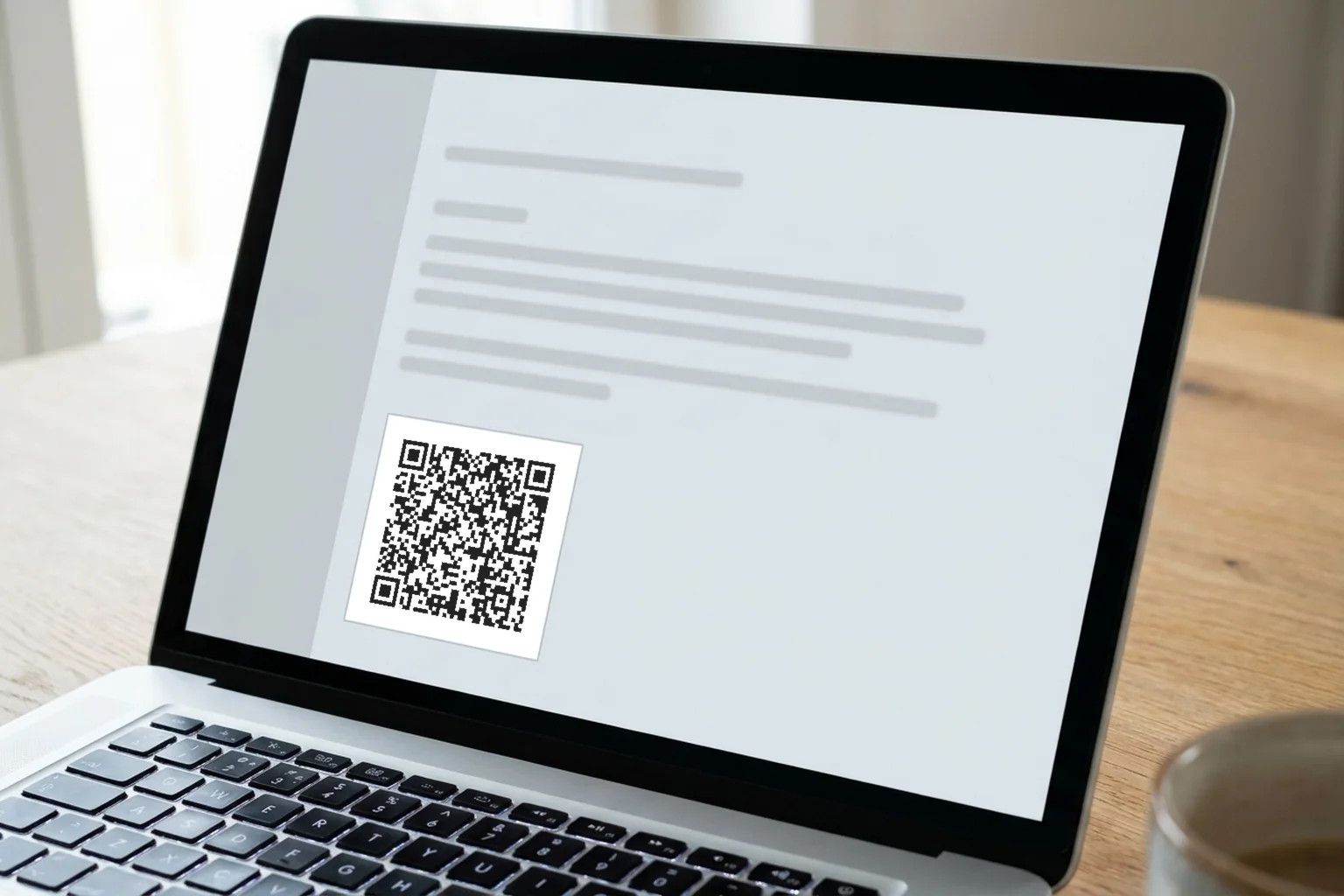
100 px high is the most Gmail allows for a signature image, and a phone cannot scan a code on its own screen. Those 2 limits decide how a QR code email signature works. It serves 1 kind of reader: someone at a laptop with a phone in reach. Anyone reading your email on a phone needs the same link next to the code, as text they can tap.
GmailFor Gmail and Outlook signatures: size, link and a scan test
So we measured which sizes a phone camera reads off a laptop screen. The Gmail and Outlook steps follow.
The test: which signature sizes a phone camera reads
We made 3 codes people put in signatures: a short link of 29 characters, like the redirect link inside a dynamic code; a profile link with UTM tags, 77 characters; and a vCard holding the contact itself, 188 characters. Each used the QRplify generator’s defaults (error correction M, a margin 2 squares wide), was saved as a 256 px PNG and was shown at 7 sizes from 64 to 256 px, as an email client scales a signature image.
Then we modeled a phone camera aimed at a 13 inch laptop screen with 2x pixel density, from 25 cm and from 40 cm: screen glow (no true black or white), blur, sensor noise, a slight tilt and JPEG compression. Each case ran 3 times with a different tilt and blur, and Apple’s Vision framework tried all 294 images on a Mac, plain screenshots included. 148 read. The camera is a simulation, so read the numbers as a ranking of sizes. Your own phone will differ.
| Shown at | Short link, 29 characters | Link with UTM tags, 77 characters | vCard with the contact, 188 characters |
|---|---|---|---|
| 64 px | Close 1/3, far 0/3 | Close 0/3, far 0/3 | Close 0/3, far 0/3 |
| 80 px | Close 3/3, far 0/3 | Close 1/3, far 0/3 | Close 0/3, far 0/3 |
| 96 px | Close 3/3, far 1/3 | Close 3/3, far 0/3 | Close 0/3, far 0/3 |
| 100 px, Gmail's maximum height | Close 3/3, far 1/3 | Close 2/3, far 0/3 | Close 1/3, far 0/3 |
| 128 px | Close 3/3, far 3/3 | Close 3/3, far 1/3 | Close 2/3, far 0/3 |
| 160 px | Close 3/3, far 3/3 | Close 3/3, far 2/3 | Close 3/3, far 0/3 |
| 256 px | Close 3/3, far 3/3 | Close 3/3, far 3/3 | Close 3/3, far 2/3 |
Close is the phone 25 cm from the screen, far is 40 cm. A plain screenshot of each link code decoded at every size, so every miss came from the camera stage.
What the numbers mean for your signature:
- Put a short link in the code. The short link read from both distances from 128 px up. The UTM link needed 256 px for that, and the vCard missed 1 of 3 far takes even at 256 px.
- Keep the contact card out of the code. 188 characters make a 57 by 57 grid, too fine for a signature. Link to a contact page instead.
- At Gmail’s 100 px, expect close scans only. The short link read every time from 25 cm and once in 3 from 40 cm.
- Where you set the size yourself, show it at 128 px or more, and at 256 px for any longer link. 256 px is also the size our QR code best practices give for an email signature.
We also redrew each code at 1.5 and 0.75 times its set size, as a client or display setting can. Enlarged, it read at least as well. Shrunk, it scanned like the smaller size it became, or worse: the short link set at 128 px and drawn at 96 px failed all 3 far takes, where a code set at 96 px read 1 of 3. How small can QR codes be has the measured minimum widths for short and long links.
Why the code always needs a link next to it
A phone is the scanner. When your email is open on that same phone, the camera cannot see the screen it sits behind. Some phones read a code from a screenshot in the photo app, but that varies by device. How to scan a QR code covers the ways phones read codes.
So every signature code gets a partner: the same destination as a link, directly under or beside it. A desktop reader scans, a phone reader taps, and both land on the same page.
Gmail adds a reason of its own: its help page notes a signature can hide behind 3 dots, under Show trimmed content. Keep anything urgent in the body of the email.
What to put in the code
A website link works, and it can be static: the free URL QR code generator makes one with no account. For a signature, a dynamic QR code fits better. It holds a short redirect link, which our test shows reads at smaller sizes, and you can change where it points without touching the signature in every inbox it already reached.
For a contact, use a page instead of a vCard inside the code. The dynamic vCard Plus QR code generator makes a code that opens a mobile contact page, where people save your details without typing, and you can update the page after you change jobs or numbers. A digital business card does the same for a business: description, hours, map link and social profiles on 1 page. Both are dynamic codes in a free account.
Our test of store links for Shopify QR codes found the same rule: a shorter link makes a smaller grid.
How to make a QR code email signature image
- Pick the destination. Your website, a booking page, a contact page or a review page, as short a link as you have.
- Make the code. Paste the link into the generator. Keep it dark on a light background, and skip the logo: a logo makes the generator raise error correction to High unless you picked a level yourself, which makes the grid denser.
- Download a PNG. The free generator saves PNG at up to 4096 px. Resize it to 256 px in any image editor before you add it to your signature, or to 100 px high for Gmail, its maximum. Gmail counts a signature image toward its 10,000 character limit, and a big file can trigger an error.
- Test the file. Open it in the free QR code decoder to check the link inside, then scan it on screen with your phone at the size your email client will show.
How to add a QR code to your Gmail signature
These steps come from Google’s Create a Gmail signature page and its signature troubleshooting page.
- Open the settings. In Gmail on a computer, click Settings at the top right, then See all settings.
- Find the signature. In the Signature section, add your signature text in the box, or click the signature you want to edit.
- Add the code as an image. Gmail offers 3 ways: a web address of a public image, an image from My Drive, or an upload from your device. An image from Drive only shows when its sharing is set to anyone with the link. On some work or school accounts only the web address option is available.
- Set the size. Select the image in the signature editor and choose Small, Medium, Large or Original size. Google recommends signature images 70 to 100 px high and lists 100 px high as the maximum.
- Add the link. On the line under the code, write a short call to action and the same link, such as “Book a call: yourdomain.com/book”.
- Save. Click Save Changes at the bottom of the page, then send yourself a test email.
How to add a QR code to your Outlook signature
Microsoft’s signature help page covers new and classic Outlook for Windows, Outlook on the web and Outlook.com. Outlook for Mac has its own page.
New Outlook, Outlook on the web and Outlook.com:
- Select Settings, then Accounts and Signatures.
- Select Add signature and give it a name.
- In the editing box, type your signature, add the code image and type the link under it. Microsoft’s page lists pictures among what a signature can hold, but its picture steps cover classic Outlook only.
- Use the checkboxes to add the signature to new messages, replies and forwards, then select Save.
Classic Outlook for Windows:
- Open a new email, then on the Message menu select Signature and Signatures.
- Choose New, name the signature, and write it in the Edit signature box.
- Select the Image button, find your code file and select Insert.
- To set its size, right click the image, choose Picture and open the Size tab. Keep Lock aspect ratio checked so the code stays square.
- Add the link on the line under the code, then select OK.
Microsoft notes that if you use Outlook and Outlook on the web with a Microsoft account, you create the signature in both.
| Gmail | Classic Outlook for Windows | New Outlook and the web | |
|---|---|---|---|
| Add the image | Web address, My Drive or upload | Image button, then Insert | Pictures allowed; steps only for classic Outlook |
| Size | Small, Medium, Large or Original; 100 px high at most | Picture, then the Size tab | Not stated on the help page |
Neither help page offers a QR code option, and QRplify has no Gmail or Outlook add-in. None is needed: the code is an image.
Track scans from your signature
A dynamic code counts its scans by city, device and time. To see the visits in your own analytics too, add UTM tags to the link before you make the code, such as ?utm_source=email&utm_medium=signature. QR codes and UTM tags shows the setup. Put the same tags on the text link under the code with a different utm_content value, and you can compare scans with taps.
The limit, stated before you plan around it: on a free account, once your codes pass 100 scans in a month, scans show a QRplify screen for 3 seconds before your page opens. Premium skips that screen on 5 codes, and the Unlimited and Lifetime plans never show it. Pricing lists what each plan adds.
FAQ: QR codes in email signatures
What size should a QR code be in an email signature?
256 px where you control the size, and at least 128 px for a short link, which read from 40 cm in our test. Gmail caps signature images at 100 px high, which read reliably only from close up.
Can someone scan a QR code in an email on their phone?
Not with the phone showing the email: the camera cannot point at its own screen. Put the same link next to the code so phone readers can tap it.
Should my signature QR code hold my contact details?
Hold a link instead. A vCard with your details made a 57 by 57 grid in our test and missed 1 of 3 far takes even at 256 px. A dynamic vCard Plus code holds a short link to a contact page you can update.
Is there a QRplify add-in for Gmail or Outlook?
No. QRplify has no add-in, plugin or connector for Gmail or Outlook. You make the code, save it as a PNG at 256 px, or 100 px high for Gmail, and add it to your signature as an image.