Blog
How to Make a QR Code for a Discord Server
On this page
To make a QR code for a Discord server, 1) create a Discord invite link with the right expiration settings, 2) paste that link into a QR code generator, and 3) download a print-safe file (SVG/PDF or high-resolution PNG) and test scans on phones. Printed codes fail most often due to expired invites, low contrast, or small size.
You’ll create a Discord invite link, convert it into a QR code, and prep it so it scans reliably on phones, whether you share it on-screen or print it. The 2 things that break Discord QR codes most often are invite links that expire and QR images that are not prepared for real-world scanning.
TLDR: Create an invite link that will not unexpectedly expire, then generate a QR code from that link and export it in a format that will not blur when resized. Keep a quiet zone, use high contrast, and test on at least one iOS device and one Android device before you print or publish.
What is a Discord server QR code?
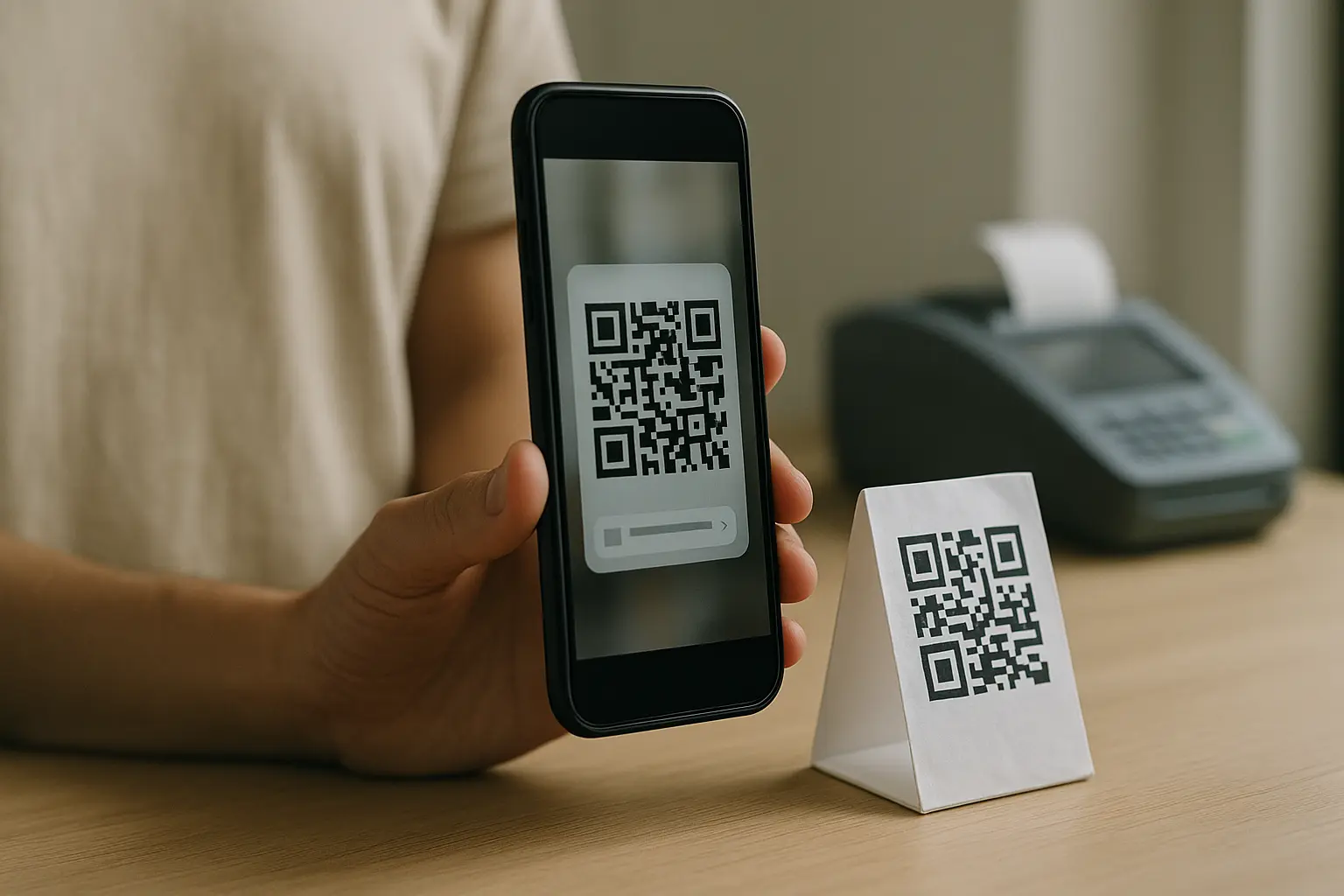
A QR code for a Discord server is simply a QR code that encodes a Discord invite link. When someone scans it with their phone camera (or a scanner app), it opens the invite and lets them join your server without typing anything.
This is the same QR standard used across many industries, defined under ISO/IEC 18004. QR codes can store a lot of data, but for Discord you typically only need to encode the invite link, not extra text.
Common use cases include:
- Event signage and posters where people join on the spot.
- New member onboarding for clubs, classes, or workplaces.
- Stream overlays where viewers scan from another device.
- Printed merch inserts, table tents, or flyers where typing an invite is inconvenient.
Step 1: Create a Discord server invite link (and decide expiration)
Everything starts with the Discord invite link. If the invite stops working, your QR code still scans, but it sends people to a dead end.
How long do Discord invite links last? It depends on the invite settings and server permissions: an invite can be set to expire after a time window or after a certain number of uses, or it can be configured to not expire. Server admins and moderators can also revoke invites manually, which also breaks any QR codes that point to them.
This is the practical decision you are making:
- If you want a QR code that can live on a poster or handout for a long time, you generally want an invite that will not unexpectedly expire.
- If you want a QR code for a short event or limited access, a temporary invite may be appropriate, but you should plan for the QR code to stop working after the event.
Discord also supports custom invite links for some servers, but those are not generally available to every server. At a high level, custom invite links are tied to the highest tier of Server Boosting (often referred to as Server Boost Level 3). If your server does not qualify, you can still use standard invites.
Here is a tool-agnostic way to create the link inside Discord:
- Open Your Server In Discord.
- Select Invite People (Or An Invite Option In Your Channel Or Server Menu).
- Review Invite Settings Such As Expiration And Any Usage Limits (If Shown In Your Interface).
- Create The Invite And Copy The Invite Link.
- Store The Link Somewhere Safe So You Can Re-Check It Right Before Printing Or Posting.
To keep a printed QR code working, treat the invite link like the “single point of failure.” If it expires, gets deleted, or gets replaced, a static printed QR code becomes outdated.
Step 2: Turn your Discord invite link into a QR code
Discord does not provide a native QR code generator for invite links, so you typically use a third-party QR generator workflow. The goal is straightforward: convert the invite URL into a scannable code that opens the correct destination.
If you are searching for how to make a qr code for discord server, this is the core workflow:
- Copy Your Discord Invite Link.
- Paste It Into A Discord QR code generator’s URL Field.
- Generate The QR Code.
- Scan-Test It Once Before You Customize Anything.
- Save Or Download The QR Code In A Usable Format.
In this step, you are effectively creating a discord server invite link qr code. Before you style it, confirm it resolves correctly by scanning it with a phone camera and checking that the invite preview is for the right server.
A fast validation habit that prevents most mistakes is to scan and confirm:
- The invite opens Discord (or the Discord web join flow).
- The server name and icon match what you intended.
- The invite is still valid (not expired or revoked).
Static vs dynamic QR codes for Discord invites (which should you use?)
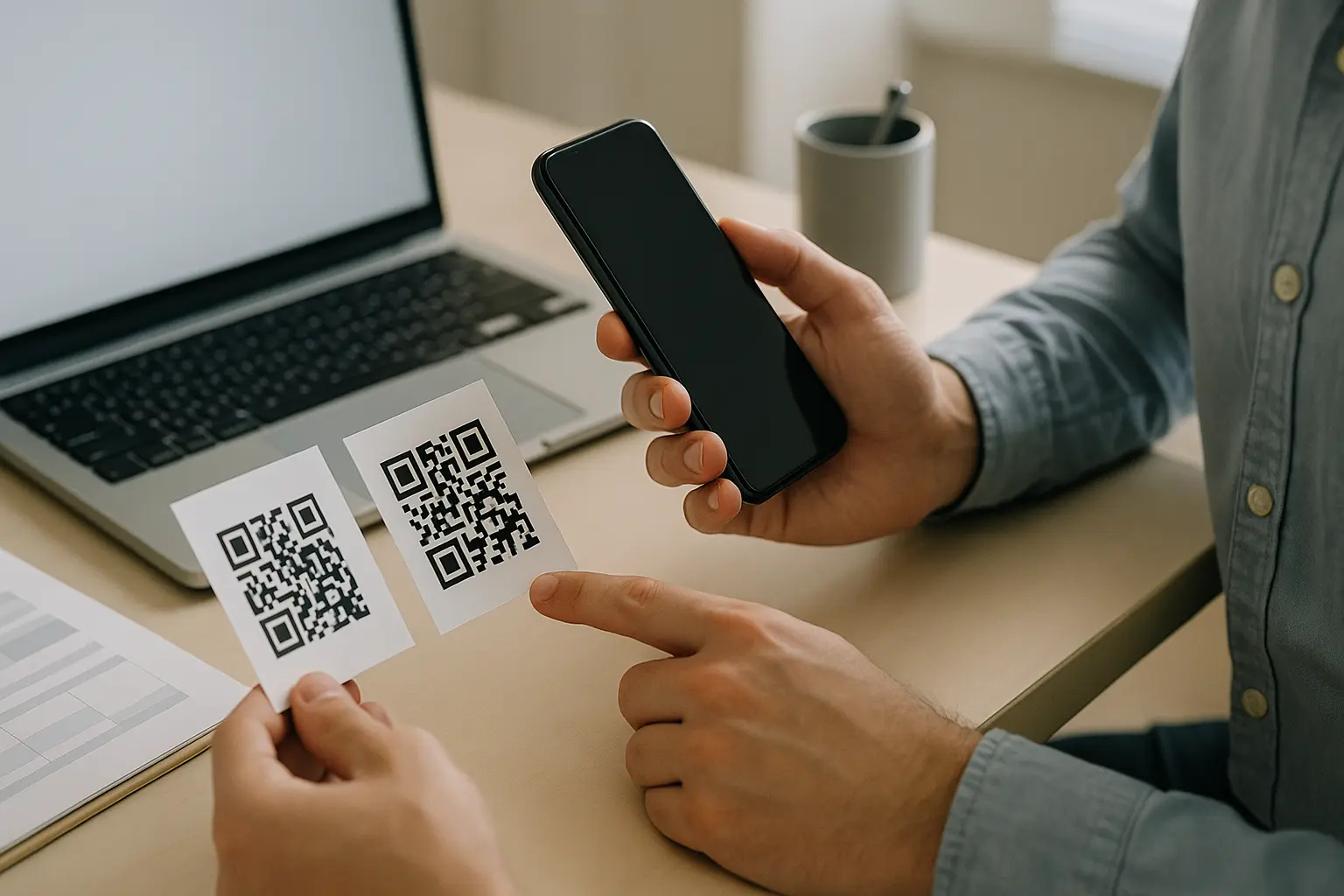
A QR code can be static or dynamic, and this choice determines what happens if you need to change the destination after you have printed or shared it.
What’s the difference between a static and dynamic QR code? A Static QR code encodes the destination directly and stays fixed, while a Dynamic QR code typically points to a redirect you can update later. This varies by tool, but dynamic setups may also provide scan analytics.
Can I edit a QR code after it’s printed? Not if it is static: the printed pattern encodes the original destination, so changing the invite means generating and reprinting a new code. This varies by tool, but with a dynamic code you may be able to update the destination behind the scenes without changing the printed QR image.
Can I track how many people scan my Discord QR code? This varies by tool: a static code generally does not include tracking by itself, while a dynamic code may offer scan counts and other analytics because the scan hits a managed redirect first.
Use this table to choose based on reprint risk and whether you need editability:
| Type | Destination Behavior | Edit After Printing | Tracking/Analytics | Reprint Risk If Invite Changes |
|---|---|---|---|---|
| Static QR code | Encodes the Discord invite link directly | No | No (By Default) | High |
| Dynamic QR code | Points to a redirect that forwards to the invite | This varies by tool | This varies by tool | Lower |
Takeaway: If you might need to swap invites later, a dynamic qr code for discord invite can reduce reprint risk, while a static qr code for discord invite is simplest when you are confident the invite will stay valid.
Customize your Discord invite QR code (without breaking scanning)
Customization is where many Discord invite QR codes fail in the real world. You can style a QR code, but you cannot change the core structure too much without reducing scan reliability.
Can I customize the look of my QR code to match my server’s branding? Yes, as long as you keep strong contrast, preserve the quiet zone, and do not cover too much of the code with a logo. If you add a logo, choose an appropriate error correction level (L, M, Q, or H) and test scan on multiple devices.
Common customization options you may see in generators:
- Foreground and background colors.
- A centered logo or icon (for example, to customize discord invite qr code logo).
- Frames, borders, and corner styles.
Error correction and why it matters
QR codes support 4 error correction levels: L, M, Q, and H. Higher levels can tolerate more damage or obstruction, but they can also make the code denser. This varies by tool, but if you plan to place a logo in the center, a higher error correction level is often used to preserve scan reliability.
Visual 1: Annotated quiet zone and high-contrast example (diagram)
Use this mental model when reviewing your design. The quiet zone is the blank margin around the code that scanners use to detect boundaries.
[White Background / Poster]

    Quiet Zone (Blank Margin)
    ┌──────────────────────────────┐
    │                              │
    │   █ ███ █  ████  █ ███ █     │
    │   █  █  █  █  █  █  █  █     │
    │   ███ ███  ████  ███ ███     │
    │                              │
    └──────────────────────────────┘
        Quiet Zone (Blank Margin)

High Contrast Example: Dark Code On Light Background
Risky Example: Light Gray Code On Dark Busy Background
This varies by tool, but a common guideline is a quiet zone of at least 4 modules on all sides. If your generator adds a frame, confirm it does not squeeze the quiet zone.
Visual 2: Before/after safe vs risky customization (examples)
Safer customization (good):
- Dark foreground on a plain light background.
- Logo is small and centered.
- Corners are stylized lightly, not to the point that modules disappear.
- Quiet zone is clearly visible.
Riskier customization (avoid):
- Low contrast (light code on light background, or dark code on dark background).
- Busy background image behind the code.
- Large logo that covers the code’s data area.
- Tight crop that removes the quiet zone.
After any design change, scan-test again. Styling is the fastest way to accidentally turn a working code into an unscannable one.
Download format checklist: PNG vs SVG vs PDF
Download format affects whether your QR code stays sharp when resized for posters, signage, or screens. If edges blur, scanners struggle.
Use these rules of thumb:
- PNG is common for web and on-screen use. It is pixel-based, so resizing up can blur edges if the source file is too small.
- SVG is vector-based. This varies by tool, but an SVG is often preferred for printing because it can scale without quality loss. If you need a discord server qr code svg download, choose SVG when available.
- PDF is often used for print workflows, especially if you are placing the QR into a flyer or poster design file.
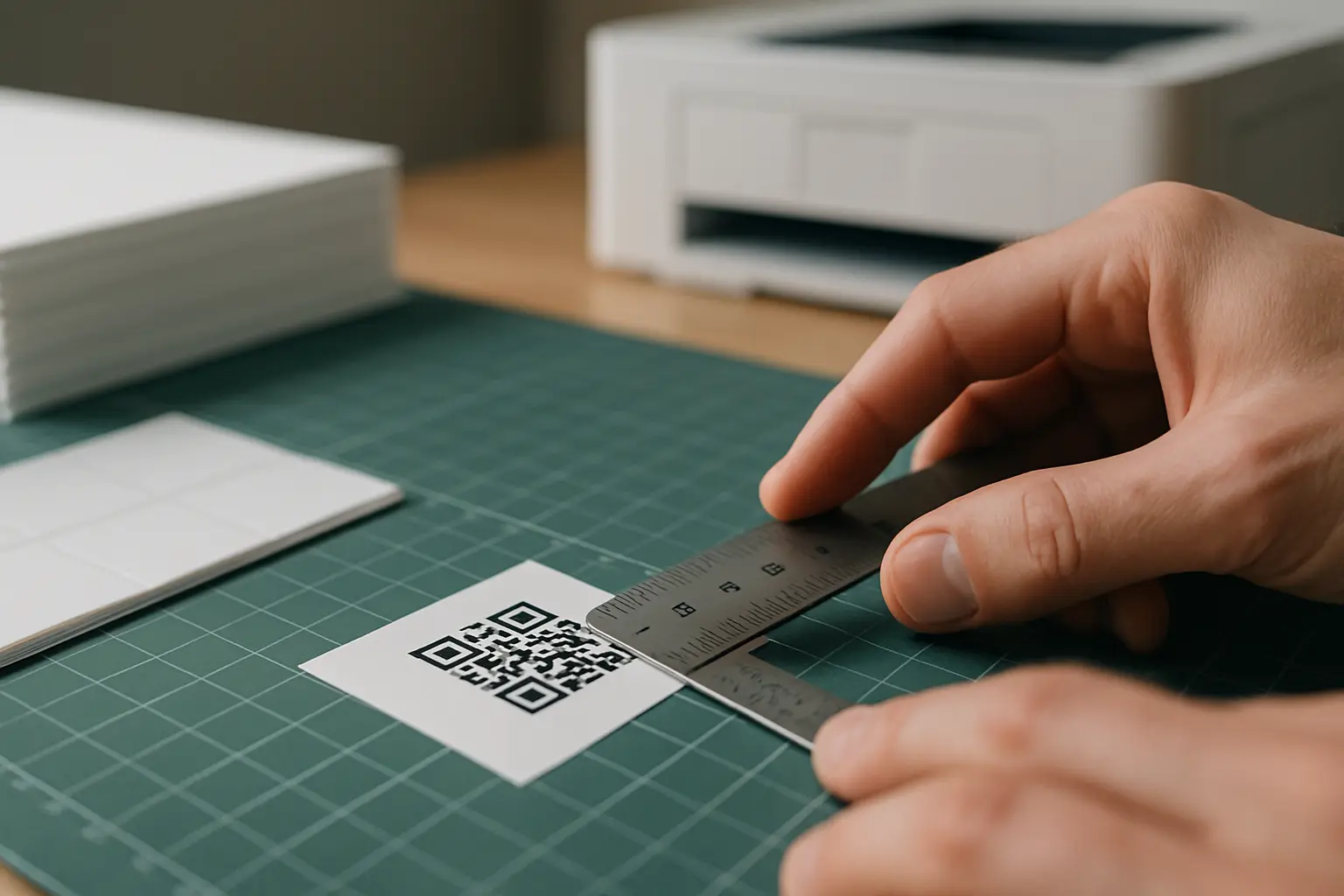
This varies by tool, but for print applications, prepare the QR at a suitable print resolution. A common guidance point is discord server qr code 300 dpi printing as a minimum, with 600 DPI recommended for premium materials. If your generator lets you choose DPI on export, match it to the print workflow you are using.
A quick print-and-screen readiness check:
- For print: Prefer SVG or PDF, or a high-resolution PNG generated at print size.
- For screen: PNG is usually fine, but keep it large enough and avoid compression that adds blur.
Print and placement basics: size, distance, contrast, and quiet zone
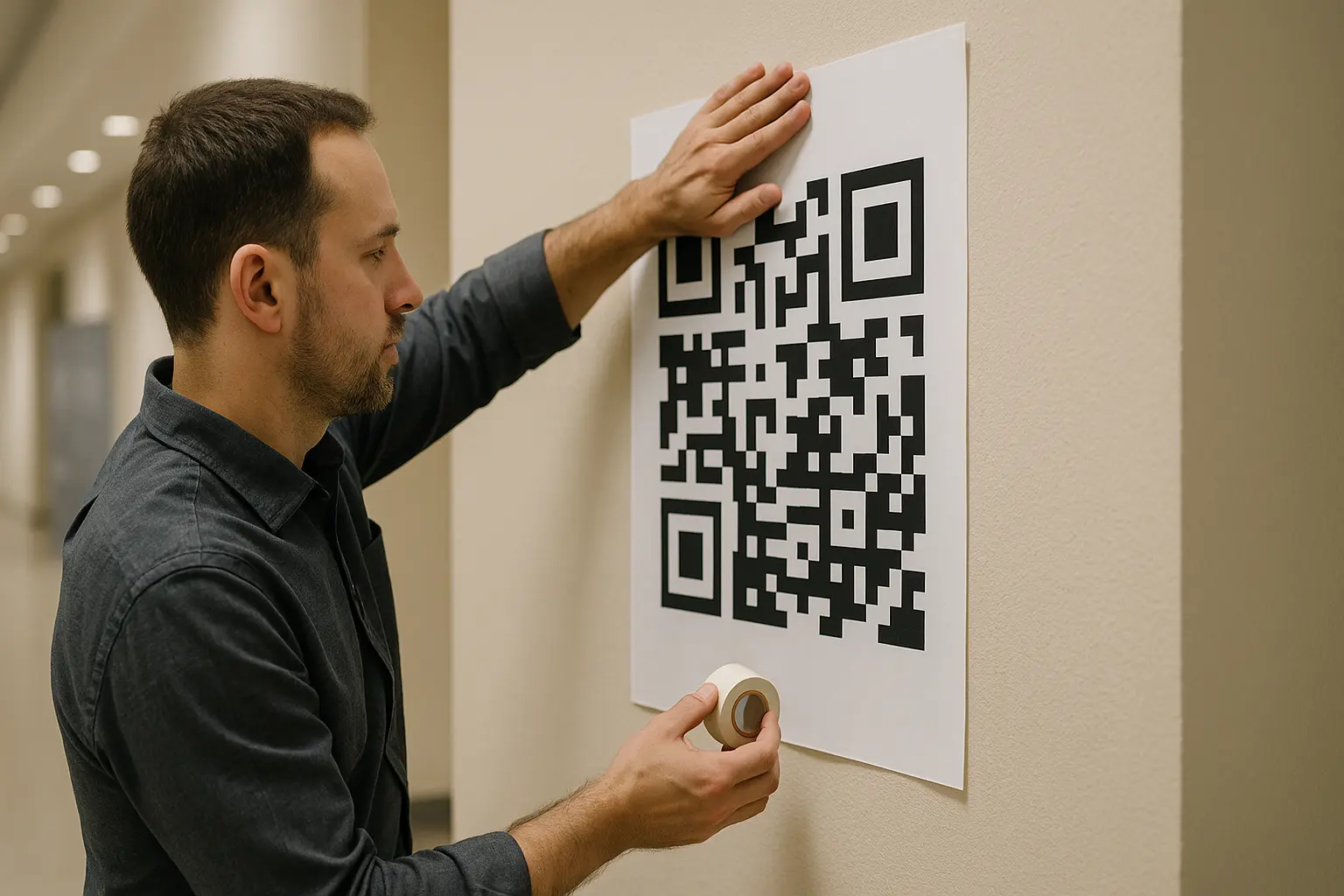
Printed QR codes fail due to size, glare, and poor placement more often than due to the QR pattern itself.
Size and distance (10:1 rule of thumb)
This varies by tool and setup, but a common rule of thumb is the 10:1 scanning distance rule: the QR code should be at least 1/10th the size of the distance from which people will scan it.
Here is a simple guide you can use when planning signage:
| Expected Scan Distance | Recommended Minimum QR Code Size (10:1 Rule) |
|---|---|
| 20 cm | 2 cm |
| 50 cm | 5 cm |
| 1 m | 10 cm |
| 2 m | 20 cm |
| 3 m | 30 cm |
Takeaway: If you want people to scan from farther away, you need a physically larger code, not just a higher DPI export.
Minimum print size, contrast, and placement
The discord server qr code minimum print size depends on distance, lighting, camera quality, and how dense the QR code is. If you are unsure, go larger than you think you need, especially for posters and event signage.
Keep these placement rules:
- Use dark-on-light contrast whenever possible.
- Avoid glossy finishes where overhead lights create glare.
- Do not place the code across folds, seams, or textured materials.
- Preserve the quiet zone. This varies by tool, but aim for at least 4 modules of blank margin.
Example: Event poster use case: Put a large, high-contrast QR code in a clear area of the poster, then do scan testing in the actual venue lighting. If the poster will be viewed from a line or entryway, size it for that distance, not for arm’s-length scanning.
Example: Stream overlay use case: Make the on-screen code larger than you think you need and keep it on a flat, non-busy background. Viewers often scan from a second device at an angle, which makes scanning harder.
Test it before you share it (and fix common scanning problems)
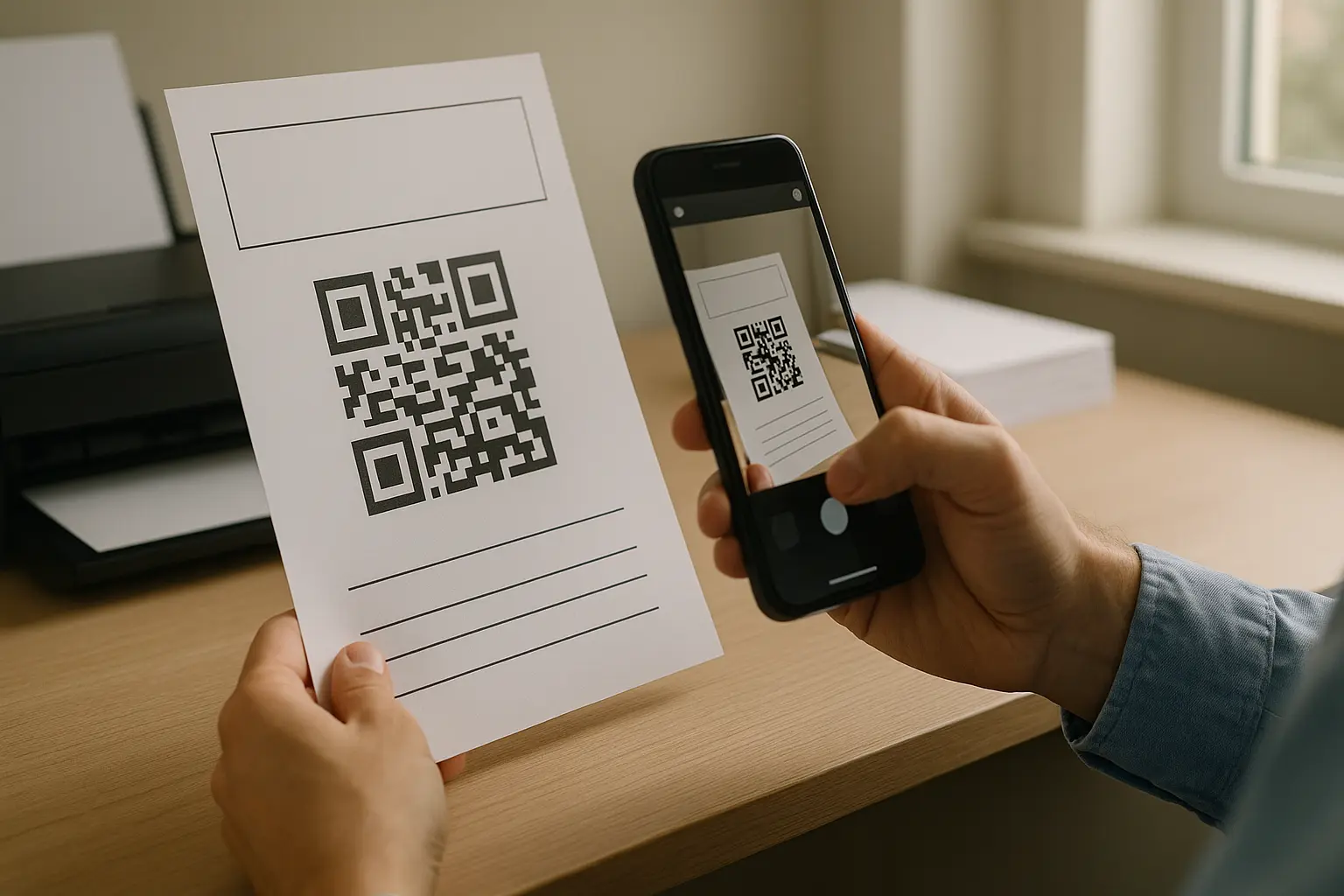
If you only do one quality step, do this: scan-test the final code in the way people will actually use it. That means testing the exported image, not just the generator preview.
This is where you validate test discord server qr code scanning in real conditions.
A simple multi-device scan routine
- Test On An iOS Device Using The Camera App.
- Test On An Android Device Using The Camera App Or Built-In Scanner.
- Test In Bright Light And Dimmer Indoor Light.
- Test At The Expected Scan Distance (Arm’s Length, Or Further For Posters).
- Confirm The Invite Opens The Intended Server And Still Works.
Troubleshooting flow for QR codes that will not scan
What if my QR code won’t scan? Most failures come from low contrast, small printed size, glare, blurry exports, or a missing quiet zone, not from the Discord link itself. Fix the design first, then re-test, and finally confirm the invite link still works and has not expired or been revoked.
If scanning fails, work through this in order:
- Confirm the destination: Scan with a different device to rule out a broken link or an expired invite.
- Increase contrast: Use a darker code on a lighter background.
- Increase size: Especially for posters or on-screen overlays.
- Remove visual noise: Eliminate busy backgrounds and avoid gradients.
- Restore quiet zone: Add more blank margin around the code.
- Improve export quality: Re-export as SVG/PDF for print, or regenerate a higher-resolution PNG.
Quick checks (before posting or printing)
- Invite Link Opens The Correct Server.
- Invite Link Won’t Unexpectedly Expire (Confirm Settings And Re-Check Before Printing).
- QR Has Sufficient Quiet Zone.
- High Contrast (Dark On Light) And Not Too Small.
- Export Is Print-Ready (SVG Or Adequate Resolution And DPI).
- Test Scan On At Least One iOS Device And One Android Device.
If you are still stuck, regenerate the code from scratch using the same invite link, then repeat the checks. Some failures come from accidental cropping or compression after export.
Security checklist: keep your Discord invite QR code safe to share
A QR code is a shortcut to a destination. If the destination is wrong or gets swapped, people can end up in the wrong place.
Is it safe to share a QR code that links to my Discord server? It can be, if you verify the destination invite and control who can create or replace invites in your server. Treat Discord invites as something that can be copied, reshared, and spoofed, and re-check your invite before printing or widely distributing a QR code.
Keep this mini-playbook in mind, especially for printed materials you cannot easily recall:
- Verify the destination invite before you publish:
- Scan the QR and confirm the server identity is correct.
- Confirm the invite is still valid right before printing.
- Reduce the risk of stale invites:
- Avoid using invites that will expire if you plan to print the code.
- If you must use a temporary invite for an event, plan to remove or replace signage afterward.
- Watch for hijacked or malicious invite scenarios:
- Be cautious about reposts of your QR code in places you do not control.
- Avoid scanning unknown QR codes and avoid sharing codes from untrusted sources.
- If you notice the invite destination is not your server anymore, stop distribution and issue a new invite.
Security is also why it is smart to keep control over who can generate invites in Discord. Moderation and permissions vary by server, but the principle is simple: the fewer people who can create or revoke public invites, the easier it is to keep QR destinations consistent.
Optional: Bulk QR codes for multiple servers or channels (CSV workflow)
If you run multiple communities, events, or sub-groups, creating codes one-by-one gets tedious. Many platforms support batch generation, but this varies by tool.
A common approach is bulk discord invite qr codes csv, where you upload a CSV file that contains invite links (and sometimes labels), and the tool generates a set of QR codes in one run.
Typical use cases:
- Separate invites per event session, table, or team.
- Multiple servers under one organization.
- Different channels or onboarding paths, each with its own invite link.
A high-level CSV workflow looks like this:
- Create All Needed Discord Invite Links And Label Each One Internally.
- Put The Labels And Invite Links Into A CSV File (One Row Per QR Code).
- Upload The CSV Into A Generator That Supports Batch Creation (Tool-Dependent).
- Download The Generated Files In Your Needed Formats.
- Scan-Test A Sample From The Batch Before You Print Or Publish.
When batching, consistency matters. Use the same sizing rules, keep the same quiet zone, and use the same contrast choices across the set.
FAQ (quick answers)
Can I edit a QR code after it’s printed? Only if you used a dynamic QR setup that lets you change the redirect destination later, which varies by tool. If the QR is static, you must generate and reprint a new code when the invite changes.
Can I track how many people scan my Discord QR code? This varies by tool. Static codes do not track scans by themselves, while dynamic QR systems may provide analytics because they route scans through a managed link first.
What if it won’t scan? Start by increasing size and contrast, then confirm the quiet zone is intact and the export is not blurry. If those are fine, verify the Discord invite link still works and has not been revoked or set to expire.
Is it safe to share? It can be safe if you verify where the QR code goes before distributing it and you keep control of invite creation in your server. Re-check the scanned destination right before printing, and be cautious about unknown QR codes or reposts in untrusted places.