Blog
Bulk QR Code Generator: How to Generate QR Codes in Bulk
On this page
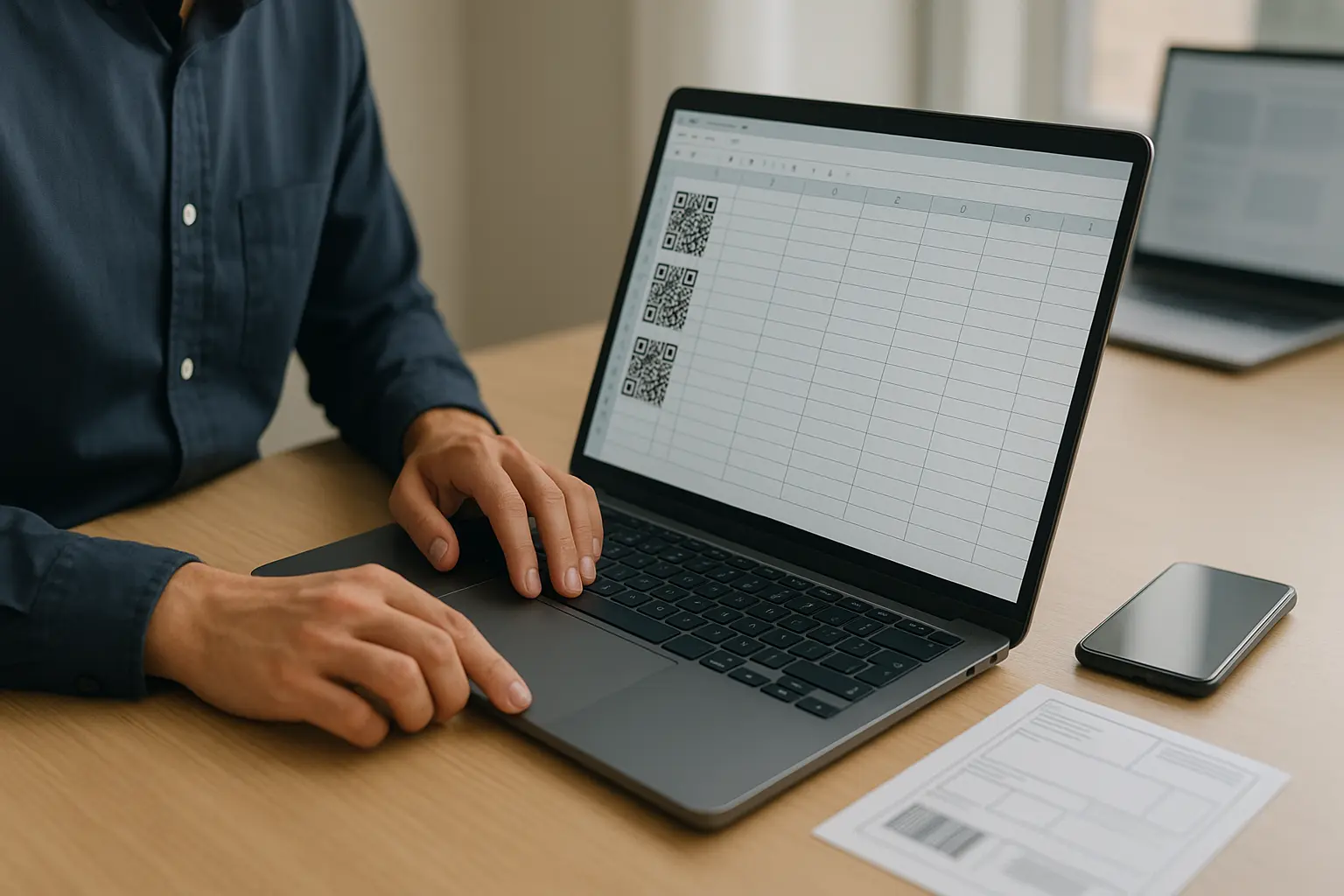
A bulk QR code generator creates many unique QR codes in one run by using a spreadsheet (usually CSV or XLSX (Excel)) where each row becomes a different code. Instead of building codes one by one, you upload data, validate it, apply one design, and export everything for print or digital use.
- CSV or Excel upload as the input
- One row per QR code
- Batch download, often as a single
ZIP file
This guide shows how bulk (batch) QR code generation works using CSV/Excel uploads, plus how to choose static vs dynamic, export print-ready files, and avoid common batch mistakes. The spreadsheet step and the print step are where most bulk projects go wrong, so the checklists below focus there.
TLDR: Use a clean spreadsheet where each row represents one destination and one label, then generate a batch with one consistent design and export in the right format for printing or screens. Decide static vs dynamic before you print, and scan-test a sample set across devices to catch data and design issues early.
What is a bulk QR code generator?
A bulk QR code generator is a tool or workflow that turns a single uploaded data file into many distinct QR codes at once. The key difference from single-code creation is that you prepare the data first (one row per code), then generate and export the whole set together.
You will also see the same idea described as a batch QR code generator, QR code batch generation, bulk QR code generation, or a multi QR code generator. The output can be a folder of images, a batch download bundle, or a print-ready document, depending on the platform.
Bulk generation is the right approach when you need unique codes for each item, person, or location. That can be dozens, hundreds, or thousands of codes, where manual setup would be slow and error-prone.
QR codes themselves were invented in 1994 by Masahiro Hara at DENSO WAVE. The specs were later made publicly available, and the standard is maintained under ISO/IEC, commonly referenced as ISO/IEC 18004.
Common use cases for bulk QR code generation
Bulk generation is most useful when each QR code must be unique, even if the visual design stays consistent.
- Asset and inventory tracking: One QR code per asset label, shelf location, or container.
- Event ticketing and check-ins: One QR code per attendee or ticket record.
- One-time use vouchers and coupons: One QR code per recipient or per redemption attempt.
- Retail store localization and location-specific codes: One QR code per store, aisle, display, or region.
- Product packaging and labeling: One QR code per SKU, batch, or package variant, sometimes aligned with GS1 Digital Link patterns.
Example bulk campaign: event tickets (unique QR per attendee).
Example bulk campaign: inventory labels (unique QR per asset).
Example bulk campaign: one-time voucher/coupon batch.
If you are working in supply chain or retail, you may also run into GS1-related QR use. GS1-compliant QR codes can encode identifiers like a GTIN and other structured attributes, which can matter for point-of-sale and distribution workflows. Whether you need GS1 Digital Link formatting depends on your system requirements.
How bulk QR code generation works (CSV upload workflow)
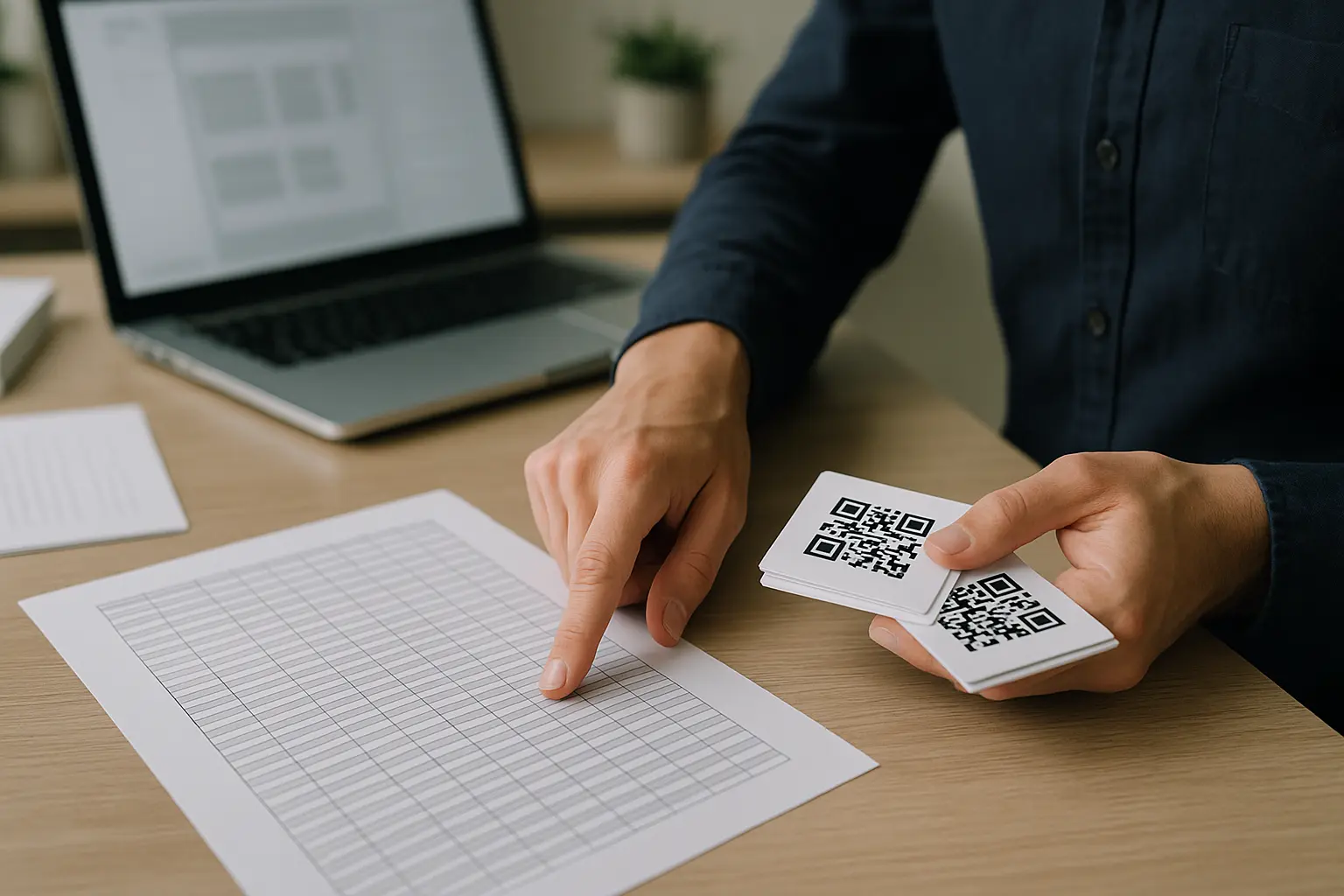
Most platforms follow the same high-level model: you upload a spreadsheet, the generator creates one QR code for each row, applies one design template across the batch, then provides a bulk export.
The data file is usually CSV or XLSX (Excel). The most reliable mental model is simple: unique QR code per row. A “destination” might be a URL, text, or a structured payload, depending on what the tool supports.
how to generate qr codes in bulk from csv typically looks like this:
- Export or build your spreadsheet with one row per QR code.
- Confirm required columns and fill in destinations (often URLs) plus a unique name/label.
- Upload the
CSVorXLSX (Excel)file to your generator. - Review validation results and fix any flagged rows (missing fields, broken URLs, duplicates).
- Apply a consistent design across the batch (colors, logo, frame), if the tool supports it.
- Generate the codes and run a
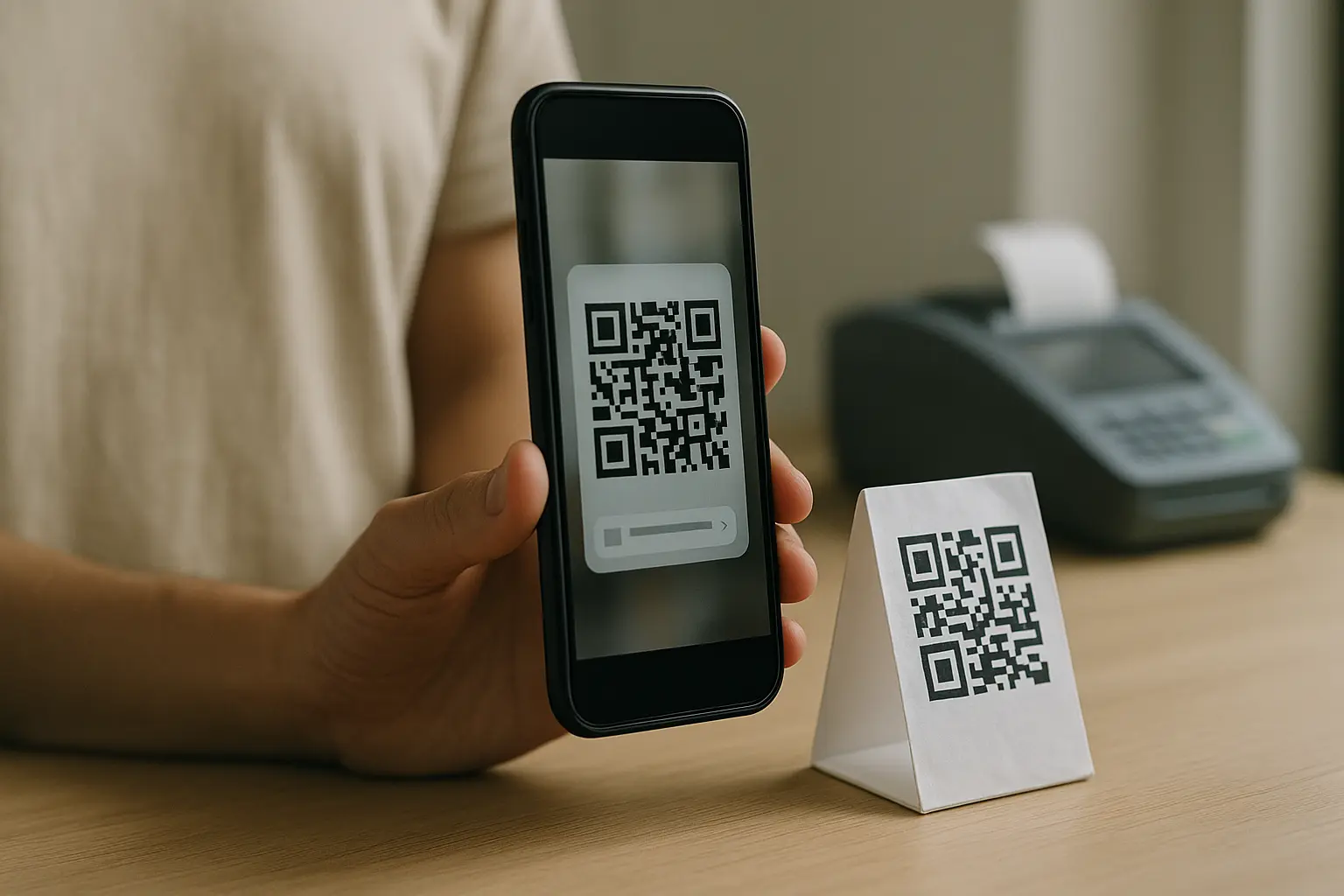
batch download(often delivered as aZIP file). - Scan-test a sample set before you print or distribute.
Many tools include pre-generation checks, such as URL validation, required-field checks, and row-level error reports. That validation step is what saves you from printing hundreds of broken codes.
One row = one QR
Hypothetical sample rows (fields vary by tool):
| ID (Optional) | Destination URL (Required) | QR Code Name (Required) | PIN Code (Optional) | Sticker (Optional) | Folder Name (Optional) | Allowed Scans | Template ID |
|---|---|---|---|---|---|---|---|
| A-001 | https://Website1.example/asset/A-001 | Asset-A-001 | Blue | Warehouse-1 | Template-1 | ||
| T-104 | https://Website1.example/ticket/T-104 | Ticket-T-104 | Event-CheckIn | Template-1 | |||
| C-778 | https://Website1.example/coupon/C-778 | Coupon-C-778 | 4821 | Red | Coupons-January | 1 | Template-2 |
Takeaway: If each row is complete and clean, bulk generation is mostly a predictable upload → validate → generate → export loop.
Prepare an Excel/CSV file that generates cleanly
The spreadsheet is where most batch failures start. Before you upload anything, confirm what columns are required for your chosen platform. Required vs optional columns are tool-dependent, but the same failure patterns show up everywhere.
batch qr code generator from excel spreadsheet projects go smoother when the file is simple and consistent:
- Keep one header row and one record per row.
- Avoid merged cells, hidden rows, and mixed data types in the same column.
- Remove leading and trailing spaces, especially in URLs and names.
- Use consistent naming conventions so you can find, group, and re-export later.
Spreadsheet-first checklist (failure points and prevention)
Quick check: Pre-upload data hygiene checklist
- Check For Empty Rows In The Middle Of The File.
- Check For Missing Required Columns Or Misspelled Headers.
- Trim Extra Spaces In URLs, Names, And IDs.
- Check For Merged Cells Or Multi-Line Cells.
- Check For Duplicate “QR Code Name” Values If Your Tool Requires Unique Names.
- Validate That Every Destination URL Uses The Exact Intended Domain And Path.
Required vs optional columns (tool-dependent)
This varies by tool. One common pattern is a required destination (often a URL) plus a required name/label, then optional management fields like folder, template, or scan controls.
| Column | Often Required? | What It Controls | Common Spreadsheet Errors |
|---|---|---|---|
| ID | Optional | Your internal identifier | Duplicates, leading spaces |
| Destination URL | Required | Where the code points | Missing https://, hidden spaces |
| QR Code Name | Required | Human label for management | Duplicates, inconsistent naming |
| PIN Code | Optional | Gate or access step (tool feature) | Losing leading zeros in Excel |
| Sticker | Optional | Print label or tag type (tool feature) | Mixed spellings (Blue vs blue) |
| Folder Name | Optional | Organizing/reporting group | Extra spaces, inconsistent grouping |
| Allowed Scans | Optional | Scan limit logic (tool feature) | Non-numeric values |
| Template ID | Optional | Visual template selector | Wrong ID format |
Takeaway: Treat the header row as a contract. If the headers or formats drift, bulk uploads fail or create messy output.
What file format should my data be in (CSV, XLSX, Excel)? Use CSV when you want the simplest, most portable upload, and use XLSX (Excel) when you need Excel-friendly editing before export. Many generators accept both, but CSV avoids issues like hidden formatting and auto-changed values.
A practical workflow is to edit in Excel, then export to CSV right before upload. If you do that, double-check fields Excel tends to “helpfully” alter, such as long IDs, values with leading zeros, or anything that looks like a date.
Static vs dynamic QR codes for bulk campaigns
Choosing a static QR code vs a dynamic QR code is a bulk decision first, not a design decision. The choice affects what happens after you print thousands of labels or ship packaging you cannot change.
- Static: The encoded content is fixed at generation time.
- Dynamic: The QR code often points to a redirect or managed destination that can be edited later.
What is the difference between static and dynamic QR codes in a bulk generator? A static code cannot be changed after it is created, while a dynamic code can often be updated later without reprinting. In bulk printing, that difference determines whether a small mistake forces a full reprint.
In bulk, the highest reprint risk happens when any of these might change after printing:
- Destination URLs, campaign landing pages, or tracking parameters
- Store locations or assigned assets
- Ticket rules, redemption rules, or per-recipient access logic
This varies by tool. Some platforms can stop dynamic destinations if a subscription lapses or the account status changes, so treat “editable later” as a feature with operational dependencies.
| Bulk Scenario Question | Static QR Code | Dynamic QR Code | What Changes After Printing |
|---|---|---|---|
| Can I fix a wrong URL without reprinting? | No | Often yes | Static forces reprint; dynamic may allow edit |
| Can I see per-code scans? | Usually no | Often yes | Dynamic can support scan analytics |
| Is it safer for packaging that ships widely? | Often yes | Depends on plan/tool | Dynamic can change later, which can be good or risky |
| Do I need one-time logic for coupons? | Possible via unique URLs | Often supported | Dynamic platforms may add access rules |
| Am I worried about plan changes breaking codes? | Less | More | This varies by tool and account status |
| Do I want the simplest long-term behavior? | Yes | Depends | Static has fewer moving parts |
Takeaway: In bulk printing, dynamic is mainly about reducing reprint risk when destinations can change.
Do bulk-generated QR codes expire, or are they valid indefinitely? A static QR code generally stays valid as long as the encoded content remains reachable. This varies by tool for dynamic QR codes, since they may rely on a managed redirect that can be affected by plan changes or account status.
Branding and design customization at batch scale
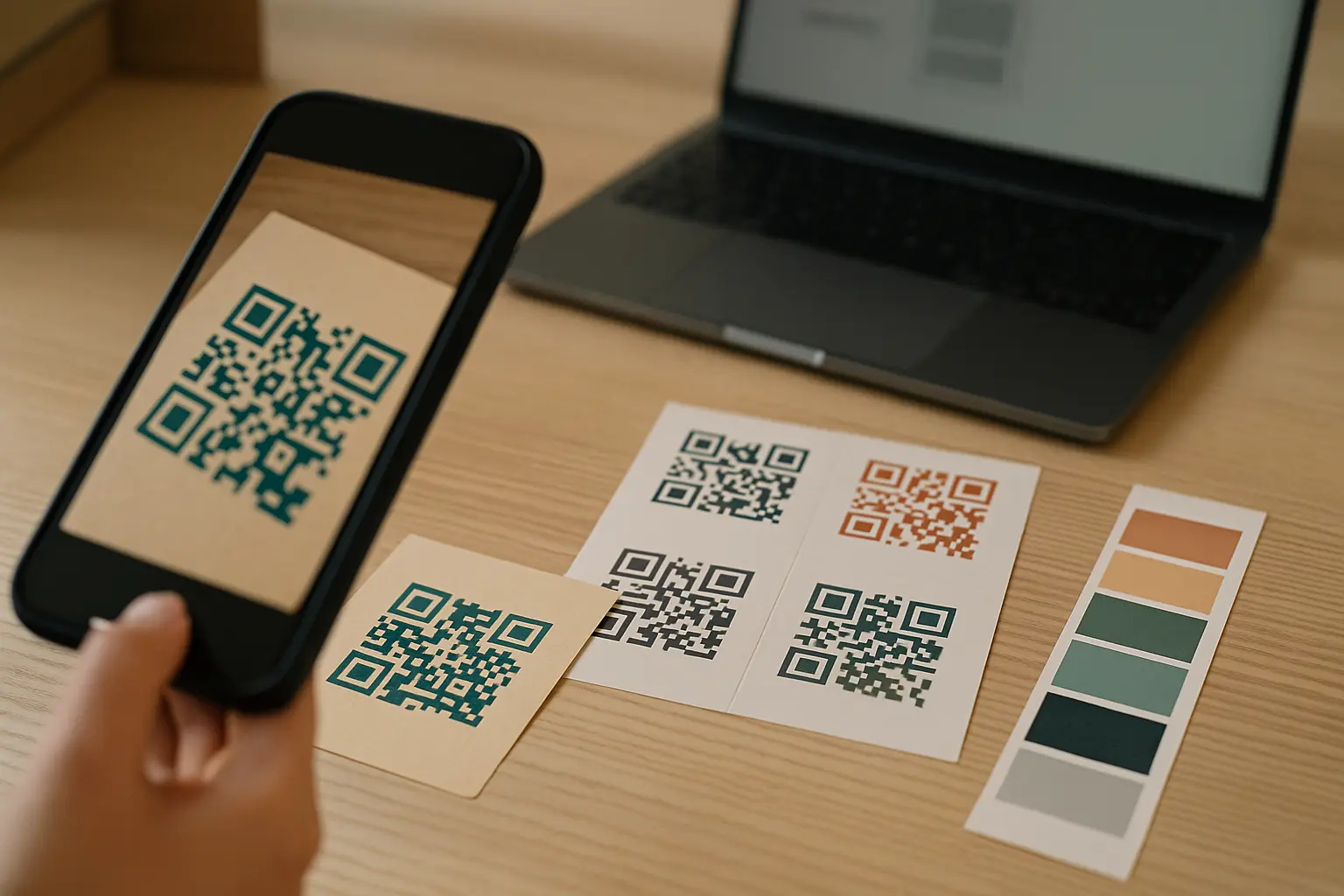
Branding matters, but scannability matters more. At batch scale, small design choices multiply into hundreds of failures if you push contrast too far or crowd the code.
bulk qr code generator with logo branding is usually implemented by applying one design template across the whole batch. That is better than editing each code, but you still need guardrails:
- Keep foreground and background contrast high.
- Avoid busy patterns that make the modules hard to distinguish.
- Keep the logo modest and centered.
- Protect the quiet zone around the QR code so scanners can detect edges.
A QR code also includes error correction, implemented with Reed-Solomon coding. Depending on level L, M, Q, or H, QR codes can recover from about 7%, 15%, 25%, or 30% damage. Higher error correction can help with minor damage, but it does not fix poor contrast, missing quiet zone, or overly stylized designs.
Can I customize the design of all codes in a batch, or do I have to modify each one individually? Many platforms let you apply one template to the full batch so all codes share the same colors and styling. If you need per-code designs, that is usually done through additional columns or separate batches, and it varies by tool.
Can I add my company logo to all codes at once when generating in bulk? Yes, many generators support applying one logo across the whole batch via a shared design template. Scan-test a sample set because a logo that works on one code can fail on smaller prints or lower-contrast backgrounds.
Quiet zone around a QR code
Use a simple reference diagram in your creative files:
- Outer margin = quiet zone
- QR modules stay inside the quiet zone boundary
A simple layout guide:
[Quiet zone margin]
    ██████████████
    █ QR modules █
    ██████████████
[Quiet zone margin]
Download formats, batch exports, and print readiness
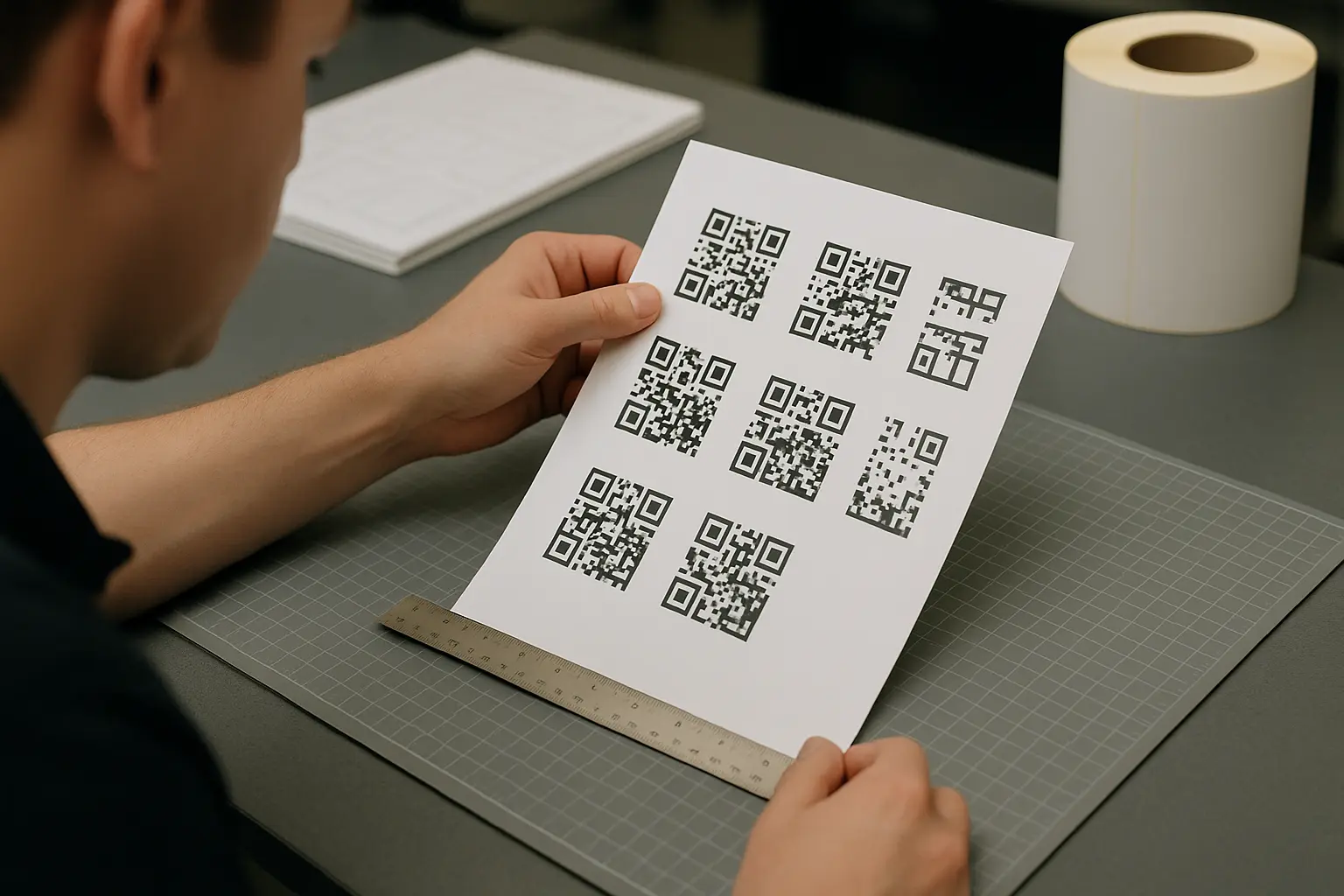
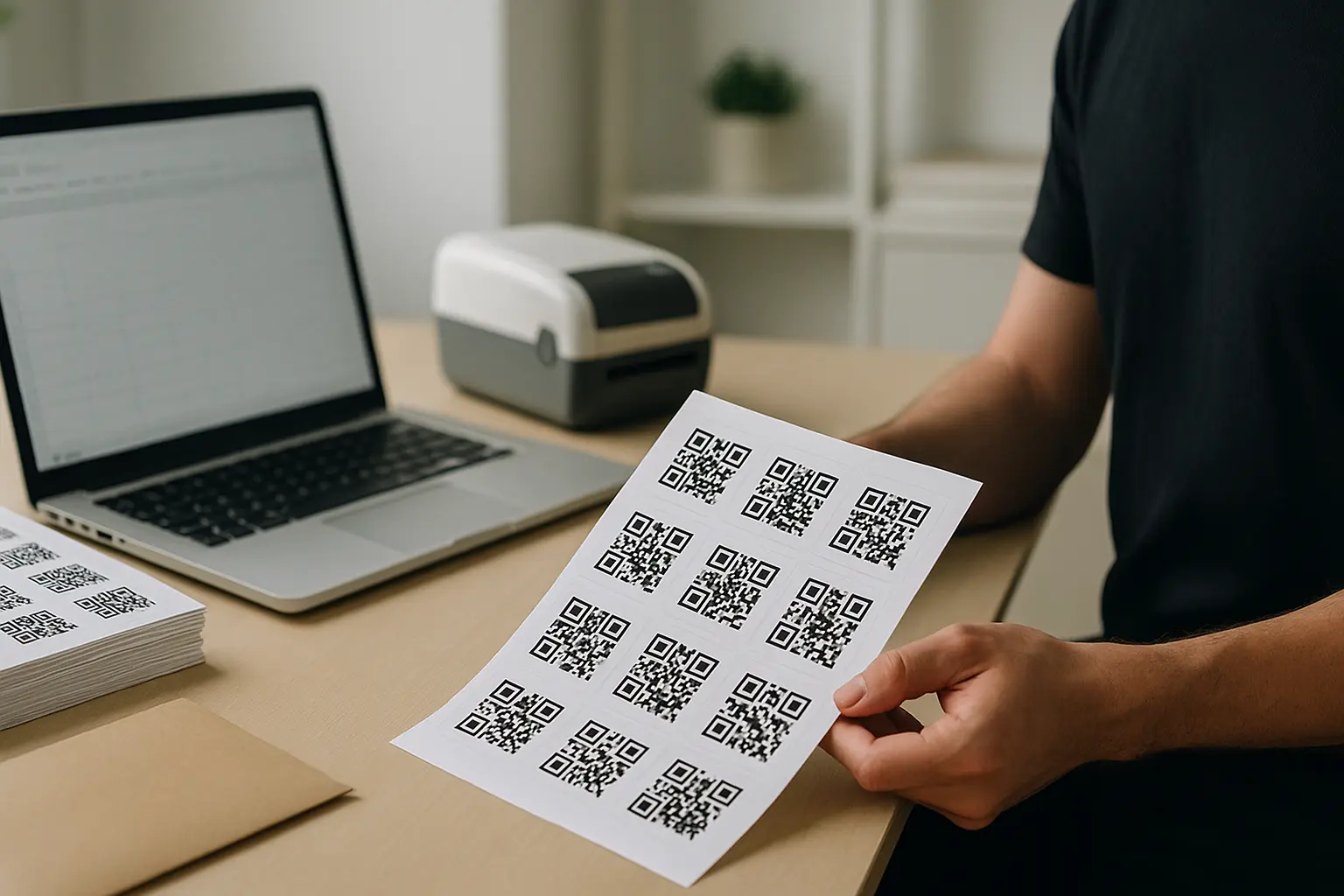
Your export format should match your end use: print, web, signage, labels, or packaging. Common bulk exports include PNG, SVG, EPS, and PDF.
bulk qr code generator download zip file is a typical expectation. Many platforms provide a batch download as one ZIP file containing all QR images, named by your QR Code Name or ID.
Vector vs raster (why it matters)
- Raster (
PNG): Pixel-based. Can look blurry if scaled up after export. - Vector (
SVG,EPS): Shape-based. Scales cleanly for print and large signage. PDF: Often used as a print container. It may contain vector or raster content, depending on export settings.
Print-readiness checklist (size, quiet zone, testing)
For reliable scanning, a minimum recommended printed QR code size is 2 × 2 cm, and the 10:1 viewing-distance rule applies. That rule is a simple planning shortcut: the farther away someone scans, the larger the printed code should be.
How do I ensure bulk-generated codes remain scannable when printed at different sizes? Start with a print-safe size, keep the quiet zone intact, and test the smallest physical size you plan to use before you print everything. Use vector exports when you need to scale up, and avoid shrinking designs that include logos or thin frames.
Quick check: Pre-print scan test checklist
- Print A Sample Page At Final Size.
- Confirm The Quiet Zone Is Not Cropped By The Label Edge.
- Scan 10 To 20 Random Codes Across The Batch.
- Test On Multiple Phones And Camera Apps.
- Test Under Real Lighting And At Real Distance.
- Confirm The Destination Loads Correctly And Matches The Intended Item.
Print size guide for the 10:1 viewing-distance rule
A simple creative brief note can be:
- Close scan (handheld) = small label size may work
- Longer scan distance = increase printed size in the layout
- Validate with real device testing before a full run
Export formats comparison
What output formats are available for bulk downloads (PNG, SVG, PDF, EPS)? Many bulk exporters offer PNG for general use, plus vector formats like SVG or EPS for scaling, and PDF for print workflows. Exact options vary by tool, so confirm exports before you commit to a printing vendor.
| Format | Type | Best For | Watch Outs |
|---|---|---|---|
| PNG | Raster | Web, email, basic documents | Can pixelate if scaled up |
| SVG | Vector | Print layouts, high-res screens | Some systems restrict SVG handling |
| EPS | Vector | Professional print pipelines | Requires design tool support |
| Container | Print-ready sheets and proofs | Confirm whether content is vector or raster |
Takeaway: If you are printing at varied sizes, prioritize vector (SVG or EPS) or a PDF that preserves vector shapes.
Tracking and analytics expectations for bulk QR codes
Tracking depends on whether your codes are static or dynamic, and on what the platform records. Static codes generally do not support platform-level reporting because the QR image encodes the destination directly. Dynamic systems often can collect scan analytics because scans pass through a managed redirect.
bulk qr code generator tracking analytics per code usually means per-code scan counts and related metadata, shown in dashboards or exports.
Common tracking fields vary by tool, but often include:
- Timestamp or time window of scans
- Approximate location (often at a city or region level)
- Device type or operating system category
If you are generating hundreds of codes, organization matters as much as tracking. Use consistent naming and group codes into folders, batches, or campaigns so reports stay readable later.
Practical bulk reporting habits:
- Put campaign name and a unique ID in the QR Code Name.
- Use Folder Name (or an equivalent field) to separate campaigns.
- Keep one spreadsheet version per batch so you can reproduce exports.
Free vs paid bulk generators: limits and risks
Free tools can work for tiny batches, but bulk generation adds compute time, export complexity, and sometimes dynamic features like redirects or reporting. That is why many platforms restrict batch size, design templates, exports, or dynamic behavior by plan.
bulk qr code generator free online limits to watch for:
- Caps on how many codes you can generate per batch
- Limits on batch exports or watermarking in downloads
- Restrictions on dynamic features like editable destinations or reporting
- Processing delays for large uploads
How many QR codes can I generate at once with most platforms? This varies by tool. Some tools set explicit caps, and one cited limit is 500 codes at a time, while another example cap is up to 250 codes per batch on certain plans.
Even if a tool accepts a large file, generation may not be instant. This varies by tool. Large batch generation can take several minutes, especially for batches around 1,000 to 2,000 or more, depending on validation, design rendering, and export packaging.
Cost structures also differ at very high volumes. This varies by tool. One cited pricing model charges $2.50 per 1,000 codes for batches over 20,000, which is very different from flat monthly plans.
Is there a free bulk QR code generator, or do I need to pay for this feature? Free options exist, but bulk features are often limited by batch size, exports, or dynamic functionality. If you need editable destinations, per-code reporting, or reliable batch downloads, paid plans are common.
Security checklist for bulk QR campaigns
Bulk printing multiplies risk. If one destination is wrong or malicious, you do not have a single bad code. You have a pallet of them. The main threat to understand is quishing, which is phishing delivered through QR codes.
Quick check: Security checklist (destination hygiene + phishing awareness)
- Validate Every Destination URL Before Upload.
- Prefer HTTPS Destinations Where Possible.
- Avoid Untrusted Redirect Chains That Hide The Final Domain.
- Lock Down Who Can Edit The Destination List And Who Can Approve Final Print Files.
- Scan-Test Random Samples From The Generated Batch Before Distribution.
- Train Staff To Verify The Domain Before Tapping, Especially For Login Or Payment Pages.
Operational controls matter for coupons and tickets:
- Use unique codes per recipient or item when misuse is a risk.
- Monitor redemption patterns if your system supports it.
- Rotate or disable destinations quickly if you detect abuse (often a dynamic workflow).
Do not promise that any setup is “safe.” Treat security as a process: verify inputs, test outputs, and keep control of who can change destinations after deployment.
FAQ and troubleshooting for bulk QR creation
How long does it take to generate a batch of 1,000 codes? This varies by tool, file cleanliness, and export settings. Some batches can take several minutes, especially when the platform is validating each row and preparing a ZIP file export.
If you are planning a print deadline, build time for:
- Fixing spreadsheet errors after validation
- Re-generating and re-exporting after design changes
- Proof printing and scan testing
What to do if you find errors after uploading
If validation flags problems, fix the spreadsheet first, then re-upload and regenerate. If you already generated codes and spot an error in the destinations or labels, regenerate from a corrected file and replace the affected outputs in your print layout.
Why a batch fails
Most failures come from formatting and data hygiene:
- Missing required columns or blank required cells
- Invalid URLs or hidden spaces in URL fields
- Duplicate names when unique naming is required
- Excel auto-formatting that changes IDs or removes leading zeros
What file format to use (CSV vs XLSX)
Use CSV when you want predictable uploads with fewer formatting surprises. Use XLSX (Excel) when you need Excel editing, but consider exporting to CSV before upload to reduce hidden formatting issues.
How to avoid print failures (size, quiet zone, format choice)
Use vector exports (SVG or EPS) when scaling is required, and keep the quiet zone intact in every layout. For labels and packaging, do not rely on a single proof. Print and scan multiple samples, including the smallest size you will ship.
Try a bulk workflow (example in QRplify)
If you want a product-led example workflow, QRplify supports a bulk flow where you download a sample CSV, fill in your rows, re-upload, and generate your batch. This varies by tool, but the sample fields commonly include: ID (Optional), Destination URL (Required), QR Code Name (Required), PIN Code (Optional), Sticker (Optional), Folder Name (Optional), Allowed Scans, and Template ID. You can usually create new QR codes or modify existing ones, so run a small test batch before printing.