Blog
Do QR codes have to be black and white?
On this page
No. QR codes do not have to be black and white. Any color pair can work when the code is clearly darker than its background and the empty margin around it stays clear.
To find where the limits sit, we made 24 codes for the same link in different colors and read each one with 2 QR readers. Every dark color on a white background read on both readers. Pale pairs read as perfect files, then started to fail once the image was blurred and noisy. Light codes on dark backgrounds read on 1 reader and failed on the other. The results come first, then the 6 rules they point to.
The test: 24 color pairs on 2 QR readers
Every code points to https://qrplify.com. We made each one with the Python qrcode library, with a quiet zone 4 modules wide, and read it with 2 readers:
- Apple Vision: the barcode detector in Apple’s Vision framework (VNDetectBarcodesRequest, revision 4), run on a Mac with macOS 27. Apple ships the same framework on iPhone, but these tests ran on a Mac, not on a phone’s camera.
- OpenCV: the QR code detector in OpenCV 4.14, a widely used open source computer vision library.
Each code was read twice. First as the clean image file. Then as 10 degraded copies: half size, a 1 pixel blur and random noise, a different noise pattern each time. The degraded copies are a rough stand-in for a camera image. A pass means the reader returned exactly https://qrplify.com.
Contrast is the WCAG contrast ratio between the 2 colors. It runs from 1:1, 2 identical colors, to 21:1, black on white. The 6 brand colors are the color presets of the free generator.
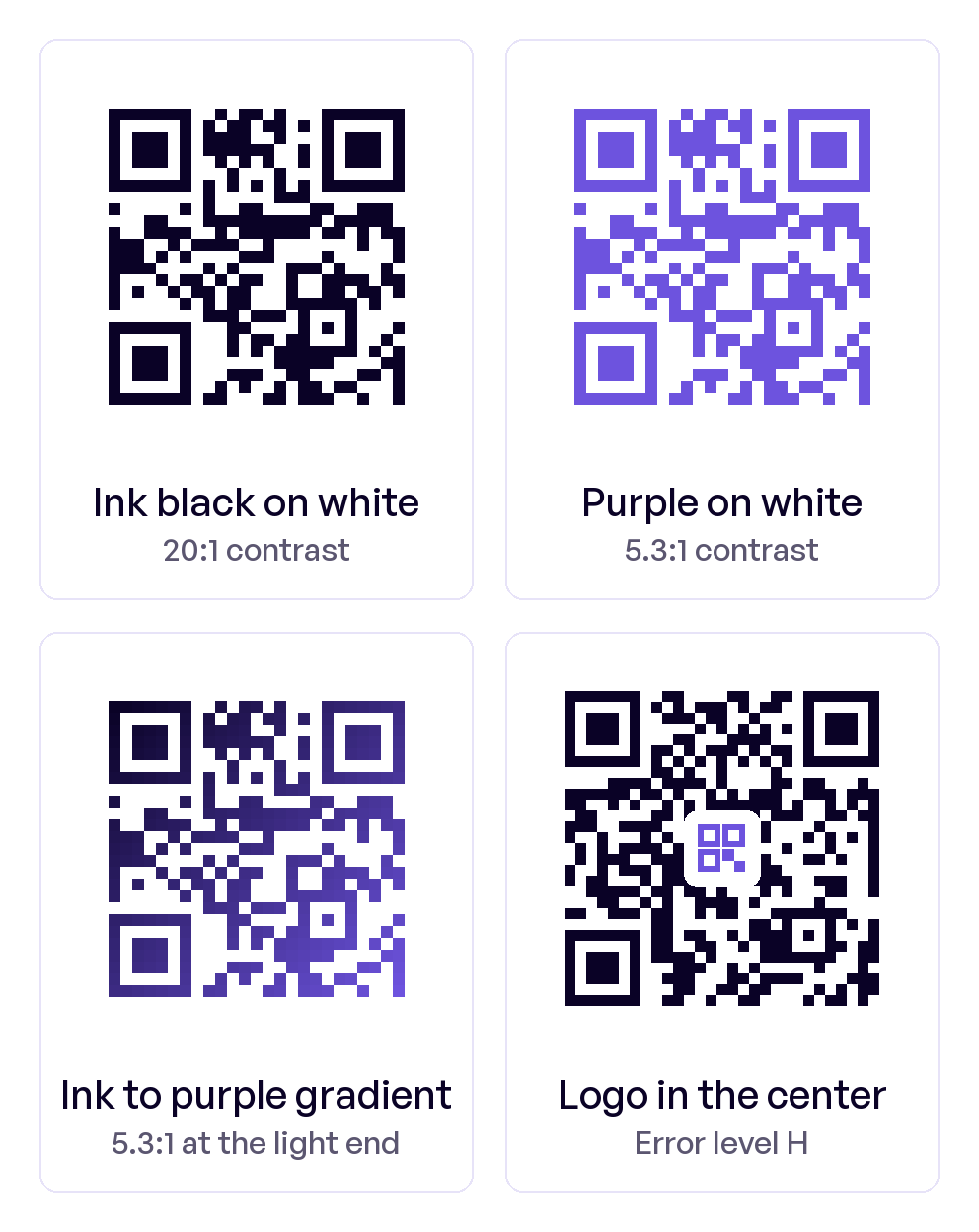
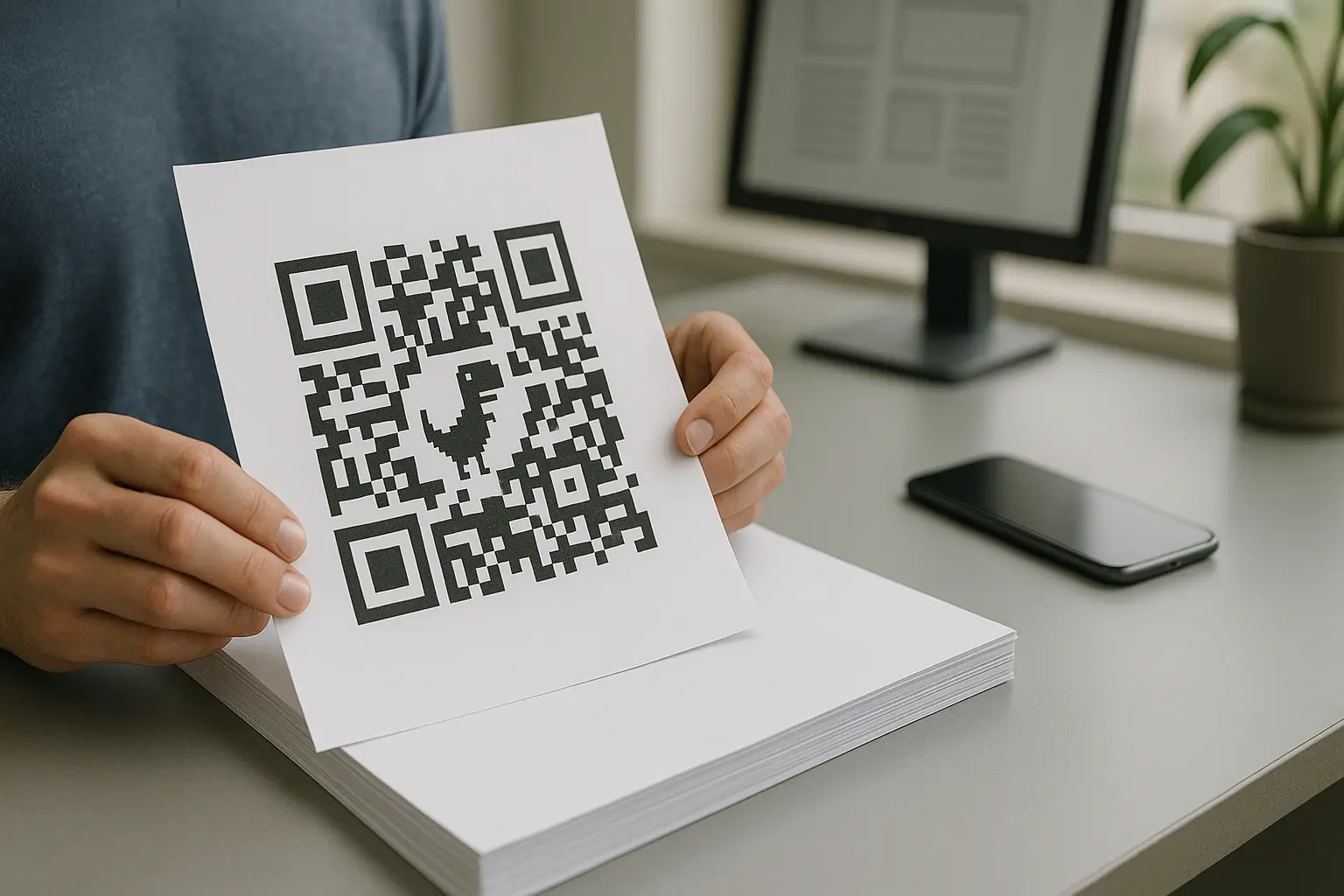
The 4 codes above passed every read in the test. Each one opens qrplify.com.
Results
| Pair | Contrast | Clean file | Degraded, Vision | Degraded, OpenCV |
|---|---|---|---|---|
| Black on white | 21:1 | Both read | 10 of 10 | 10 of 10 |
| Ink black #0A0226 on white | 20:1 | Both read | 10 of 10 | 10 of 10 |
| Purple #6D53DE on white | 5.3:1 | Both read | 10 of 10 | 10 of 10 |
| Red #C63434 on white | 5.3:1 | Both read | 10 of 10 | 10 of 10 |
| Blue #2A6FDB on white | 4.8:1 | Both read | 10 of 10 | 10 of 10 |
| Green #1F8A5B on white | 4.3:1 | Both read | 10 of 10 | 10 of 10 |
| Orange #F74D00 on white | 3.5:1 | Both read | 10 of 10 | 10 of 10 |
| Grey #666666 on white | 5.7:1 | Both read | 10 of 10 | 10 of 10 |
| Grey #888888 on white | 3.5:1 | Both read | 10 of 10 | 10 of 10 |
| Grey #A0A0A0 on white | 2.6:1 | Both read | 10 of 10 | 8 of 10 |
| Grey #B4B4B4 on white | 2.1:1 | Both read | 10 of 10 | 4 of 10 |
| Grey #C8C8C8 on white | 1.7:1 | Both read | 10 of 10 | 1 of 10 |
| Grey #DCDCDC on white | 1.4:1 | Both read | 10 of 10 | 0 of 10 |
| Yellow #FFD400 on white | 1.4:1 | Both read | 10 of 10 | 2 of 10 |
| Pastel pink #F4B6C2 on white | 1.7:1 | Both read | 10 of 10 | 1 of 10 |
| Grey #8A8A8A on grey #BDBDBD | 1.8:1 | Both read | 10 of 10 | 0 of 10 |
| Red #C63434 on orange #F74D00 | 1.5:1 | Both read | 5 of 10 | 0 of 10 |
| White on black (inverted) | 21:1 | Vision only | 10 of 10 | 0 of 10 |
| White on ink black (inverted) | 20:1 | Vision only | 10 of 10 | 0 of 10 |
| White on purple (inverted) | 5.3:1 | Vision only | 10 of 10 | 0 of 10 |
| Gradient, ink black to purple | 5.3:1 at the lighter end | Both read | 10 of 10 | 10 of 10 |
| Gradient, purple to yellow | 1.4:1 at the lighter end | Both read | 10 of 10 | 10 of 10 |
| Logo in the center, error level H | 20:1 | Both read | 10 of 10 | 10 of 10 |
| Same logo, error level L | 20:1 | Neither | 10 of 10 | 0 of 10 |
What the results say, in short:
- Every dark color on white passed every read, down to orange at 3.5:1.
- Pairs under 3.5:1 still read as perfect files. On the degraded copies, OpenCV read fewer as the contrast fell, and Vision missed half of the red on orange copies.
- Inverted codes split the readers: Vision read all 3, OpenCV read none, even white on black at 21:1.
- With a logo, error level H passed everywhere and level L failed both readers on the clean file.
Rule 1: keep the contrast high
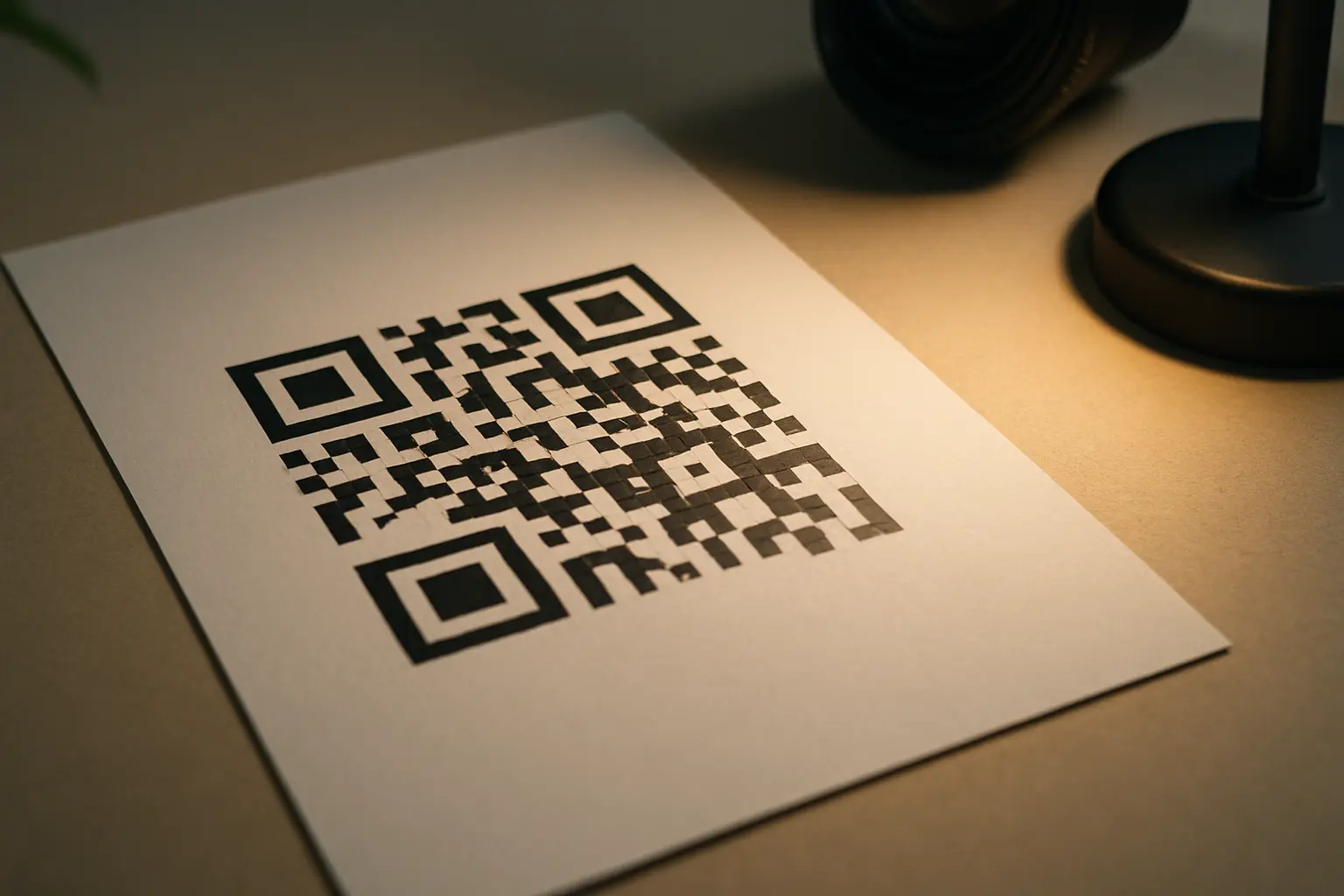
A QR reader looks for light and dark squares, called modules. It reads the difference in brightness between them, so the hue matters far less than how much lighter the background is.
The grey rows in the table show where that difference starts to count. On the clean files, both readers read every grey, even #DCDCDC on white at 1.4:1. On the degraded copies, OpenCV read every copy at 3.5:1 and above, 8 of 10 at 2.6:1, 4 at 2.1:1, 1 at 1.7:1 and none at 1.4:1. A camera image is never as clean as the file, so a perfect file can hide a weak pair.
Keep your pair at 3.5:1 or higher, the lowest level where every code in this test passed every read. For print, give it more room: Bar Code Graphics notes that the material, the ink, the printing method and the conditions around a code all change how light and dark it reads. You can check a pair in a contrast checker, or let the generator do it: the free generator’s color settings warn you when contrast drops below 3:1 and check that your code decodes as you edit it.
Rule 2: use a dark code on a light background
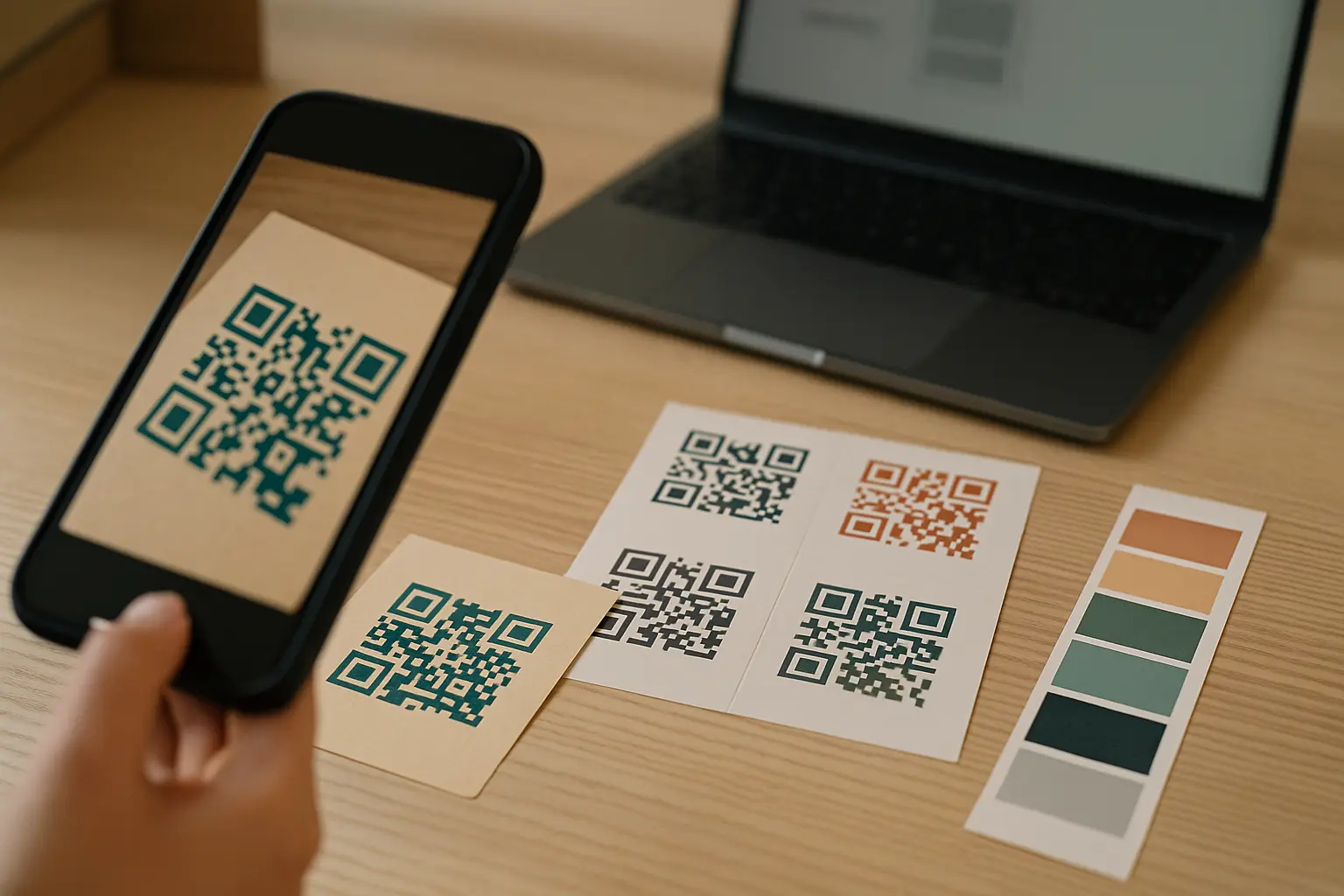
All 6 brand colors from the free generator’s presets read on white on both readers, clean and degraded: ink black at 20:1, purple and red at 5.3:1, blue at 4.8:1, green at 4.3:1 and orange at 3.5:1. Pick a dark brand color for the code and keep the background light. A pale brand color can go in the design around the code.
Red, orange and yellow codes have 1 catch. Some dedicated scanners light the code with red light. Bar Code Graphics explains that under red light, reds, oranges and yellows reflect like a light background, while blues and greens read as dark. Both readers in this test worked from color images, so red on white passed here. If a red light scanner will read your code, use black, blue or green.
Rule 3: test inverted codes on several readers
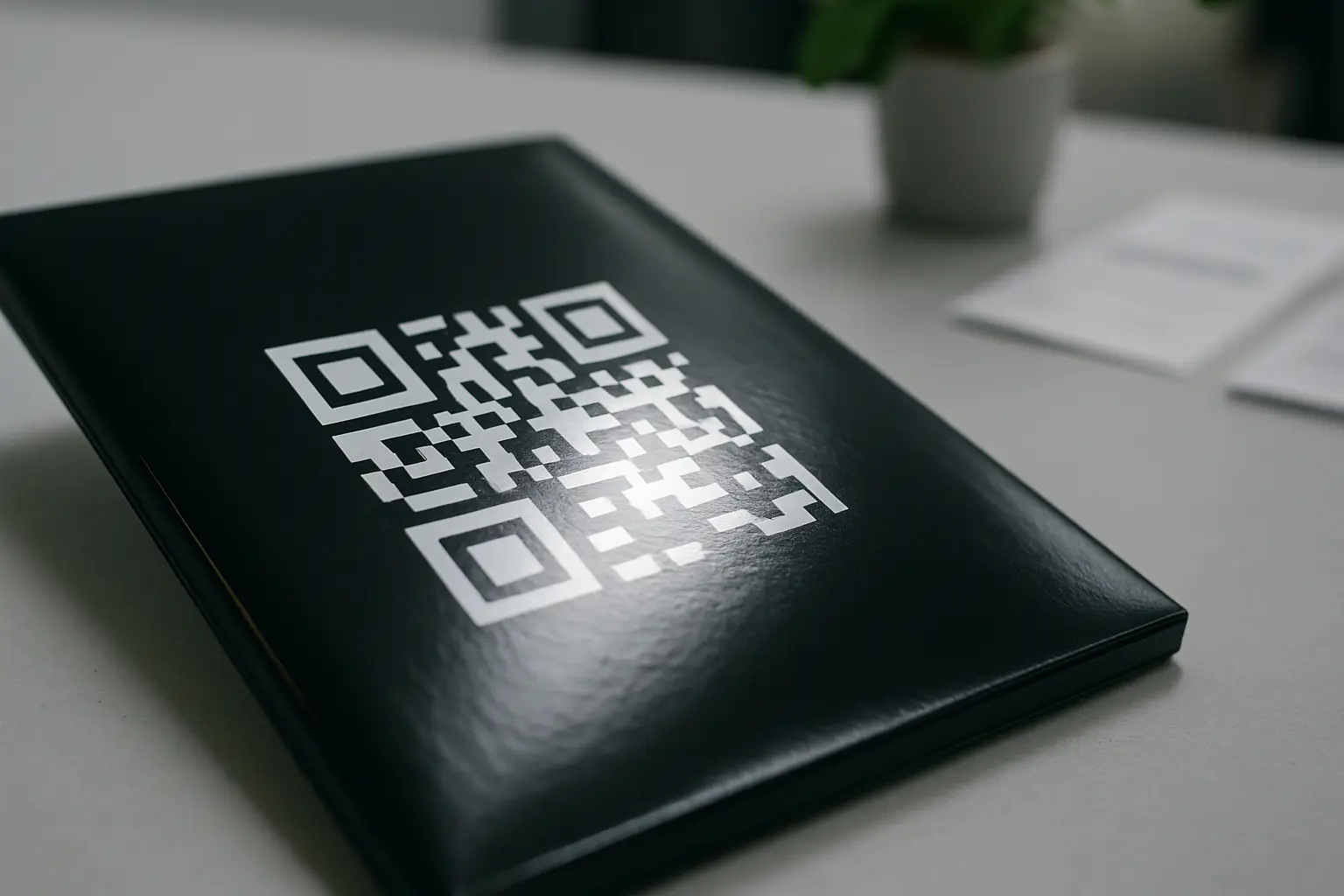
An inverted code has light modules on a dark background. In the test, Apple Vision read all 3 inverted codes, as clean files and as every degraded copy. OpenCV read none of them, even white on black at 21:1. The same code worked on 1 reader and failed on the other, at the highest contrast there is.
The people who scan your code do not all use the same reader. In a Reddit thread about a white on black barcode a scanner could not read, a commenter writes that white on black QR codes are hard to scan and slow down production, and mentions replacing the scanner with a newer model.
If your design needs a dark background, put the code on a light panel inside it, with its own clear margin. If you print an inverted code anyway, test it on several phones and scanning apps first. The free generator warns you when the code is lighter than its background.
Rule 4: keep the quiet zone clear
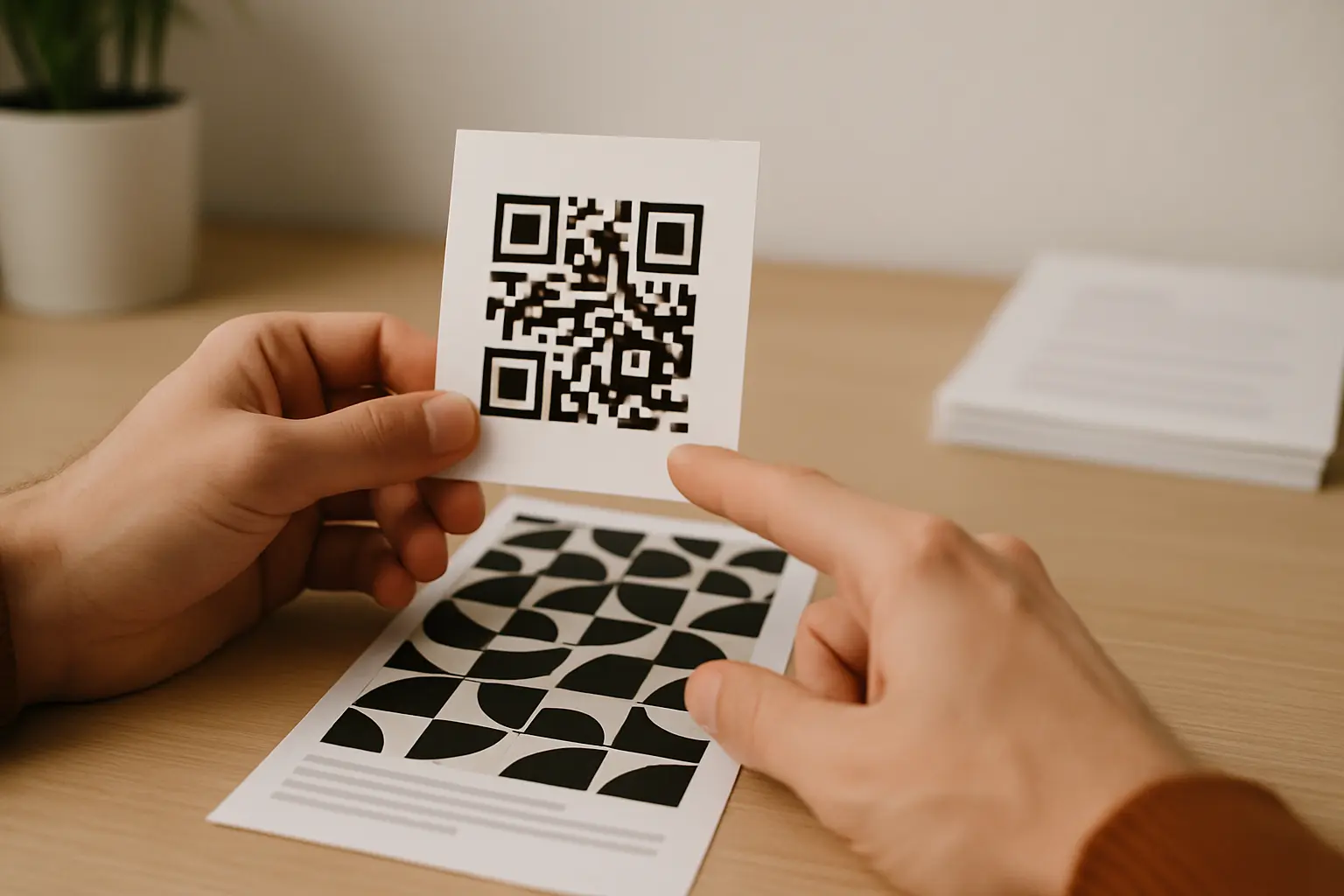
The quiet zone is the empty margin around the code. It tells the reader where the code ends. Denso Wave, the company behind the QR code, says a QR code requires a margin 4 modules wide on all sides. Every code in this test had that margin. The free generator adds a margin by default and warns you when it gets small.
Keep text, borders and background patterns out of the margin. Watch for it when you place the code on a photo or a colored panel, and when you crop the file: a screenshot cropped too close can stop scanning for the same reason.
Rule 5: use error level H with a logo, and judge a gradient by its lighter end
A logo covers modules, and error correction rebuilds what it hides. QR codes have 4 error correction levels: L, M, Q and H. Denso Wave suggests Q or H where a code may get dirty and L for clean settings.
In the test, a logo badge covering 24% of the code’s width read on both readers at level H, as the clean file and as all 10 degraded copies. The same logo at level L failed on both readers as a clean file. Vision did read the blurred copies at level L, so that code reads in some conditions and fails in others. The free generator raises error correction to High when you add a logo, unless you picked a level yourself.
For a gradient, judge the pair by its lighter end. Both gradients in the test passed, including purple to yellow, whose yellow end sits at 1.4:1. That yellow end covered only the bottom right corner of the code, so the result says little about a gradient that fades across the whole code. The free generator checks contrast at the lighter end of a gradient and warns below 3:1.
Rule 6: test the final file and the print
A design can pass on screen and fail on the poster. Test the file you will use, then the print:
- Download the code in its final colors. The free generator gives you PNG, JPG and SVG files, and a print-ready PDF when you design a printable card.
- Open the file in the free QR code decoder. It reads the code in your browser and shows the link before you open it.
- Scan the code on screen with 2 phones, the camera app on each (how to scan a QR code on iPhone and Android).
- Print 1 proof on the final material and scan it in the light where people will see it, from a slight angle and from where they will stand.
- Check the quiet zone survived the layout on every side.
If the link behind the code may change after printing, use a dynamic QR code: you can change where it points without reprinting it.
FAQ: QR code colors
Can I change the color of a QR code?
Yes. Choose a dark code color and a light background. In the test, every brand color passed on white. In the free generator, open Color & shape to set the code color, the background and an optional gradient.
Why is my QR code black?
Black on white is the usual default because it gives the highest contrast there is, 21:1. If your code shows as an all black square, it may be a file with a transparent background on a dark screen or page: the dark code then sits on a dark background and will not scan there. Download it again with a white background.
Do barcodes scan the white or the black?
Both, because a scanner reads the difference between them. Bar Code Graphics explains that a barcode scanner measures the light reflected back: dark bars absorb it and light spaces reflect it. QR readers look for the same light and dark pattern in their modules. Most expect dark on light: in the test, OpenCV read no inverted code, while Apple Vision read all 3.
Can a QR code be white?
Yes, as an inverted code on a dark background, but it read on 1 of the 2 readers in this test. A white code on a light background has almost no contrast for a reader to find.