How to Send a QR Code via Text
- To send a QR code by text, decide whether you will send an image (MMS) or a link (SMS). 2) If you need the code visible in the thread, attach the QR image as MMS. 3) If you want maximum compatibility, text a link to a hosted QR image or use an SMS QR that opens a pre-filled message.
You can send a QR code by text in a few minutes, but texting has real constraints. Some phones and carriers handle MMS images differently, messaging apps may apply image compression, and plain SMS is text-only. The goal is to choose the delivery method that stays readable and easy to scan.
If you are searching for how to send a qr code via text, the most reliable approach usually comes down to one question: Do you want the recipient to scan a visible code in the text thread (MMS), or simply tap a link (SMS)?
TLDR: Use MMS when you need the QR image visible and scannable right inside the conversation. Use SMS with a link when you want broad delivery reliability and fewer image issues. Use an SMS QR code when the scan should open a pre-filled text message instead of a webpage.
Quick answer: can you send a QR code via text?
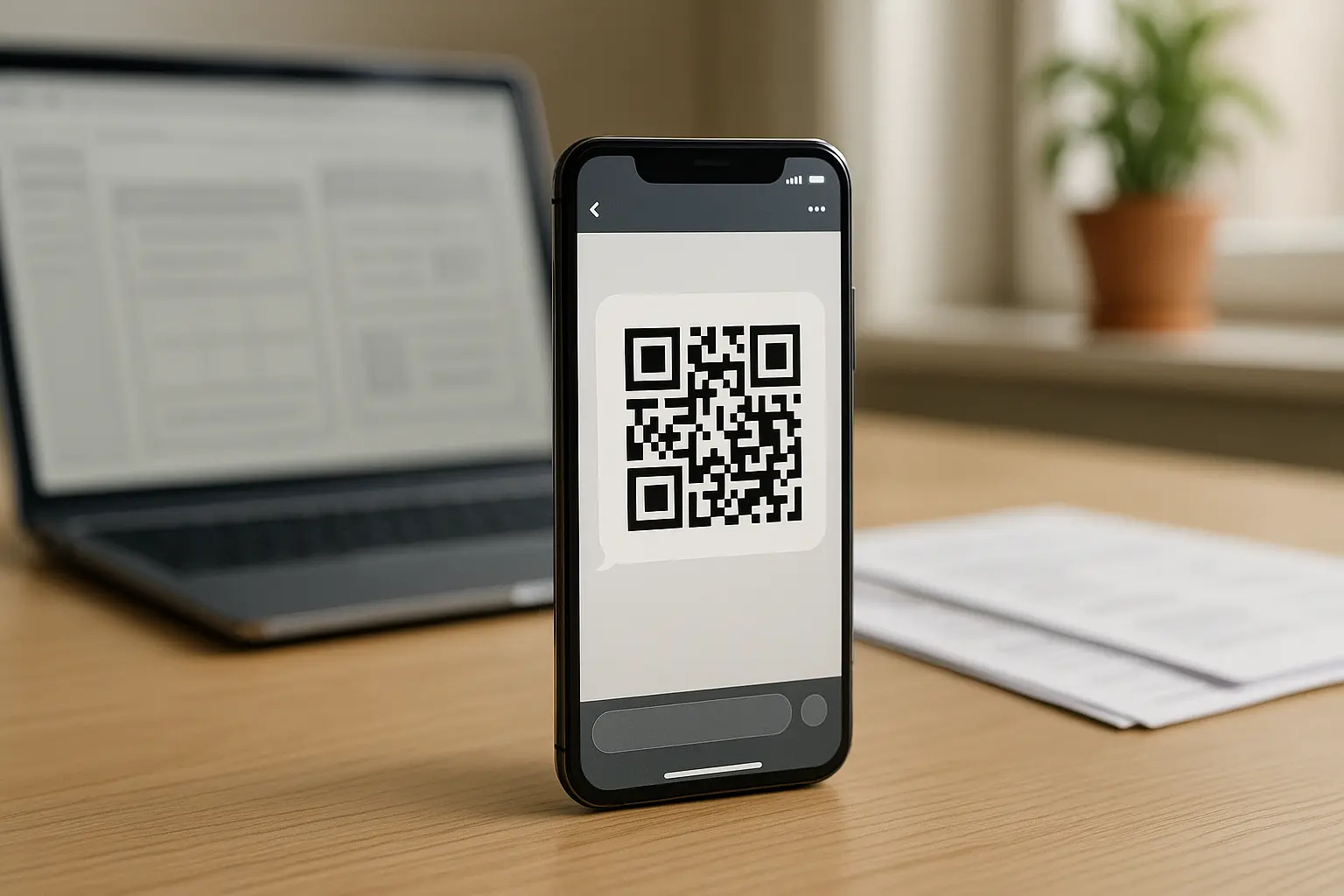
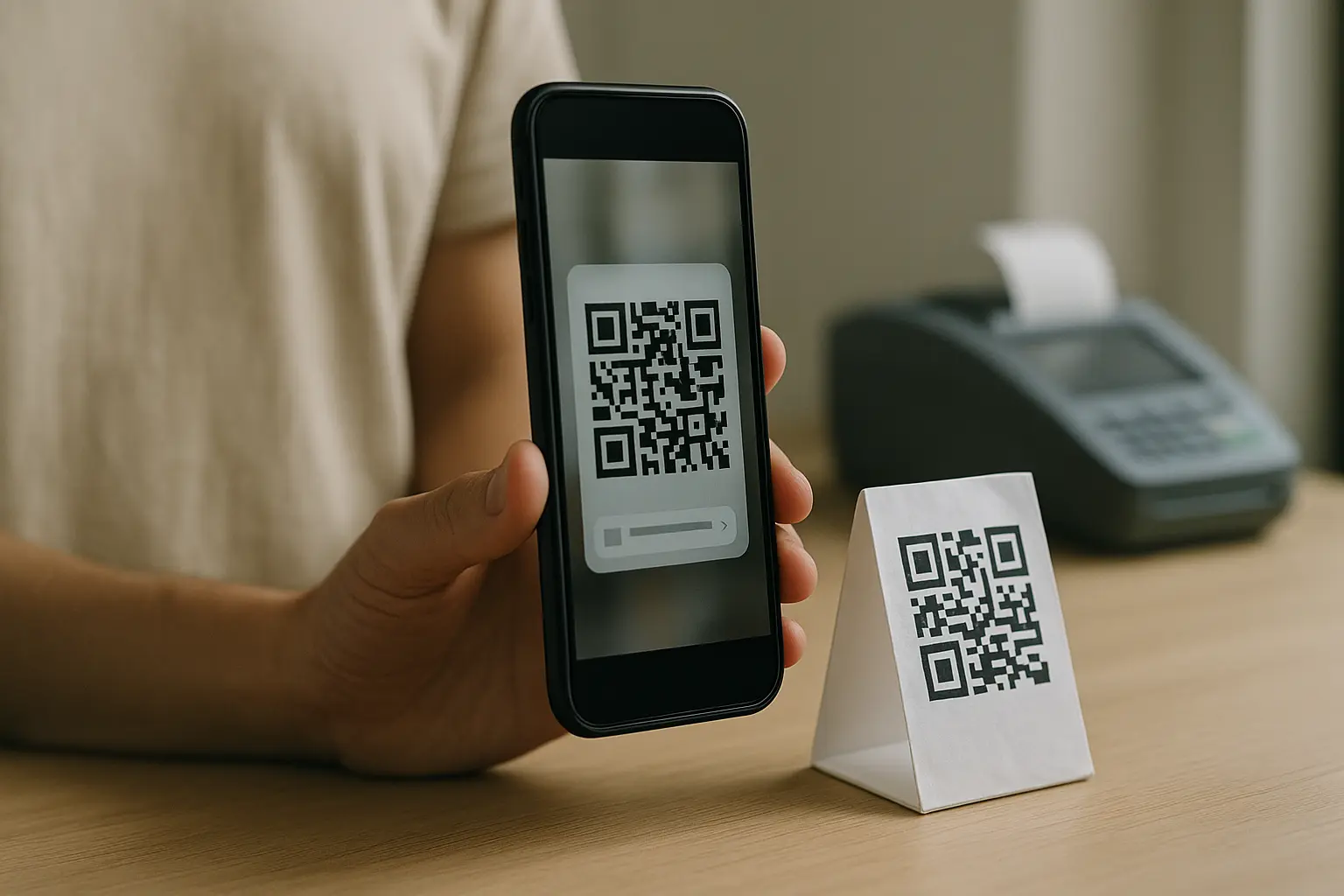
Yes, but it depends on what you mean by send. SMS is text-only, so you cannot include a real image inside a regular SMS. MMS supports images, so it can carry a QR code picture that the recipient can scan from the message thread.
Here are the 3 workable approaches:
- MMS image: Send the QR code as a picture attachment so it shows in the thread.
- SMS link: Send a normal text that contains a link to a hosted QR code image.
- SMS QR code: Send a QR code that, when scanned, opens the recipient’s messaging app with a pre-filled text message.
Can I send a QR code via regular SMS, or do I need MMS? You need MMS to send the QR code as an actual image, but you can use regular SMS if you send a link to the QR image (or send a QR that triggers an SMS compose action).
SMS is often the safer default for delivery, while MMS is better when scanning directly from the conversation matters.
Also, if you are wondering, how do i send a qr code via text without it failing to scan, the short answer is to test the exact message you plan to send on your own phone before sending it to others.
What it means to send a QR code via text (SMS vs MMS)
When people say they want to “text a QR code,” they usually mean one of two things:
- Sending the QR code image so the recipient can scan it from the conversation (that is MMS).
- Sending something that leads to the QR (usually a link) because SMS only carries text.
A QR code is a standardized symbol (now under ISO/IEC 18004). It was invented in 1994 by Masahiro Hara at Denso Wave, and Denso Wave waived patent rights for standardized QR codes so they can be used without licensing fees.
Why recipients often like a visible QR image:
- It is obvious what you are asking them to do.
- They can open it full-screen and scan it using another device, or sometimes from the same device using built-in features or a scanning app.
What to expect with SMS constraints:
- This varies by tool and carrier, but SMS length is limited and is often treated as 160 characters using GSM-7. It can be shorter when special characters force UCS-2 encoding.
- Because space is tight, your “what is this” explanation needs to be short and clear.
Choose the right delivery method: SMS vs MMS (and when to use each)
The “best” way depends on whether your recipient experience is scan-first or tap-first. This section also answers the practical question behind sms vs mms for sending qr code.
Simple decision tree (texting-specific)
- Do recipients need to scan immediately from the text thread?
- Yes: Use MMS image.
- No: Continue.
- Do you want the most broadly compatible, lightest message?
- Yes: Use SMS link to a hosted QR image (or to the destination page).
- No: Continue.
- Is the goal to open a pre-filled text message (not a webpage)?
- Yes: Use an SMS QR code.
- No: Use SMS link.
This varies by tool and carrier, but MMS generally costs more than SMS and may not be supported equally across devices and carriers. That is why SMS with a link is sometimes more reliable, even if it is less visual.
Bulk considerations (high level):
- This varies by tool and carrier, but bulk messages can face carrier filtering and spam flags, especially when links are involved.
- If you text people who did not provide opt-in, you raise both compliance risk and deliverability risk, and recipients may ignore or report the message.
SMS vs MMS vs SMS QR codes: when to use each
| Method | What the recipient receives | Best when | Main downside |
|---|---|---|---|
| MMS image | QR image visible in the thread | You want an immediate scan from the conversation | This varies by tool and carrier, but MMS support and cost can be less predictable |
| SMS link to hosted QR image | A text message with a URL | You want broad delivery and a lightweight message | No QR preview unless the phone shows link previews, and recipients must tap |
| SMS QR code (pre-filled text) | A QR that opens the messaging app with a draft | You want a reply workflow with a pre-filled message | It is not for opening websites, and behavior can vary by phone/app |
Takeaway: Pick MMS when scanning in-thread matters, pick SMS link when delivery consistency matters, and pick SMS QR codes when the scan should create a text draft.
Method 1: Send the QR code as an MMS image
If you want the QR visible right inside the message, this is the path. People often search for send a qr code via text using mms or send a qr code via text as image because it feels simplest for the recipient.
Steps (do these in order):
- Generate the QR code and download a high-quality image export (preferably PNG, or SVG if your workflow supports it).
- Open your messaging app and start a new message (this should send as MMS when you attach an image).
- Attach the QR code image as a photo.
- Add a one-line explanation of what scanning does, plus what they will see after the scan.
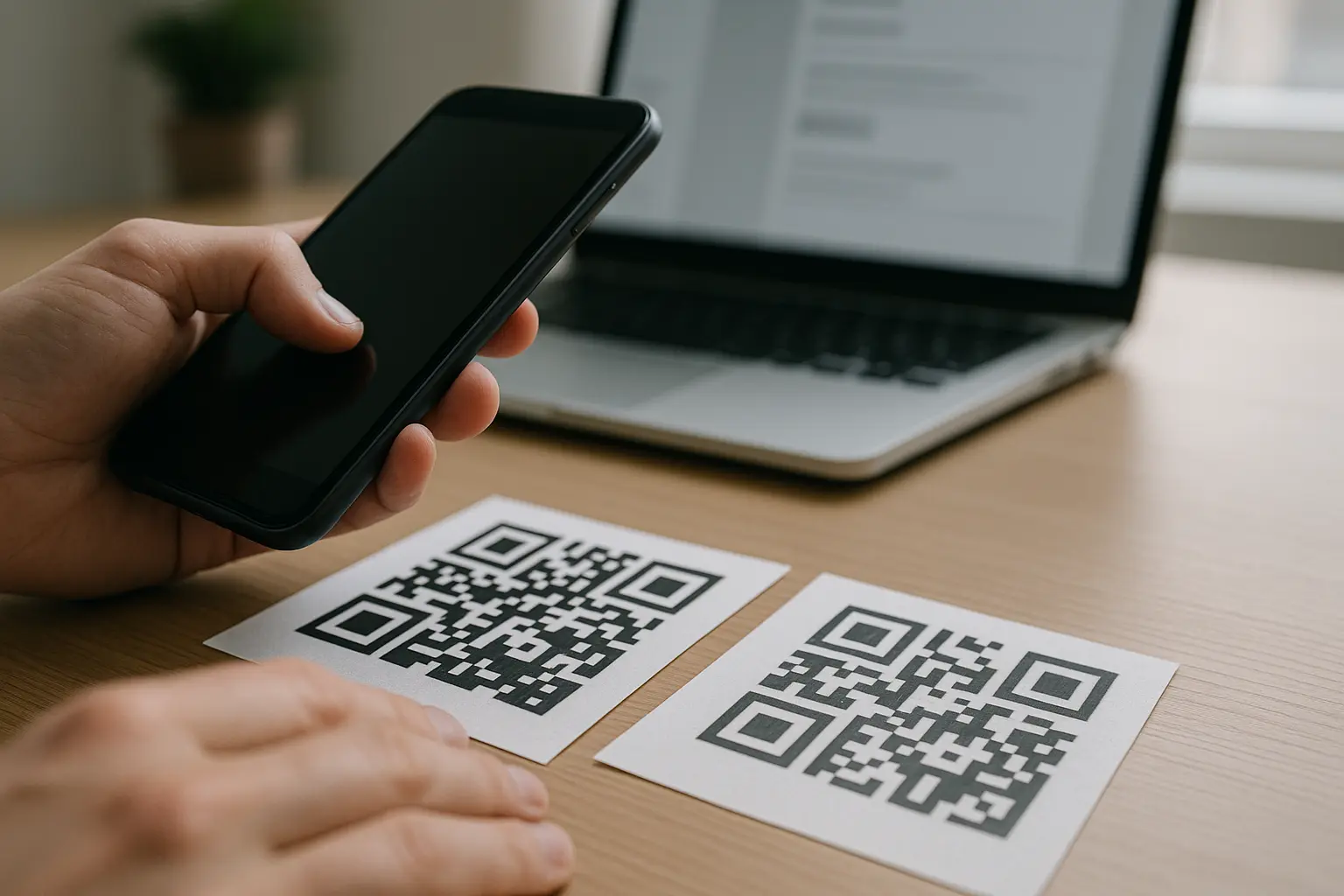
- Send it to yourself first, open it, zoom in, and try scanning from the screen (or from another device).
- If it scans unreliably, resend using a larger, sharper image or switch to the SMS link method.
How do I create a QR code that recipients can scan directly from a text message? Create a high-contrast QR image, export it clearly (PNG is a common choice), and send it as MMS so the QR stays visible in the thread.
Then test-scan the exact message on a real phone screen before sending to others, because messaging apps may resize or compress images.
Annotated example: MMS with QR image + a clear instruction line (hypothetical)
[QR IMAGE ATTACHMENT]
Text:
Hi Alex, This QR code opens the check-in page for your appointment.
Scan it and you will see a short form to confirm your arrival.
Quick checks (MMS image):
- Before sending: Test-scan on your own phone from inside the text thread.
- If sending as image: Confirm it is not blurry when you pinch-zoom.
- Include a one-line instruction that describes the outcome of scanning.
Common MMS pitfalls:
- The image looks fine in your camera roll but becomes soft or blocky in the message thread due to resizing.
- Dark mode or tinted chat bubbles reduce contrast around the code.
- The QR is too small on-screen, so the camera struggles to focus.
Method 2: Send a link to a hosted QR code (SMS)
If you cannot rely on MMS, or you want a lighter message, send a link. This is what people mean by send a qr code via sms with link.
Steps (do these in order):
- Export your QR code image and host it somewhere the recipient can open on mobile (or use a hosted QR image you already have).
- Copy the URL to that hosted QR image (or to the destination page, if your goal is a tap instead of a scan).
- Write an SMS that explains who you are, what the link is, and what happens after they open it.
- Send the message to yourself and verify the link opens quickly on a mobile connection.
- If you need scanning specifically, confirm the hosted page shows the QR image at a readable size without extra clutter.
Example SMS copy that reduces confusion (hypothetical):
- “Hi Sam, This is Jordan from Clinic1. Here is the QR code image for check-in: [Link]. Open it to display the code, then scan it at the front desk.”
Quick checks (SMS link):
- If sending as link: Confirm the hosted QR opens quickly on a phone and displays clearly.
- Keep the message short enough to avoid unexpected splitting across multiple SMS segments.
- Avoid vague wording like “scan this” when you are actually sending a link to an image.
Downside to plan for:
- SMS is text-only, so the recipient will not see the QR until they tap the link.
- Some recipients will not tap unknown links, especially if your message does not clearly identify you.
Special case: QR codes that open a pre-filled text message (SMS QR codes)
An SMS QR code does not open a webpage. It opens the recipient’s messaging app with a number and message pre-filled, so the recipient can send a text with minimal typing.
This is where the secondary keyword sms qr code prefilled message format comes up. The format you may see is often written like this: SMSTO:[phone number]:[message text]. In practice, the exact handling can vary by phone and messaging app.
When it is useful versus sending a normal QR:
- You want recipients to reply with a standard phrase (for example, a confirmation keyword).
- You want to reduce typing errors for a specific reply.
- You are running an in-person workflow where the scan triggers a ready-to-send message.
Example use case: pre-filled message workflow (hypothetical example)
- A staff member shows a QR at the counter.
- The customer scans it.
- Their phone opens a new text addressed to Number1 with the message “CHECKIN Item1”.
- The customer taps send.
One caution: Recipients may hesitate if the pre-filled text is not clearly explained. A short instruction near the QR helps, such as “Scan to open a text draft to Number1. Review, then send.”
Make it scannable: file format, resolution, and compression
Most texting scan failures are not about the QR itself. They are about how the image was exported and what the messaging app did to it. This section covers best file format for texting qr code in practical terms.
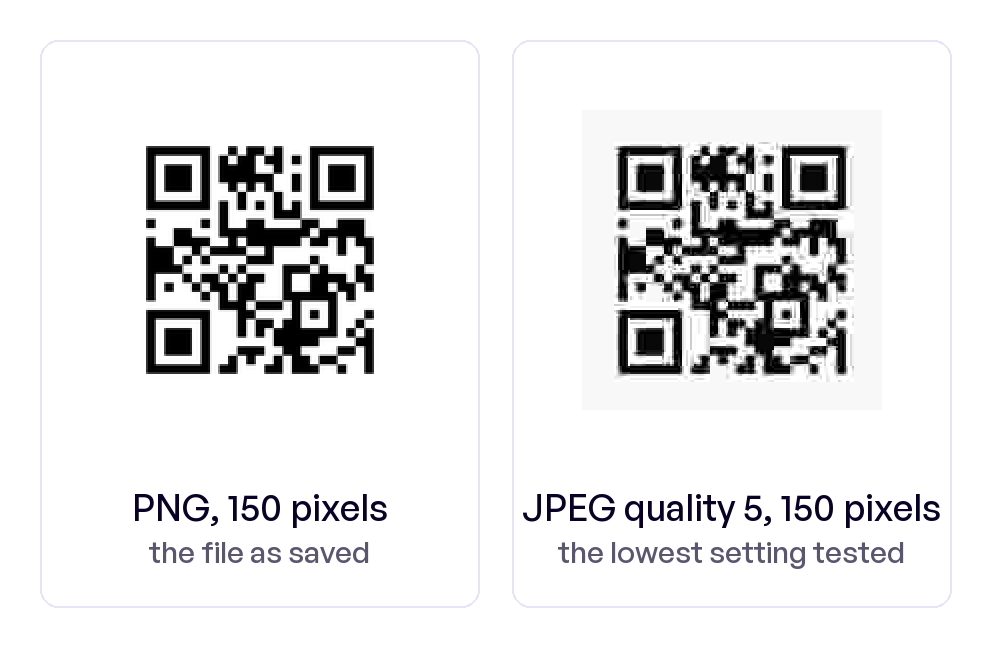
What is the best file format to send a QR code via text (PNG, JPG, or SVG)? PNG is usually the safest choice for texting because it keeps crisp edges and avoids many artifacts, while JPG can introduce blockiness that hurts scanning. SVG can be ideal for generating sharp codes, but you often need to export it to PNG before sending via MMS.
The best format still depends on where the QR will be displayed and how your messaging app handles images.
Why edges matter:
- QR scanners look for clean, high-contrast boundaries.
- QR codes use Reed-Solomon error correction (levels
L,M,Q,H) that can recover about 7%, 15%, 25%, and 30% of damaged data, but heavy artifacts can still break detection.
Will a QR code sent via text message work if the image is compressed by the messaging app? It can work, but image compression can reduce scan reliability, especially if the QR is small or dense.
Compression often softens edges and creates artifacts, which can confuse the camera’s detection.
Practical scannability checklist (for QR codes viewed inside a text thread)
- Use a high-contrast code (dark code on light background).
- Export the image at high resolution so it stays sharp after resizing.
- Prefer PNG for sending as an image.
- Avoid screenshots if they introduce blur or moiré patterns.
- Leave a clean margin around the QR so scanners can find the boundary.
- Test in the exact place it will be viewed: inside the message thread on a phone screen.
Quick check before you hit send:
- Open the image in your messaging app preview and pinch-zoom. If the edges look fuzzy or blocky, resend using a better export or use the SMS link method.
Make it scannable: minimum size and on-screen readability
Phone screens are small, and messaging apps often show images as thumbnails first. That is why qr code via text size for scanning is not just a print issue.
A commonly cited minimum size is at least 2 × 2 cm when displayed, or about 76 × 76 pixels under typical conditions. In a text thread, bigger is often safer because recipients may not zoom in before scanning.
Other readability factors that matter on-screen:
- Contrast: Avoid light gray codes or tinted backgrounds.
- Glare: Bright reflections can wash out the pattern.
- Dark mode effects: Some apps alter how images are displayed against dark UI, which can reduce perceived contrast.
Why scanning from a text adds friction:
- The recipient often has to tap the image, zoom, and then open a camera or scanner.
- If the destination is a webpage, tapping a link is simpler than scanning. Scanning is best when the QR is meant to be scanned by a second device or used in a controlled setting.
A technical note that explains why “small” fails fast:
- QR Code symbol versions range from Version 1 (21×21 modules) to Version 40 (177×177 modules), increasing by 4 modules per side per version.
- More data usually means a denser pattern, which needs more on-screen size to keep module edges readable.
After you send it: static vs dynamic, edits, and reliability
This is where people get surprised after distribution. The secondary keyword here is static vs dynamic QR codes for texting.
Can I edit the destination of a QR code after sending it via SMS or MMS? A static QR code cannot be edited after you have sent it because the destination is encoded into the pattern. A dynamic QR code may be editable, but that depends on how it was created and where it is managed.
If you might need to change the destination later, plan for that before you send.
How to think about reliability:
- Static QR code: The content is baked into the code. If the destination URL changes or was wrong, you must send a new code.
- Dynamic QR code: The code usually points to a redirect or short link you can update. This varies by tool, and dynamic behavior is not identical across providers.
A risk to call out clearly:
- Dynamic QR codes can stop working if the service behind them is cancelled or expires. If reliability matters, confirm what happens to previously shared codes if you stop paying for the service that manages them.
What to do if you need to change the destination:
- If you used a static QR code, create a new code and resend it.
- If you used a dynamic QR code, update the destination in your management dashboard (steps vary by tool), then re-test by scanning from a phone.
After you send it: tracking/analytics expectations and limitations
Tracking is one of the first reasons people choose dynamic codes, but it is easy to overexpect. The mapped keyword to cover here is track scans for qr code text campaign.
Can I track how many people scanned a QR code I sent via text? You can sometimes track scans if you use a dynamic QR code service or a trackable redirect, but a basic static QR code image does not automatically report scans by itself.
Tracking also depends on what you consider a scan versus a page visit, and on what your setup records.
Practical expectations:
- Static QR code: No built-in scan analytics in the image itself. If the QR points to a website you control, you may still see visits in web analytics, but that is not the same as scan counts.
- Dynamic QR code: Often supports scan events and may provide device and time data. This varies by tool and plan.
Limitations to be aware of:
- Some recipients may share the code or forward the message, which can blur attribution.
- Some privacy settings or browser behaviors can reduce what gets recorded after the scan.
Security: how to send QR codes safely by text
A QR code in a text message can trigger scam instincts, especially if it looks unexpected. Your job is to reduce risk and hesitation with clarity.
What are the security risks of sending QR codes through text messages? The main risk is phishing: a QR code can send someone to a fake login page or a malicious site, and recipients cannot tell the destination by looking at the pattern.
Recipients should treat unexpected QR codes like unexpected links and verify the sender before scanning.
Safety practices that help:
- Identify yourself and the context in the message.
- Say what scanning does, in plain language (for example, opens a mobile-friendly landing page for check-in).
- If possible, include the destination domain name in the text so recipients can sanity-check it after scanning.
- Avoid sending QR codes to people who did not provide opt-in, because it increases complaint risk and can trigger carrier filtering and spam flags.
Example trust-building SMS copy (hypothetical):
- “Hi Maya, This is Pat from Office1. This QR code opens our mobile-friendly landing page for appointment check-in. It will not ask for payment. If you have questions, reply to this number.”
Recipient-friendly reminder you can include:
- “Only scan if you expected this message from me.”
Troubleshooting: why a QR code won’t scan from a text message
When a QR code fails from a text thread, it is usually one of a few patterns. Use this flow to isolate the cause.
Fast troubleshooting flow
- Step 1: Check the image itself
- If it is blurry when zoomed, resend a higher-quality export.
- If you see blocky artifacts, suspect image compression.
- Step 2: Check size and contrast
- If it is tiny in the thread, resend with a larger QR or instruct the recipient to tap and zoom.
- If contrast is low, regenerate with a darker code on a lighter background.
- Step 3: Check the camera and viewing conditions
- Ask them to increase screen brightness and reduce glare.
- Ask them to hold steady and let autofocus lock.
- Step 4: Check the destination
- If it scans but the page is hard to use, fix the mobile-friendly landing page.
- Step 5: Use a fallback
- If scanning keeps failing, send a link instead of an image.
Common QR scan failures from texts: causes and fixes
| Symptom | Likely cause | Fix |
|---|---|---|
| Scanner cannot detect the code | Image is too small in the thread | Resend larger, or instruct to open and zoom |
| Code detects but fails to open | Destination URL is broken or blocked | Verify the destination and resend |
| Detection is inconsistent | Image compression artifacts | Export as higher-res PNG and resend, or switch to SMS link |
| Works on one phone, not another | Camera/app differences | Suggest a different scanner app or better lighting |
| Code looks washed out | Low contrast or glare | Regenerate with higher contrast and reduce glare |
| Opens page but user cannot proceed | Page is not mobile-friendly | Fix the page layout for mobile and retest |
Takeaway: If the image is not sharp and large enough on-screen, switch to an SMS link to remove the image layer from the problem.
FAQ
Do I need MMS to send a QR code? You need MMS to send the QR code as an image inside the text thread. If you only have SMS, send a link to a hosted QR code image or send a link to the destination instead.
What is the best file format for texting a QR code: PNG vs JPG vs SVG? PNG is usually the safest for texting because it keeps crisp edges. JPG can introduce artifacts that hurt scanning. SVG is great for generating sharp codes, but you typically export it to PNG before sending as MMS.
Can I edit a QR code after sending it? A static QR code cannot be edited after it is sent. A dynamic QR code may allow edits, but this varies by tool, and it can stop working if the service managing it is cancelled or expires.
Will it work on iPhone and Android? Many modern smartphones support QR scanning, and many iPhones running iOS 11 or later can scan QR codes from the camera app. Android support varies by device and camera app, so some users may rely on a built-in scanner shortcut or a dedicated scanning app.
Can I track scans from a QR code I sent by text? Tracking depends on how the QR code was created and where it points. Static QR code images do not report scans by themselves, while dynamic QR code services and trackable redirects may provide scan analytics, depending on the provider and configuration.