
How to Make a QR Code for a Spotify Playlist
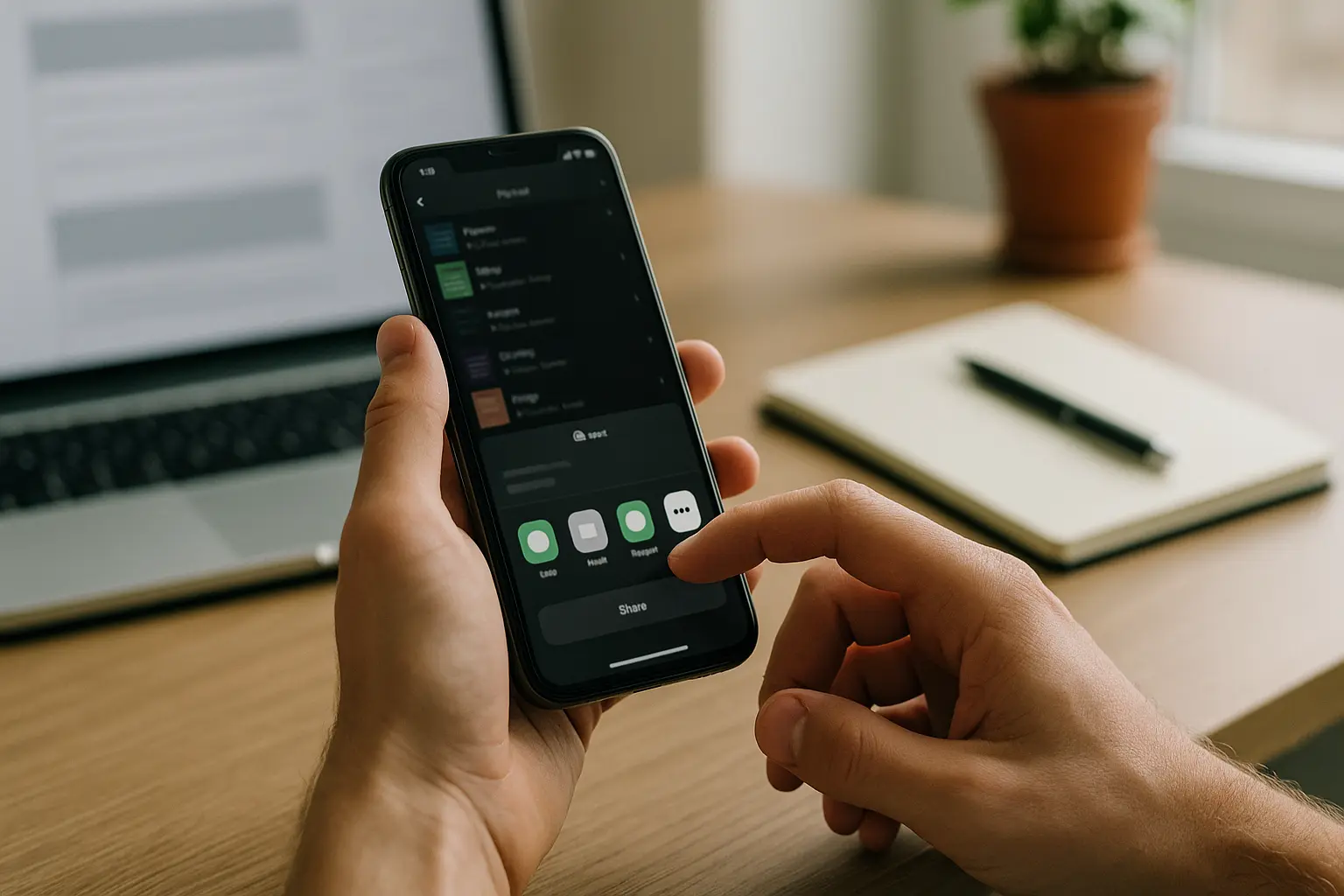
To answer how to make a qr code for spotify playlist: 1) Copy the playlist URL (or URI) from Spotify, 2) Paste it into a standard QR code generator, 3) Export the right file type for digital or print, and 4) Test scans on real phones at the real distance and lighting before you share it widely.
Learn how to turn a Spotify playlist link into a scannable QR code. Choose static vs dynamic, export the right file type, size it correctly, and test before printing.
You’ll copy your Spotify playlist link, generate a QR code, then optimize it so it scans reliably on real phones. We’ll also cover Spotify Codes vs QR codes, plus static vs dynamic. The goal is simple: a scan should open the right playlist fast, whether it’s on a poster, a table tent, or a social graphic.
TLDR: Copy the playlist URL from Spotify, generate a standard QR code from that link, then export a suitable format like PNG for screens or SVG/PDF for print. Make the code big enough for the viewing distance, keep contrast high, and test on multiple phones before you print or publish.
What a Spotify playlist QR code is (and what it isn’t)
A QR code for Spotify playlist sharing is usually a standard QR code that encodes a Spotify playlist destination (most often a URL, sometimes a URI). When someone scans it, their phone opens the destination using the scanner’s normal behavior, often the native camera app and then a browser or the Spotify app if installed.
A standard QR code follows the QR specification in ISO/IEC 18004:2024. That standard defines QR code symbol versions from version 1 to version 40, where the symbol grid grows from 21×21 modules (version 1) up to 177×177 modules (version 40). More modules generally means more density, which can make printing and scanning pickier at small sizes.
What it is not:
- It is not a Spotify Code. Spotify Codes are Spotify’s in-app scannable codes.
- It is not guaranteed to behave the same way on every phone. Scanner and app behavior varies by device, OS, and installed apps.
A scannability-first workflow for playlist sharing:
- Get the right playlist link from Spotify.
- Choose static QR code vs dynamic QR code based on whether you need editability or analytics.
- Export a format that matches your use (screen vs print).
- Test with real phones, distance, and lighting.
- Deploy with clear placement, contrast, and a short instruction near the code.
Step 1: Get your Spotify playlist link (URL or URI)
Before you generate anything, you need the playlist destination that the QR code will encode. In most cases, that should be the playlist URL from Spotify’s Share options.
How do I get the Spotify playlist URL or URI needed to create a QR code? Open the playlist in Spotify, use the Share option, and copy the playlist link (URL) or the playlist URI if your workflow needs it. For most QR codes, a shareable URL is the simplest choice.
A few practical notes on terminology:
- Playlist URL: A web link that can open in a browser and often hands off to the Spotify app on phones.
- Playlist URI: A Spotify-specific identifier format used more in apps and integrations. Some QR generators accept it, but a URL is usually safer for general scanning.
Use this quick step sequence (menu names vary by device):
- Open Spotify and go to the playlist you want to share.
- Select the Share option for the playlist.
- Copy the playlist link (URL) from the share options.
- Paste the link into a notes app and tap it on your phone to confirm it opens the correct playlist on mobile.
That last check matters because QR scanning is a mobile-first action. If the link behaves strangely when you tap it directly, encoding it into a QR code will not fix the underlying destination.
Step 2: Generate a QR code from the playlist link
Once you have the playlist URL (or URI), you can turn it into a standard QR code using a QR code generator. The exact buttons and export options vary by tool, but the flow is consistent.
Use this generic sequence:
- Open a QR code generator and choose the option to create a code from a link or URL.
- Paste your Spotify playlist URL (or URI) into the destination field.
- Generate the code, then keep any styling minimal until you confirm it scans.
- Do an initial scan test using your phone’s camera or a QR scanner app to confirm it opens the intended playlist.
Hypothetical example: You copy a playlist URL from Spotify, paste it into a QR generator, generate the code, and scan it on both an iPhone and an Android phone. After confirming it opens the same playlist on Wi-Fi and mobile data, you export a print-ready file for a poster.
Spotify Code vs QR code for playlists: which should you use?
What is the difference between a standard QR code and a Spotify Code for sharing a playlist? A standard QR code can typically be scanned by a phone camera or QR scanner app, while Spotify Codes are designed to be scanned within the Spotify app. Choose based on how you expect people to scan and where the code will appear.
A simple decision rule:
- Use a standard QR code when the code will be scanned by anyone’s camera, from print, signage, or a screen, without assuming they know Spotify’s in-app scanner.
- Use a Spotify Code when you can assume the scanner is inside Spotify and the context is already in-app sharing.
Here is a quick side-by-side comparison.
| Feature | Spotify Codes | Standard QR code |
|---|---|---|
| Scanner needed | Spotify app scanner | Native camera or QR scanner apps |
| Best for | In-app sharing contexts | Posters, menus, table tents, social graphics, email |
| Friction | Higher if user does not know where to scan | Lower because camera scanning is common |
| Print friendliness | Can work, but relies on Spotify scanning | Works broadly across scanning methods |
Takeaway: If you are placing something in the physical world, a standard QR code is usually the safer default because it does not depend on Spotify-only scanning behavior.
Static vs dynamic QR codes (and what changes after you print)
Static and dynamic describe what happens after the QR code is created and shared.
- A static QR code encodes the destination directly. Once it is printed or published, the destination inside it does not change.
- A dynamic QR code usually points to a redirect that can be updated later, which can also allow scan tracking.
Can I edit or change the playlist link after the QR code has been printed? Only if you used a dynamic QR code (where the destination is managed through a redirect). If you used a static QR code, you generally need to make a new code and reprint or replace the old one.
This varies by tool. Dynamic QR code features like editability and scan analytics may require an active subscription or ongoing plan, depending on the provider. With many setups, if the dynamic service is paused or ends, the redirect may stop working.
How long will a Spotify playlist QR code remain active before it expires? A static QR code typically does not expire because it is just an encoded link, but it can stop working if the playlist link becomes inaccessible (for example, privacy changes). This varies by tool for dynamic QR codes, since ongoing service and redirect hosting policies can affect long-term behavior.
Use this table to decide.
| Question | Static QR code | Dynamic QR code |
|---|---|---|
| Can you edit the destination later? | No | Yes, typically |
| Can you track scans analytics? | No | Yes, typically |
| What can change after printing? | Nothing inside the code | Destination and reporting can change |
| Risk to manage | Reprints if you need a new link | Service dependency, plan status varies by tool |
Takeaway: If you might need to swap playlists later or you need reporting, dynamic can fit, but you should plan for the ongoing dependency.
Export formats: PNG vs SVG vs PDF (digital vs print)
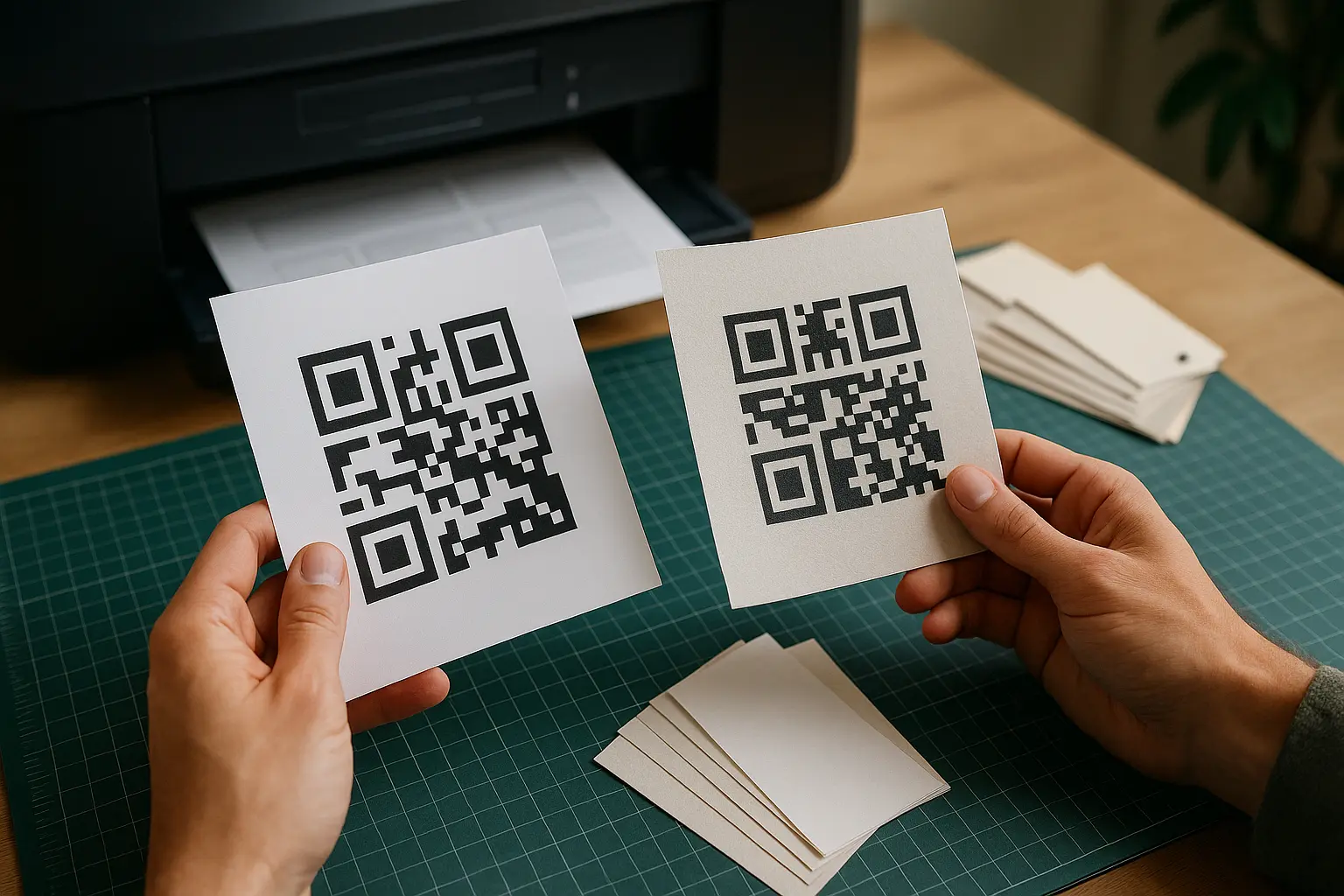
Your export choice affects sharpness, especially for print. This varies by tool. Some generators offer downloads like PNG, SVG, EPS, or PDF, while others only offer a subset.
Use this quick guide:
| Format | Type | Best use | Notes |
|---|---|---|---|
| PNG | Raster | Screens, social posts, slides | Can get blurry if enlarged too much |
| SVG | Vector | Printing at any size | Stays crisp when scaled |
| Vector container | Print production workflows | Common for printers and proofs |
Takeaway: Use PNG for digital, and prefer SVG or PDF for print so you can scale without losing edge sharpness.
A practical rule for posters and menus: If you will resize the code in a design tool, start with a vector export (SVG or PDF). If you must use PNG, export it at a high enough resolution so you are not stretching it later.
Size, contrast, and placement: make it scan reliably
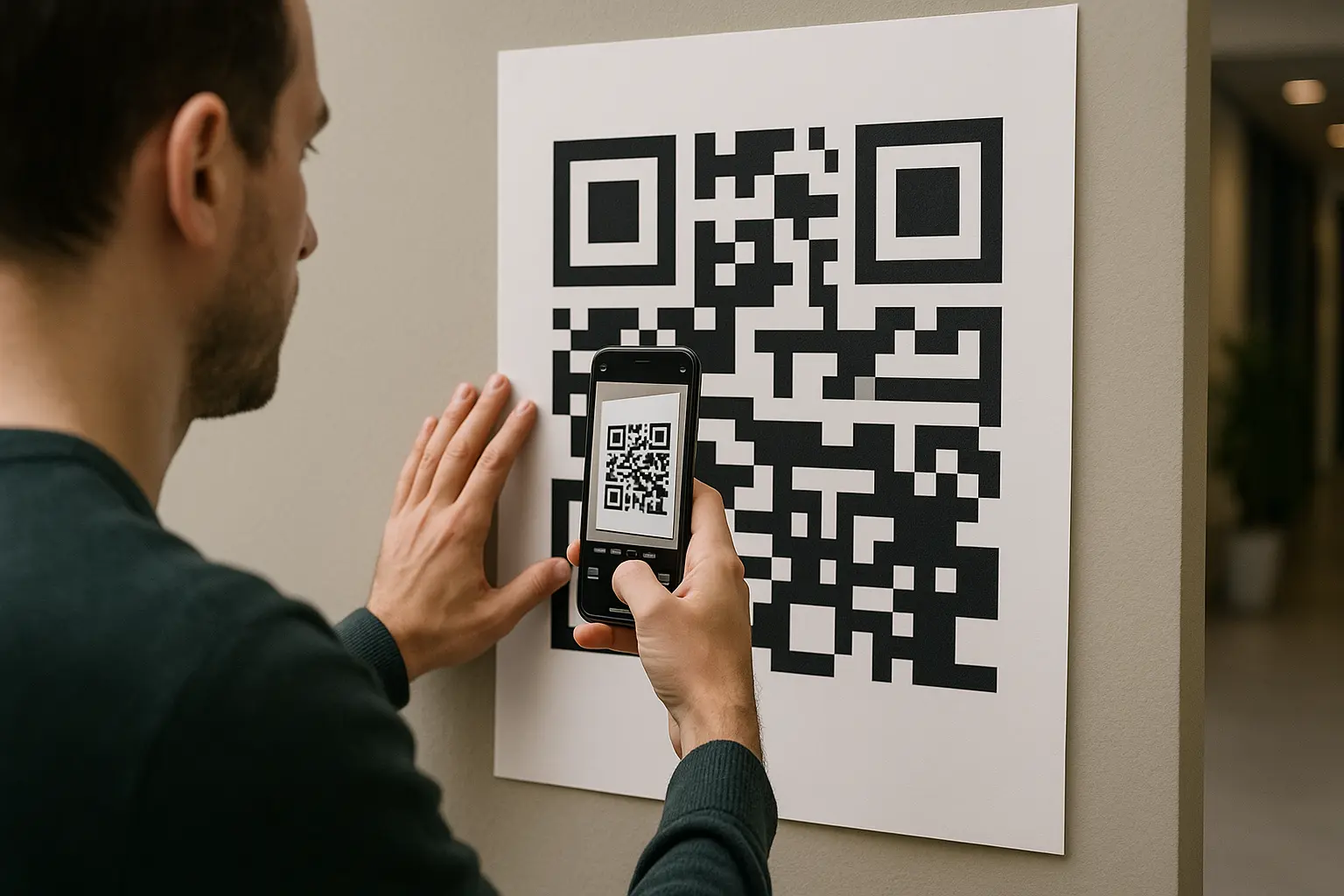
If scans fail, it is often not the link. It is usually size, contrast, or print quality.
What size should I make my QR code to ensure it scans reliably from a distance? A common minimum recommendation is about 2×2 cm, and a common rule of thumb is a 10:1 scan-distance-to-code-size ratio. That means if the code is 2 cm wide, plan for reliable scans from about 20 cm away, assuming good lighting and print quality.
Two core scannability factors:
- Scanning distance: The farther away the scan, the larger the code needs to be.
- Contrast: Dark code on a light background is easiest. Inverting colors often reduces reliability.
Simple sizing diagram (10:1 ratio)
Code width: 2 cm  -> Suggested scan distance: 20 cm
Code width: 5 cm  -> Suggested scan distance: 50 cm
Code width: 10 cm -> Suggested scan distance: 100 cm
That ratio is a planning tool, not a guarantee. Camera quality, lighting, glare, and how steady someone holds the phone all matter.
Print-ready checklist (size and placement)
- Make the code at least 2×2 cm.
- Use the 10:1 ratio to pick a size based on where people will stand.
- Keep a clean light background behind the code.
- Avoid glossy finishes where glare will hit the code.
- Do not place the code on a fold, seam, heavy texture, or busy photo.
- Leave breathing room around the code so it is not crowded by text or graphics.
Annotated placement example (with a short instruction)
[ Headline area ]

Scan to open the playlist
[ QR CODE HERE ]
(Keep a light background and clear space around the code)

[ Optional small text: Playlist name ]
That short line helps people understand what they get after scanning. Keep it simple and literal.
Error correction levels: how they affect logos and damage tolerance
QR codes use Reed-Solomon error correction, which allows scanners to recover data if part of the code is damaged or obscured. You will often see four error correction levels labeled L, M, Q, and H.
Typical recovery levels are often described as:
L: About 7%M: About 15%Q: About 25%H: About 30%
Higher error correction can help when:
- A logo overlaps a small portion of the QR code.
- The code might get scratched, smudged, or partially blocked.
But there is a tradeoff. Higher error correction can make the pattern denser at the same data length. Denser patterns can be harder to scan at small sizes or with low print quality.
Practical guidance for playlist links:
- Start with modest customization and test early.
- If you add a logo overlay, keep it small and centered, and consider a higher error correction level.
- Do not rely on error correction to fix low contrast, tiny size, or heavy styling.
Also remember that QR code symbol versions change the grid size in modules. More dense modules plus heavy styling is a common reason codes fail in the real world.
Test before you print: a quick validation checklist
A QR code that scans once on your phone is not proof it will work for everyone. Test like your audience will scan it.
How do I test a QR code before printing it on marketing materials? Scan it using multiple phones and camera apps, then test at the real viewing distance and in typical lighting. Also confirm it opens the intended playlist on both Wi-Fi and mobile data.
Use this testing workflow:
- Test-scan from at least two different phones (for example, iOS and Android) using the native camera.
- Confirm the scan opens the intended playlist and not a search page or a login dead-end.
- Test on both Wi-Fi and mobile data to catch network-specific issues.
- Test at the intended distance based on placement, using the 10:1 ratio as a starting point.
- Test under typical lighting, including any glare from overhead lights.
- If it will be printed, print a draft at actual size and test the physical print, not just the on-screen preview.
Quick checks to run before you distribute:
- Does it scan on iOS and Android using the native camera?
- Does it open the intended playlist on mobile data and Wi-Fi?
- Is the code at least the recommended minimum size for the placement?
- Is contrast high enough and the design not inverted/over-stylized?
- Have you tested at the real viewing distance and lighting?
Playlist access caveats: private playlists and collaborative invites
The QR code only delivers someone to a destination. Whether they can actually play or edit the playlist depends on Spotify access rules and the playlist’s settings.
Can someone use a QR code to scan a private or collaborative Spotify playlist? They can scan it, but access can be blocked by privacy settings or permissions. A private playlist may only open for the owner, and collaborative playlists can require an invite and the right account state to participate.
Set expectations based on playlist type:
- Public playlist: More likely to open and play for anyone with Spotify access, though behavior can vary if the user is not logged in.
- Private playlist: Often only accessible to the playlist owner. Scanners may see an error or be unable to play it.
- Collaborative playlists: People may be able to view the playlist, but edit permissions typically require accepting an invite.
About invites: Spotify collaborative playlist invitation links are commonly described as having a seven-day window to accept edit permissions. Plan for that limitation if you are printing a code and expecting ongoing collaboration from people who scan it later.
If your goal is simple listening, keep it public and clearly titled. If your goal is collecting additions, confirm the collaboration flow works for someone who is not already connected to you.
Security basics for public-facing QR codes
Public QR codes can be tampered with. A common risk is QR replacement, where someone places a sticker over your code that points to a different destination.
Basic ways to reduce risk:
- Place codes where staff can notice tampering.
- Include the playlist name in text near the code so a wrong destination feels obvious.
- Periodically inspect printed codes, especially on street-facing posters or unattended displays.
A simple personal safety reminder: Before opening any link from a public QR code, check that the destination shown by your phone looks like a Spotify link you expected. If the preview looks off, do not proceed.
Troubleshooting: why your Spotify playlist QR code won’t scan
If your spotify playlist qr code fails in the real world, check these issues in order:
- Too small for the viewing distance: Increase the printed size, or move it closer to where people stand. Use the 10:1 ratio as a starting point.
- Low contrast: Use a darker code on a light background. Avoid inverted colors and low-contrast brand palettes.
- Over-customization: Heavy styling, patterned fills, or large logo overlays can break detection. Reduce styling and retest.
- Poor print quality: Blurry edges, ink spread, or glossy glare can make the modules hard to read. Print a sharper version or switch to a vector export.
- Crowded placement: If the code is surrounded by busy graphics, detection can slow down. Add clear space around it.
- No instruction nearby: Add a short line like Scan to open the playlist so people know what to do and what they get after scanning.
- Wrong destination link: Re-check the playlist URL, and confirm the playlist is accessible to the audience (public vs private, collaboration permissions).
If you need a repeatable process, return to the same workflow every time: link check on mobile, generate, export correctly, test on multiple phones, then deploy at the right size with high contrast.