Blog
How to Generate QR Code in Excel
On this page
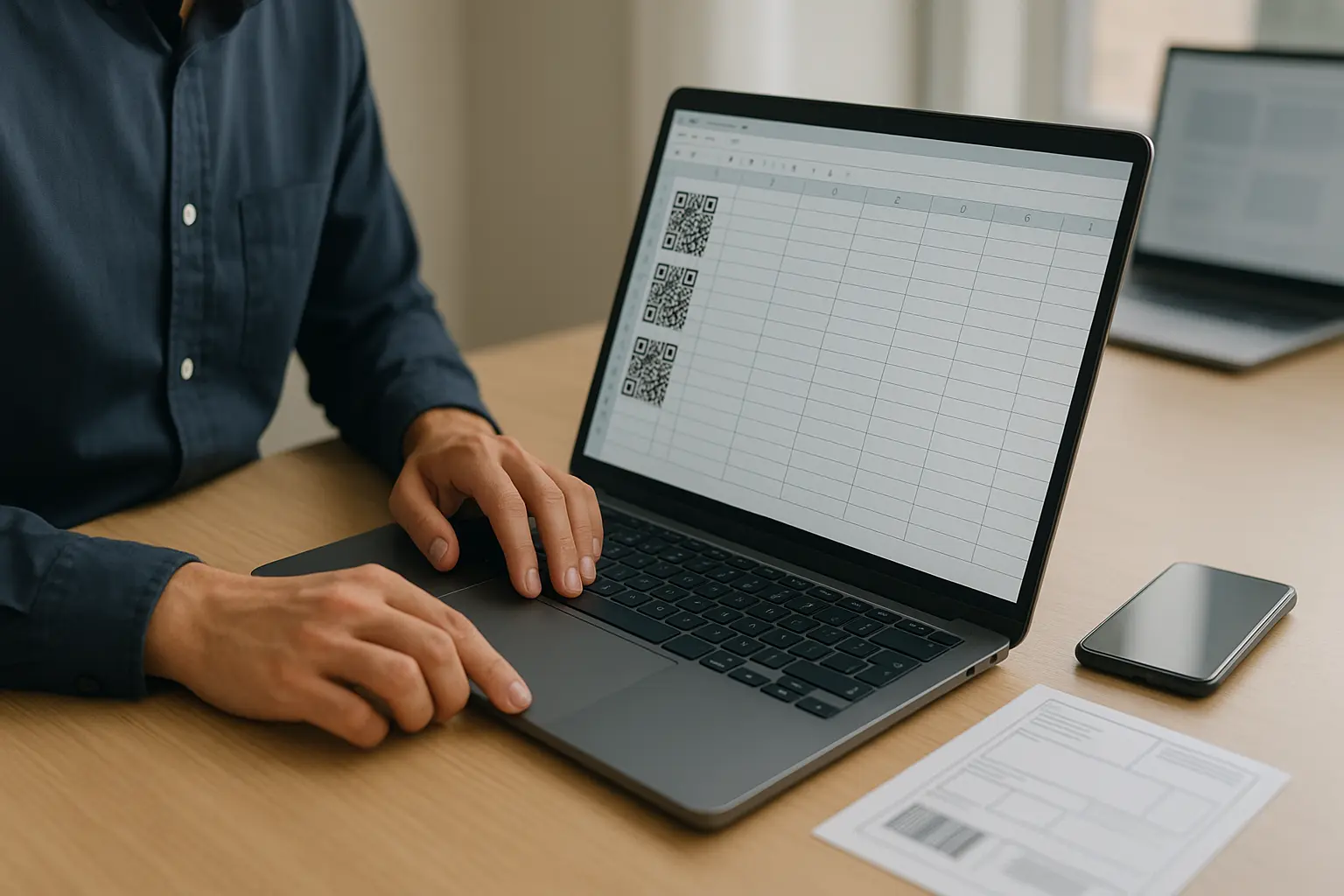
Put the link in cell A2 and type =IMAGE("https://api.qrserver.com/v1/create-qr-code/?size=300x300&data="&ENCODEURL(A2)) in B2. Excel loads a QR code for that link from an online QR service and shows it in the cell. Fill the formula down to get a code on every row.
The cell’s text is sent to that service, QR Server, to draw the code. Its maker, goQR.me, says codes made on its site, which uses the same API, are free of charge, commercial use included. Its API notes set no request limit, though it may reject abusive requests and asks to hear from anyone sending more than 10,000 a day. They also say it records where each request comes from, not what the code holds. Keep private data out of the cell.
ENCODEURL is the part most formulas leave out, and our test shows why it matters. Without it, a link with & or # in it still turns into a code that scans, but the code opens a shorter, wrong link. ENCODEURL works in Excel for Windows only, so on a Mac or in Excel for the web, use the SUBSTITUTE version further down.
The test: 3 formulas, 5 cell values, 2 QR readers
A spreadsheet QR formula builds a web address from 2 parts: the QR service’s address and the text in your cell. Excel’s IMAGE function then shows the picture at that address. We built the same addresses for 3 ways of joining the cell:
- Plain join:
"<service>"&A2, as most guides write it. - ENCODEURL:
"<service>"&ENCODEURL(A2). ENCODEURL replaces characters with a meaning in a web address with%codes: in Microsoft’s example,http://becomeshttp%3A%2F%2Fand a space becomes%20. We used standard percent encoding, and it matched Microsoft’s example character for character before the test ran. - SUBSTITUTE: the same, done with SUBSTITUTE for the 5 characters that break a link:
%,&,#,+and the space.
We fetched each address by plain HTTP from a Mac on 10 Oct 2026, at 2 public QR services: QR Server (api.qrserver.com) and QuickChart (quickchart.io), both at 150 by 150 pixels, then fetched QR Server again at 300 by 300, the size in the formulas below. Excel itself was not used. Each image was then read by 2 QR readers: Apple Vision, the barcode detector in Apple’s Vision framework, and the QR detector in OpenCV 4.14. A pass means the code read back exactly the text in the cell.
The 5 cell values:
- A plain link:
https://qrplify.com - A link with
&:https://qrplify.com/?utm_source=excel&utm_medium=sheet - A link with
#:https://qrplify.com/free-qr-code-generator/#qr-widget - Text with spaces and accents:
Table 4, Café Olé - A tracking link of 142 characters, with 3
&signs
Results
| Plain join | ENCODEURL or SUBSTITUTE | |
|---|---|---|
| 1. Plain link | Pass | Pass |
2. Link with & | Wrong link: cut at the & | Pass |
3. Link with # | Wrong link: cut at the # | Pass |
| 4. Spaces and accents | Not tested | Pass with ENCODEURL. SUBSTITUTE not tested: it leaves the accents as they are. |
| 5. Tracking link | Wrong link: cut at the first & | Pass on QuickChart, and on QR Server at 300 pixels. At 150 pixels on QR Server, Vision passed and OpenCV failed. |
The wrong links still scan. With the plain join, value 2 became a code for https://qrplify.com/?utm_source=excel and value 3 a code for https://qrplify.com/free-qr-code-generator/, and both readers read those links without trouble. A quick scan test shows a working code, and only a close look at the link shows the part that went missing.
At 150 pixels, both services gave the same result in every row except the last. At 300 pixels, QR Server matched QuickChart in all 5 rows. Both answered each address directly with a PNG image. That matters: Microsoft says IMAGE blocks a source address that redirects, and its help sets a limit of 255 characters on the address. The longest address in the test, the tracking link with ENCODEURL on QR Server, came to 232.
We also tried 3 addresses found in other guides. Google’s old chart address (chart.googleapis.com) returned a 404 error. api.tec-it.com has no DNS record, so a formula pointing there loads nothing. A formula that joins the cell straight onto https://qrserver.com, with no path, builds a broken address. TEC-IT’s own barcode address, barcode.tec-it.com, returned a 100 by 100 pixel GIF that Vision read and OpenCV did not.
Step by step: a QR code on every row
Microsoft lists IMAGE in Excel for Microsoft 365 and Excel 2024, on Windows and Mac, and in the Excel apps for iPhone and Android. These steps use ENCODEURL, so they are for Excel on Windows.
-
Put a header in A1, then 1 link or text per row from A2 down.
-
In B2, type
=IMAGE("https://api.qrserver.com/v1/create-qr-code/?size=300x300&data="&ENCODEURL(A2))For QuickChart instead, type
=IMAGE("https://quickchart.io/qr?text="&ENCODEURL(A2)). The cell’s text then goes to QuickChart. Its free plan is rate limited and has no service level agreement, and its pricing page lists full commercial use on its paid plans. -
Press Enter. If Excel says access to linked images is turned off, turn it on only if you trust the service: the images come from an outside connection.
-
Make row 2 taller and column B wider. The code sits inside the cell, so a small cell gives a small code.
-
Drag the fill handle in B2 down the column. Each row builds its own code from its own cell.
-
Scan 3 rows with a phone camera before you rely on the sheet (how to scan a QR code on iPhone and Android), and pick rows with
&,#or spaces in them. The free QR code decoder reads a screenshot of the cell in your browser and shows the link.
On a Mac or in Excel for the web: SUBSTITUTE in place of ENCODEURL
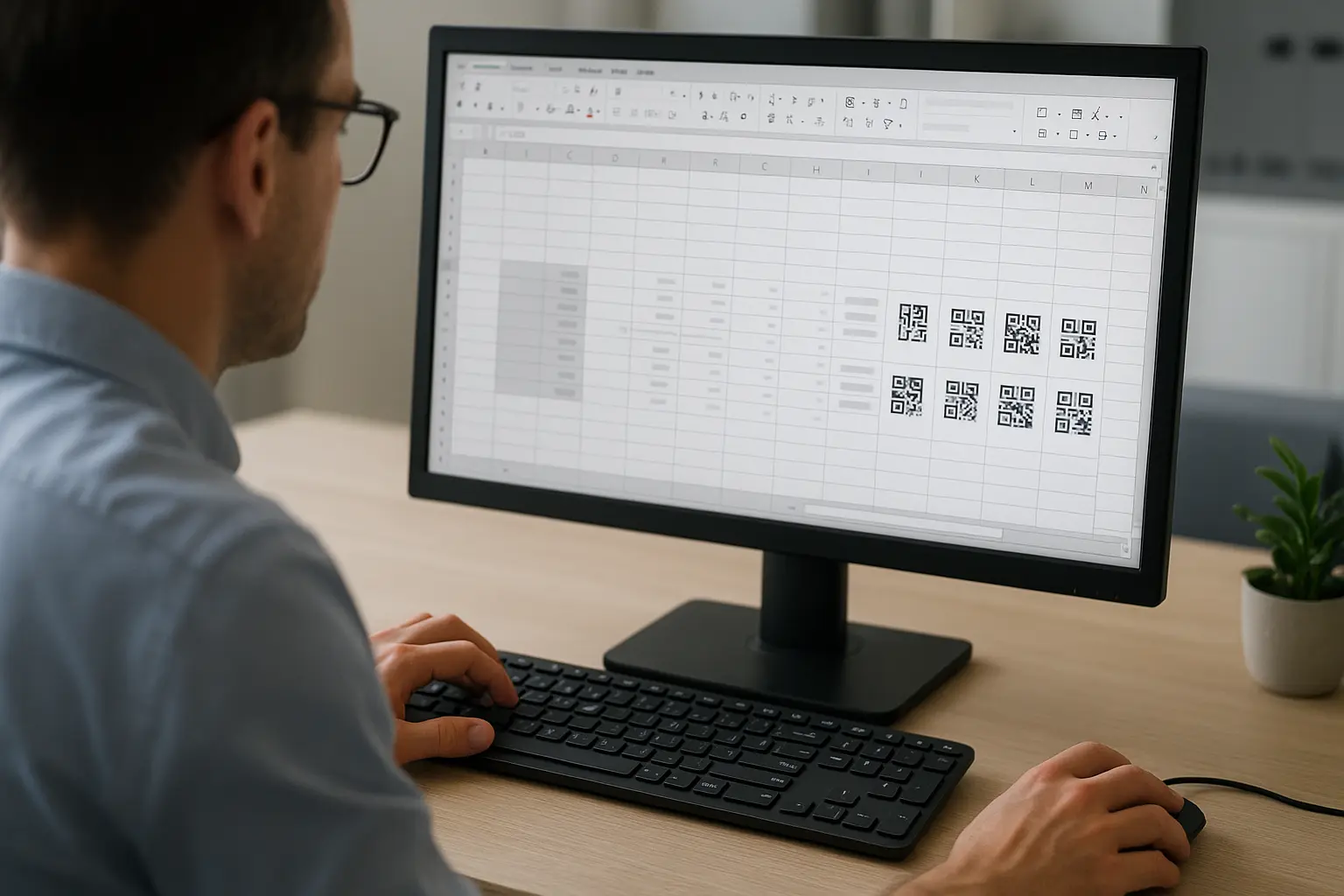
Microsoft’s ENCODEURL help says the function is not available in Excel for the web or Excel for Mac. It may appear in the Mac function list, but it relies on Windows and returns no result there. IMAGE does work on a Mac, so swap ENCODEURL for 5 SUBSTITUTE calls:
=IMAGE("https://api.qrserver.com/v1/create-qr-code/?size=300x300&data="&SUBSTITUTE(SUBSTITUTE(SUBSTITUTE(SUBSTITUTE(SUBSTITUTE(A2,"%","%25"),"&","%26"),"#","%23"),"+","%2B")," ","%20"))The % swap comes first, so the % signs the other 4 swaps add stay as they are. In the test, this version read every link with & and # in it exactly. Accented letters were not part of the SUBSTITUTE test, so scan a row with them before you print.
When the code does not show

Microsoft’s IMAGE help names the errors:
- #CONNECT! Excel could not reach the internet or the server providing the image. Check the connection and try again.
- #BLOCKED! Your security settings block linked images. Check the settings for linked data types.
- #VALUE! The file is in a format IMAGE does not support, or the sizing values are wrong.
- No image at all: IMAGE shows nothing for a source that needs a sign in, and it blocks a source that redirects.
A code that shows and scans but opens the wrong page is the plain join at work: wrap the cell in ENCODEURL or SUBSTITUTE.
Before you share or print the sheet
- Keep private data out of these formulas. The cell’s text is part of the address, so the QR service receives it.
- The codes load from the service. If it goes offline or moves, the images stop loading, as Google’s old chart address shows. Neither has a service level agreement for this use: QuickChart’s pricing lists none for the free plan, and goQR.me’s legal page lists none for the API. For codes that live in the file, make them in the free QR code generator and add them with Insert > Pictures > Place in Cell. Microsoft’s Place in Cell help says several pictures picked at once fill the cells down the column.
- These codes are static. The link is inside the pattern, so a printed code cannot change. If a link may change after printing, use a dynamic QR code: a free account adds a dynamic code you can edit after printing. Static and dynamic codes compared.
- For a whole batch of codes, see the bulk QR code guide, and for codes in a letter or on labels, how to create a QR code in Word.
A QR code that opens your spreadsheet
To let people open the workbook itself, copy its share link from OneDrive, SharePoint or wherever it lives, and turn the link into a code with the URL QR code generator. Check the link opens for people outside your account before you print it.
FAQ: QR codes in Excel
How do I create a QR code in Excel for Microsoft 365?
Put the link in A2, then type =IMAGE("https://api.qrserver.com/v1/create-qr-code/?size=300x300&data="&ENCODEURL(A2)) in B2 and fill it down. On a Mac, use the SUBSTITUTE version above.
Can I download a free font for creating QR codes in Excel?
The formulas on this page need no font: the code arrives as a picture from the QR service. For codes that do not depend on a service, download them from the free generator and place them in the cells as pictures.
How do I create my own QR code?
Paste your link into the free QR code generator and download the code as a PNG, JPG or SVG. A static code needs no account and no card, and it keeps working after you print it.
Does Microsoft offer a QR code generator?
Word for Windows has a barcode field that draws QR codes: see how to create a QR code in Word. In Excel, the IMAGE function shows a code made by an online QR service, as tested on this page.