
Table of Contents
To answer how to generate a qr code for facebook, start by copying the exact Facebook URL you want people to open, paste it into a QR code generator (or Facebook’s native QR feature, if available), then download the code as SVG for print or PNG for digital. Test it on iOS and Android before you share or print it.
You can turn any Facebook page, profile, group, or post into a scannable QR code. The part that trips people up is reliability: the right destination link, a scannable design (especially the white border), and testing in real conditions so it behaves the way you expect.
TLDRCopy the correct Facebook link, generate a QR code from that URL, download SVG for print or PNG for digital, and test it on multiple phones before publishing. Choose a dynamic code only if you need to change the destination later and/or want scan analytics.
What a Facebook QR code is (and what it can link to)
A Facebook QR code is a QR code that contains a direct link to a Facebook destination. When scanned, it opens that link in a browser or in the Facebook app, depending on the device and scanner behavior.
Common Facebook destinations you can encode include:
- Facebook page: For a business, brand, or organization.
- Facebook profile: For an individual’s profile link.
- Facebook group: For a community or private group (access depends on privacy settings).
- Specific post: For a single post you want to highlight.
Under the hood, QR codes follow the ISO/IEC 18004 standard. They are made of small squares called modules, and they support error correction levels (L, M, Q, H) that help the code scan even if it is slightly damaged or partially obscured.
What is the difference between Facebook’s native QR code feature and a third-party QR generator? Facebook’s native feature typically creates a code meant to point to a Facebook destination and is described as free, while third-party generators may offer static or dynamic options, customization, and scan analytics depending on the tool and plan.
The tradeoff is control versus simplicity. Native options can be quick, while third-party tools can offer more choices like file formats, code styling, and tracking, but behavior varies by tool.
Step-by-step: generate a QR code for Facebook
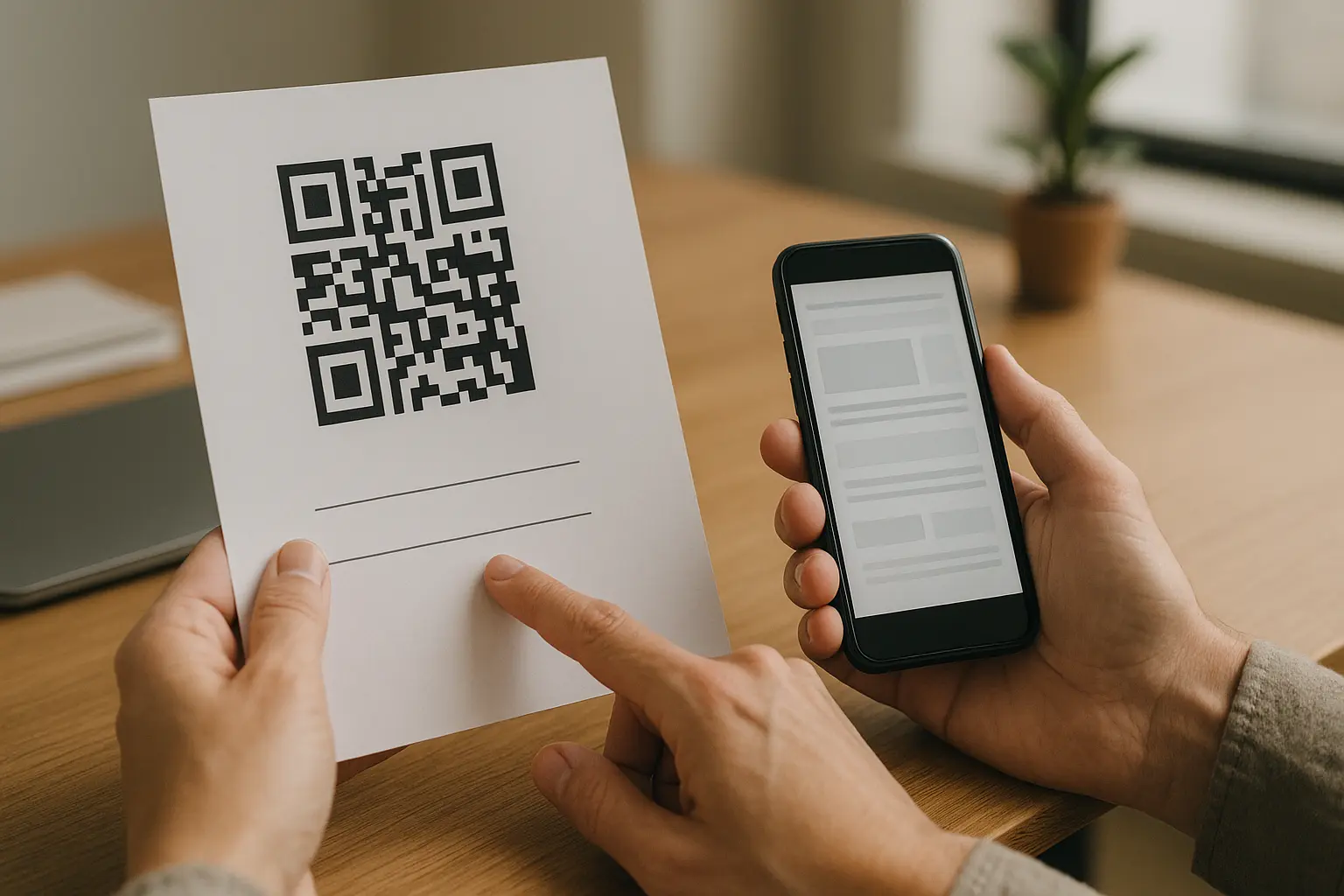
If you are searching for how to generate a qr code for facebook, the reliable workflow is always the same: get the correct link, create the code, download the right format for where you will use it, then test it like a real user would.
- Decide the destination type (page, profile, group, or post). Pick the one that matches the action you want after scanning.
- Copy the exact Facebook URL from the destination. Open it on your phone first to confirm it loads while signed out or signed in as intended.
- Generate the QR code from the URL. Use Facebook’s built-in QR feature (if you see it for your destination) or a third-party QR generator that accepts a URL.
- Choose static or dynamic (if offered). Pick static when the link will not change. Pick dynamic when you need to update the destination later and/or want scan analytics.
- Download in the right format. Use
SVGfor print designs andPNGfor digital placements like email or social. - Test on multiple devices and in realistic conditions. Scan from iOS and Android, in typical lighting, and at the distance people will use.
Flowchart (destination to deployment)
Page/Profile/Group/Post → Copy URL → Generate QR code → Choose static or dynamic → Download SVG or PNG → Test → Publish/Print → Maintain
End-to-end checklist (reliability first)
- Link correctness: The Facebook URL opens on mobile and points to the exact page, profile, group, or post.
- Code type: Static for fixed links, dynamic when you need edits and/or scan analytics.
- Format:
SVGfor print,PNGfor digital. - Quiet zone and contrast: Keep a clear white border and strong contrast.
- Testing: Scan on iOS and Android in the lighting you expect.
- Placement: Put it where cameras can easily focus, not on glossy folds or busy textures.
- Maintenance: Recheck the destination link if the Facebook asset changes or is removed.
Get the correct Facebook URL (page vs profile vs group vs post)
The QR code only does one thing: it opens the URL you encode. If the URL is wrong, short-lived, restricted by privacy settings, or later removed, scanning will fail or send people somewhere unexpected.
A common page URL pattern looks like: https://www.facebook.com/[page-name-or-id]. Profiles, groups, and posts also have their own share links, and those are usually the safest to copy because they are designed to be opened by others.
Get the right Facebook destination link (page)
When creating a facebook qr code for page url, copy the public page link from the page’s address bar or share options. Before generating the code, open that same link on a phone to confirm it loads as expected.
This is especially important for business pages that have:
- Similar names to other pages.
- Location or franchise variants.
- Region-specific pages that can confuse visitors.
Get the right Facebook destination link (profile)
For a facebook qr code for profile link, use the profile’s share link (not a link that only works when you are logged in as the owner). Profile visibility can be limited by privacy settings, which affects what a scanner can see.
If the goal is contact and follow, confirm the viewer can at least see the profile header and the follow button (if enabled) from a typical user context.
Get the right Facebook destination link (group)
For a facebook qr code for group link, copy the group’s share URL. Then test it while logged out or from a different account.
Group QR codes fail most often because:
- The group is private and the viewer is not logged in.
- Membership questions or approval are required.
- The group has been renamed or restricted.
Get the right Facebook destination link (post)
For a facebook qr code for post link, use the post’s permalink (share link). This matters when you are promoting one specific announcement, offer, or pinned post.
Posts can also disappear from view if:
- The post is deleted.
- The privacy setting changes.
- The post is in a restricted group or limited audience.
What happens if someone scans a QR code that links to a deleted Facebook page? The scan will still open the encoded link, but Facebook may show an error or an unavailable page message if the destination was deleted or removed.
In practice, this looks like a broken experience even though the QR code itself is fine. The fix is to restore the destination if possible or replace the QR code with one pointing to a live URL.
Choose static vs dynamic QR codes (and when it matters)
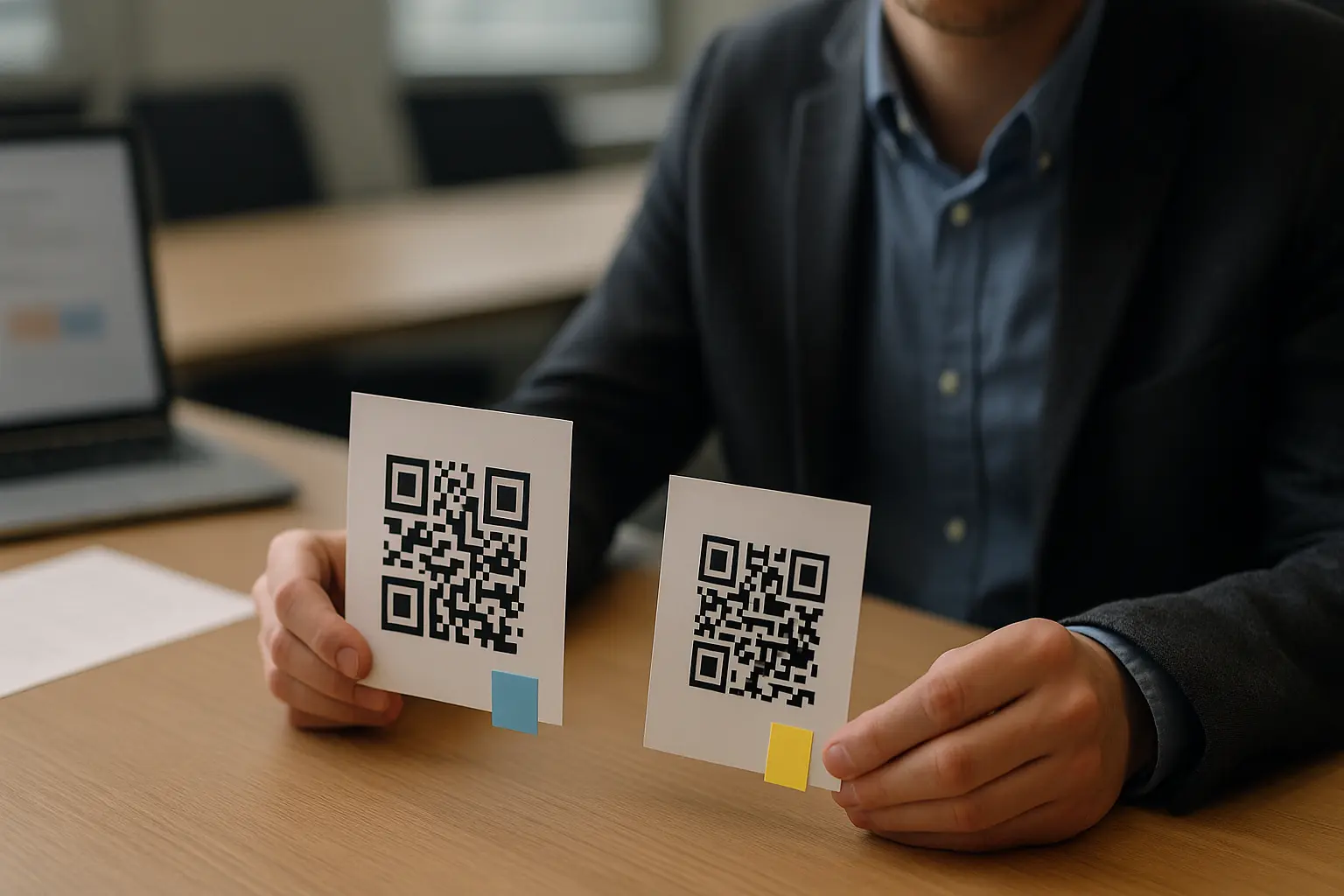
A Facebook QR code can be either a static QR code or a dynamic QR code. This varies by tool. The choice matters most when you need to change the destination later or you want scan analytics.
- Static: Encodes the Facebook URL directly. It cannot be edited after you create and print it.
- Dynamic: Encodes a link that goes through a redirect service. This varies by tool. It can allow you to update the final Facebook destination later and may provide scan analytics, but it depends on the redirect service continuing to run.
A simple decision rule:
- Use dynamic when you expect the Facebook destination to change (campaigns, rotating posts) and/or you need scan analytics.
- Use static when you want maximum independence from third parties and the destination will stay the same.
This varies by tool. Dynamic QR codes can stop working if the redirect service is discontinued or if the subscription or account behind it lapses.
| Factor | Static QR code | Dynamic QR code |
|---|---|---|
| Edit destination after creation | No | This varies by tool, often yes |
| Scan analytics | No | This varies by tool, often yes |
| Dependency risk | Low (no redirect) | Higher (relies on redirect service) |
| Best fit | Permanent signage, long-lived print | Campaigns, testing placements, short-lived promos |
| Failure mode | Destination URL changes or breaks | Redirect service becomes inactive |
Takeaway: Pick static for long-lived materials, and pick dynamic when changing the destination and tracking are worth the added dependency.
Design and scannability basics (quiet zone, contrast, not over-designed)
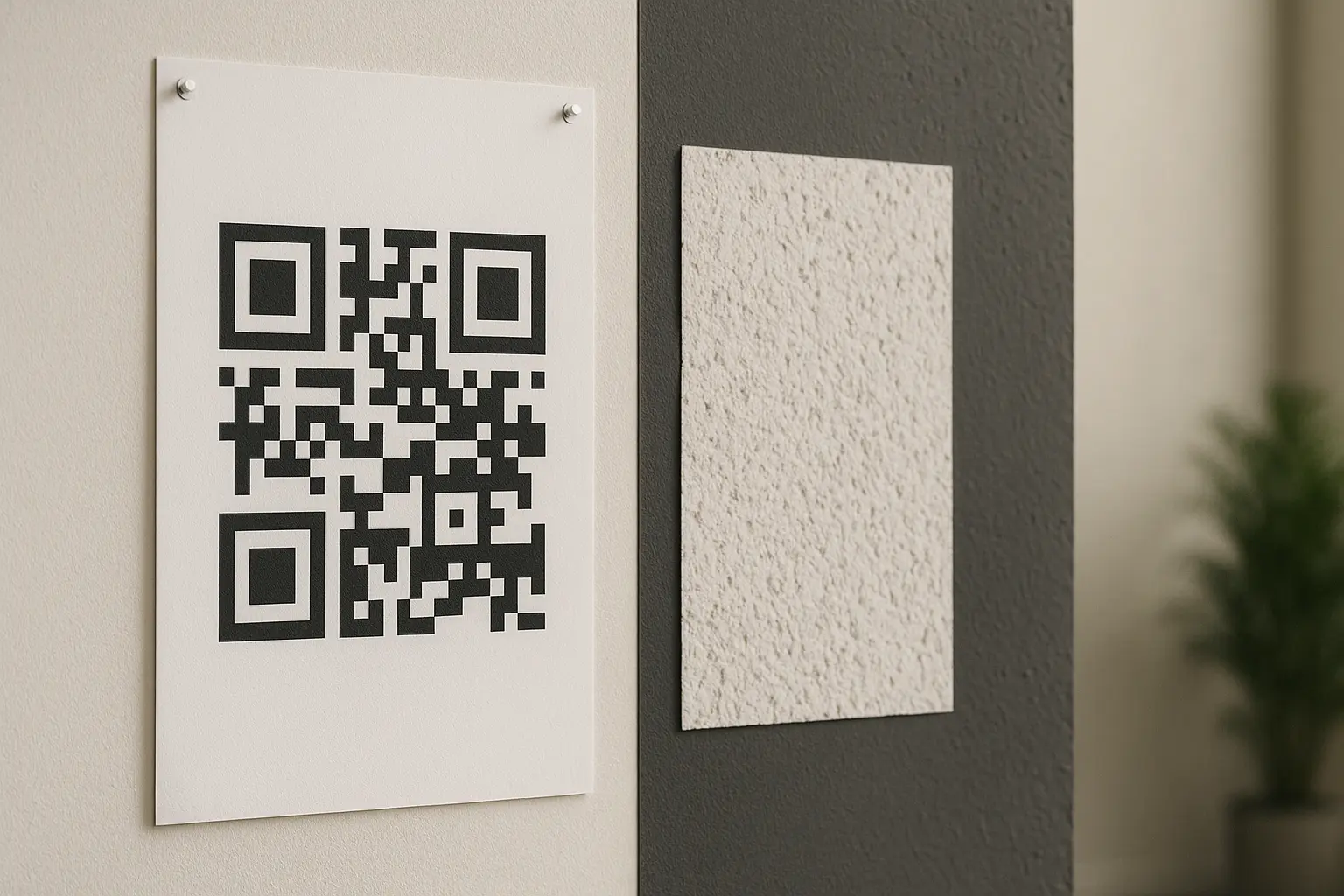
Many “QR code not working” issues are design issues, not link issues. QR codes are standardized (ISO/IEC 18004), but real-world scanning depends on how cleanly a phone camera can detect the code’s modules and boundaries.
Quiet zone (white space) and layout rules
The quiet zone is the clear white border around a QR code. Without it, scanners may not detect where the code begins and ends, especially on busy backgrounds.
If you are looking up facebook qr code quiet zone white border, the practical rule is simple: keep a visible, unbroken white margin on all sides. Do not let design elements, borders, or textures touch the code.
Diagram: quiet zone around a QR code (conceptual)
[ White quiet zone border all around ]
┌───────────────────────────────┐
│   █ █ █ █  (QR modules)  █ █   │
│   █ █ █ █  (QR modules)  █ █   │
│   █ █ █ █  (QR modules)  █ █   │
└───────────────────────────────┘
[ White quiet zone border all around ]
Contrast, backgrounds, and styling
Keep contrast high. Dark modules on a light background are the safest. Avoid gradients, low-contrast colors, and patterned backgrounds that blend into the modules.
Be careful with logos and heavy styling. Error correction levels (L, M, Q, H) can help a QR code still scan if part of it is obscured, but pushing styling too far can still break scanning.
Add a visible call-to-action label
A QR code is easier to use when people know what will happen after scanning. Add a short label near it, such as “Scan to visit our Facebook page.” Keep the label outside the code and outside the quiet zone.
Annotated placement example with CTA label (poster layout)
[ Headline ]
[ Short benefit line ]

Scan to view the event details on Facebook
[ QR code with white quiet zone ]

[ Small fallback: facebook.com/PageName ]
Size and scanning distance
If you are researching facebook qr code minimum size for print, treat size as a scanning reliability factor, not an aesthetic choice. Minimum usable size depends on print quality, viewing distance, camera performance, and lighting.
How far away can users scan a QR code? Scan distance depends on the physical size of the code, camera focus, lighting, and how much detail the printed modules retain.
As a practical check, test from the distance you expect people to stand, and increase the code size if scanning feels slow or inconsistent.
Download formats and where to use them (SVG vs PNG)
Your file format affects how sharp the QR code stays after resizing. This matters more for print than digital.
SVGis a vector format. It scales without losing quality.PNGis a raster format. It can look soft or pixelated if you scale it up too much.
Print use cases
If you need a facebook qr code svg for printing, choose SVG when you are placing the code into print layouts like posters, flyers, menus, and business cards. It stays crisp when resized in design software and helps preserve clean module edges.
Digital use cases
If you need a facebook qr code png for email, a PNG is usually the simplest option for email signatures, digital flyers, slides, and web pages. Use the right pixel size for where it will appear so it does not need to be enlarged after export.
| Format | Best for | Pros | Cons |
|---|---|---|---|
SVG |
Print layouts, large signage | Scales cleanly, sharp edges | Not ideal for every email workflow |
PNG |
Email, web, documents | Widely supported, easy to place | Can blur if enlarged too much |
Takeaway: Use SVG when the QR code might be resized for print, and use PNG when you need easy placement in digital content.
Examples that match common placements:
Poster: A QR code on a poster that links to a Facebook event page so passersby can open details fast.
Business card: A QR code on a business card linking to a profile for quick follow or message.
Email signature: A QR code in an email signature linking to a business page for recipients who prefer scanning.
Test before you publish (a quick checklist)
Testing is where you catch almost every failure before it becomes expensive. If you are thinking about facebook qr code test before sharing, test both the scan and the destination behavior.
- Test with the native camera on an iPhone.
- Test with the native camera on an Android phone.
- Test in bright light and dim indoor light.
- Test from the expected scanning distance.
- Confirm the link opens the intended Facebook destination and the content is visible.
Quick checks that prevent the most common problems:
- Confirm the Facebook URL opens on mobile.
- Keep sufficient white space (quiet zone) around the code.
- Avoid low contrast and over-designed styling.
- Test on iOS + Android before printing or publishing.
- If using dynamic QR, confirm the redirect service remains active.
Track scans (if you use dynamic QR codes)
This varies by tool. If you use dynamic QR codes, you may get scan analytics through the generator’s dashboard. If you are looking for facebook qr code track scans analytics, these dashboards commonly report items like:
- Scan counts over time.
- Device types.
- Geographic location (often approximate).
- Time and day patterns.
Use the data to improve real-world performance:
- If scans are low, adjust placement, size, or the CTA label text.
- If scans happen but conversions are low, check whether the destination is the best match (page vs post vs group).
- If one location outperforms another, mirror the winning placement conditions (height, lighting, nearby instructions).
Keep expectations practical. Scan counts do not automatically tell you what people did after the Facebook page opened, and reporting granularity varies by tool.
Troubleshooting: Facebook QR code not working
A useful troubleshooting approach is to separate the problem into one of three buckets:
- Scan failure: The camera cannot read the QR code.
- Wrong or different destination: It scans, but opens the wrong place.
- Destination unavailable: It scans, but Facebook shows an error or unavailable content.
If you are searching for facebook qr code not working troubleshooting steps, start by testing the QR code in good lighting from a short distance, then work outward to design, printing, and destination checks.
Troubleshooting matrix
| Symptom | Likely cause | Fix |
|---|---|---|
| Phone cannot detect the code | Low contrast, glare, or missing quiet zone | Re-export with stronger contrast, add quiet zone, avoid glossy placement |
| Scans sometimes, not consistently | Code too small for placement distance, print softness | Increase size, use SVG for print, avoid enlarging a low-res PNG |
| Scans but opens the wrong Facebook destination | Copied the wrong URL or a share link for a different asset | Recopy the exact page/profile/group/post URL and regenerate the code |
| Scans but shows unavailable content | Page/post removed, privacy changed | Point to a public destination or replace with a new QR code |
| Opens in browser instead of Facebook app | Deep linking behavior varies by device/scanner | Accept browser open, or test alternative destination links if available |
| Works for you, fails for others | Viewer is logged out or blocked by privacy settings | Test logged out, confirm content is public or has clear access steps |
| Scans but loads slowly or errors on mobile | Facebook destination itself is slow/unavailable | Retry on a different network, choose a more stable destination |
| QR looks distorted or cut off | Cropping or design elements intruding into the code | Restore full code area and quiet zone, avoid overlays on modules |
Takeaway: Diagnose whether the problem is scanning, link accuracy, or Facebook availability before regenerating everything.
Notes on deep linking: Some scanners try to open the Facebook app, while others open a browser first. That behavior varies by device, OS settings, and scanner. Plan for both experiences and make sure the destination looks acceptable in a mobile browser.
Security: safer scanning and safer placement
QR codes can be used in scams. One common risk is tampering, where a malicious actor places a fake QR code sticker over a legitimate one in a public space. Another risk is scanning a code that leads to a phishing page that imitates Facebook or a login prompt.
If you are concerned about facebook qr code security scam risk, treat public placements as higher risk and add simple safeguards.
Security mini-checklist for public placements:
- Place the code where tampering is harder (behind glass, inside a venue, or in monitored areas).
- Inspect printed codes periodically for overlays or stickers.
- Add a human-readable fallback next to the code (like a short Facebook handle or page name) so users can compare what they see.
- Encourage scanners to verify the destination preview on their phone before continuing, especially if prompted to log in.
- Avoid placing QR codes where people feel rushed or pressured to scan.
FAQ
Will my QR code work forever, or can it expire? This varies by tool. A static QR code typically keeps working as long as the encoded Facebook URL remains reachable, while a dynamic QR code can stop working if the redirect service becomes inactive.
If you need long-term reliability for printed materials, favor a stable destination and recheck it periodically.
Can I update the destination of a QR code after printing? This varies by tool. Static codes generally cannot be changed because the URL is encoded into the QR code, while dynamic codes may allow updates through the provider because they use a redirect service.
If updates matter, decide that before printing so you do not have to replace physical materials.
Do users need to download a special app to scan a Facebook QR code? This varies by device, but most smartphones can scan QR codes using the native camera app, so a special scanner app is usually not required.
Some users may still rely on a third-party scanner or an in-app scanner, which can change whether the link opens in a browser or the Facebook app.
How far away can a QR code be scanned? It depends on the QR code’s physical size, printing quality, lighting, and camera focus.
Test at the real viewing distance for your placement, then increase the code size or improve contrast if scanning feels unreliable.
Should I use SVG or PNG format when creating a QR code for print? Use SVG for print because it scales cleanly without losing edge definition, and use PNG for digital placements where you will not need to enlarge it.
When in doubt, keep SVG for design files and export a correctly sized PNG for email or web use.
Ready to Create Your Own QR Code?
Join thousands of users creating beautiful QR codes.
Try QRplify FreeNo credit card required