
Table of Contents
Yes, screenshots can scan, as long as the QR code screenshot is sharp, complete, and not heavily degraded. Problems usually come from tight cropping (missing the quiet zone), blurry or compressed images that distort the modules, or codes that change over time (like some tickets and dynamic QR code setups).
- Keep the full code plus a white border (quiet zone) around it
- Avoid heavy re-sharing that applies lossy compression
- Remember that a perfect screenshot can still fail if the underlying code expires or is invalidated
Saving a QR code for later feels simple: take a screenshot, pull it up when you need it, scan, done. In practice, QR code screenshots often work, but small changes to the image or the QR’s underlying behavior can make scanning fail at the worst time.
The goal is not just to confirm whether it works, but to spot the failure mode fast and fix it without guesswork.
TLDRScreenshots of QR codes usually work if the image stays clear, includes the full code with its border, and has not been compressed. If it still will not scan, the issue is often cropping, glare when scanning from a screen, or a dynamic or ticket code that has changed since you saved it.
Quick answer: when QR screenshots work (and when they don’t)
If you are asking do screenshots of qr codes work, the answer is yes for many everyday cases, especially when the original is a static QR code and your screenshot is a clean, complete capture. A screenshot can be pixel-for-pixel identical to what was on screen, which is why it often scans just like the original.
The three most common reasons screenshots fail are:
- Cropping too tightly and removing the quiet zone (the white border area scanners expect)
- Image degradation from blur, low resolution, or lossy compression during sharing
- The QR code itself changes or is invalidated (common with some tickets and some dynamic QR code implementations)
Fast try-this-first check:
- Open the screenshot full-screen and do not zoom.
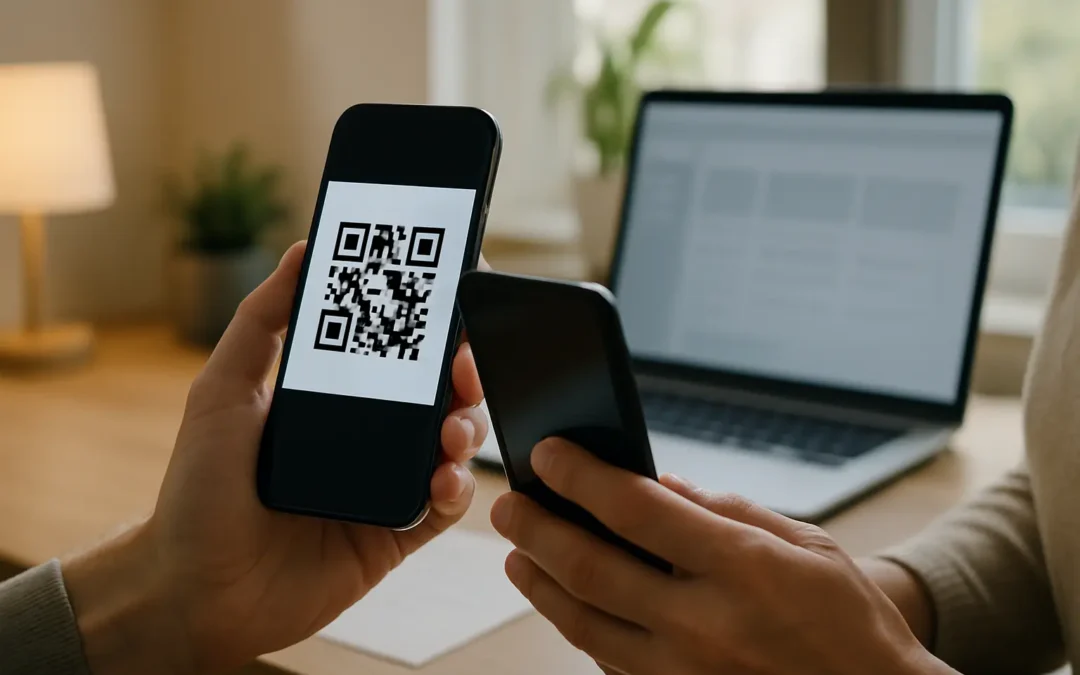
- Scan it using a second device’s camera to avoid same-screen glare/reflections.
- If it scans on another device but not yours, the issue is likely device behavior or screen glare, not the QR data.
Scanning QR codes directly from saved photos/screenshots
Many people specifically wonder: do screenshots of qr codes work from photos? Often, yes. Many phones can detect and decode a QR code from the Photos or Gallery app, but this varies by device, OS version, and settings.
Can I scan a QR code screenshot on the same phone that took it? Often yes, if your phone supports QR detection from the Photos or Gallery view, but it varies by device and settings. If it does not appear, the workaround is to display the screenshot on one device and scan it with another.
A quick reality check is to try both methods:
- Scan from within your Photos/Gallery view (if supported).
- Scan the screenshot shown full-screen using a second device.
Examples you might relate to:
- Saving a restaurant menu QR for later and scanning it from your camera roll.
- Scanning a QR screenshot displayed on a laptop, which often works better than scanning it from a phone screen due to fewer reflections.
How QR scanning works (why image quality matters)
QR codes are designed to be readable even when the image is not perfect. They follow the QR code standard (ISO/IEC 18004:2024), which defines how the pattern is built and how scanners should interpret it. QR codes were invented in 1994 by Masahiro Hara at Denso Wave, with fast, reliable machine reading as the goal.
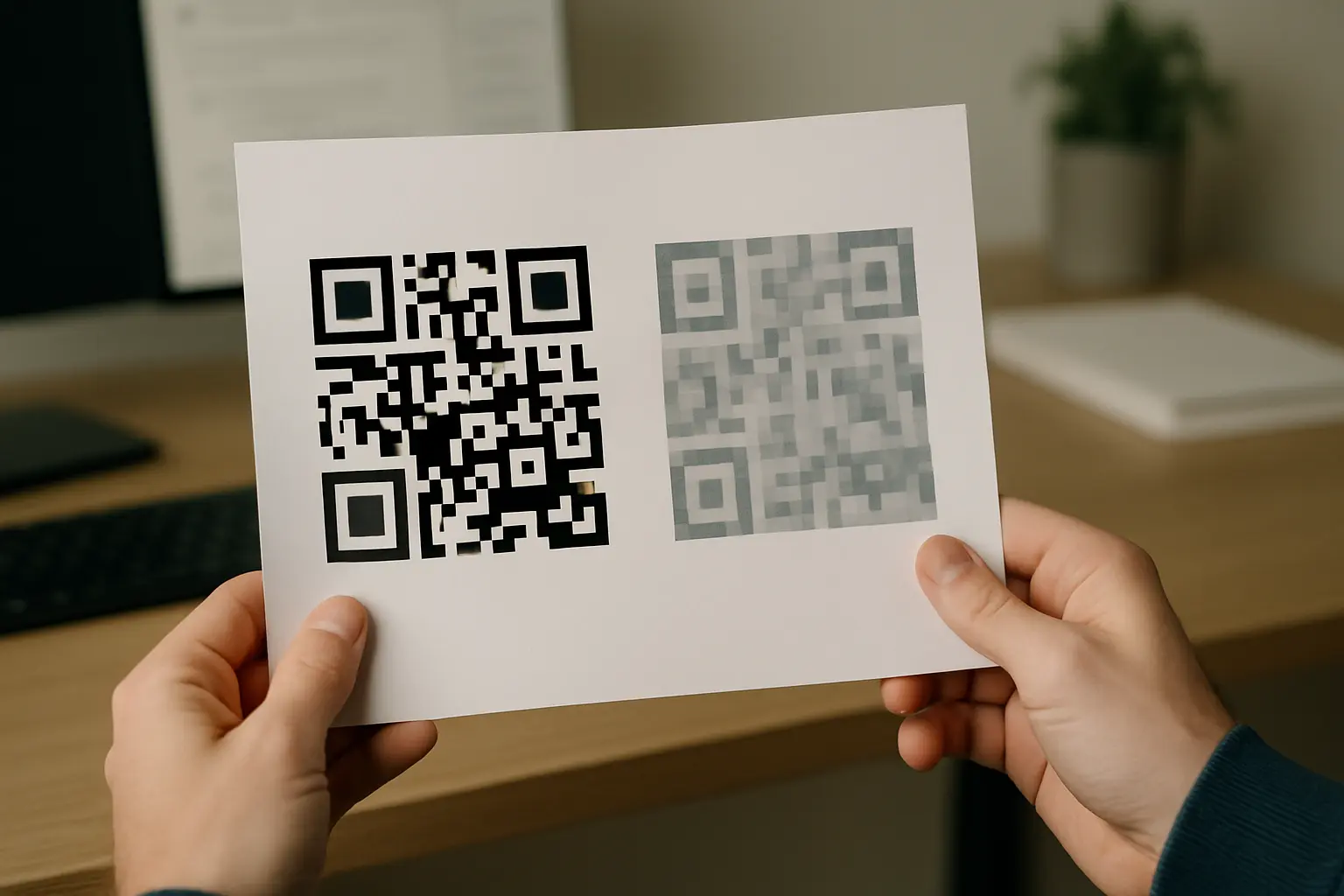
A QR code is made of tiny squares called modules. Scanners look for the finder patterns (the big corner squares) and then read the module grid to decode the data. Two things matter most for a screenshot:
- The module pattern must stay crisp enough that the scanner can tell dark modules from light ones.
- The surrounding quiet zone must still be present so the scanner can separate the code from the background.
QR codes also use Reed–Solomon error correction. This allows the code to remain readable even if part of it is damaged or obscured, up to 30% in some cases. That helps with small scratches on printed codes or minor screen artifacts, but it does not fully protect you from:
- Blur that smears module edges together
- Compression artifacts that add false patterns
- Cropping that removes structural context like the quiet zone
In practice, “readable with damage” is not the same as “readable after any screenshot edit.” Many screenshot failures are not missing data, but distorted data.
How to scan a QR screenshot on iPhone (Photos/Camera)
People often ask: do screenshots of qr codes work on iphone? Often yes, because iPhone can recognize QR codes using built-in camera behavior and, on many devices, image recognition features in Photos. This varies by iOS version, device model, and your settings.
How do I scan a QR code screenshot on iPhone? Start by opening the screenshot in Photos and look for a QR detection prompt or action to open the embedded link. If you do not see it, try long-pressing the code area or use the Camera app to scan the code from another screen.
A simple workflow to try:
- Open the screenshot in Photos and view it full-screen without zooming.
- Tap and hold on the QR code area to see if a QR action appears (behavior varies by iPhone).
- If your device shows QR actions through Live Text, ensure Live Text is enabled and try again (this varies by device and iOS).
- If nothing appears, display the screenshot on another device and scan it using the iPhone Camera.
Apple’s support documentation generally describes QR scanning as a built-in Camera feature, but decoding from saved images can depend on what your device supports.
If detection does not appear:
- Re-check that you did not crop too tightly.
- Increase screen brightness if you are scanning from a display.
- Try the same screenshot on another phone to confirm whether the image is the issue.
How to scan a QR screenshot on Android (Google Lens/photos)
Many users ask: do screenshots of qr codes work on android? Often yes, because many Android phones can scan QR codes via the camera app, and many also support scanning from saved images using tools like Google Lens. This varies by phone maker and Android version.
How do I scan a QR code screenshot on Android? Open the screenshot in your Gallery app and use a built-in QR or lens option (often Google Lens) to detect the code. If that fails, display the screenshot full-screen on another device and scan it with your camera.
A straightforward workflow:
- Open the screenshot in your Gallery or Photos app.
- Tap the Lens icon or a Scan QR option if it appears (often powered by Google Lens).
- If a result appears, confirm the destination before opening it.
- If it does not detect, show the screenshot full-screen and scan it from another screen.
If scanning fails, a quick cross-device tip often helps:
- Display the screenshot on a laptop or tablet screen and scan it with your phone camera.
Fallback adjustments when scanning from a screen:
- Increase the screen brightness.
- Tilt the screen slightly to reduce glare/reflections.
- Move closer or farther until the code is in focus.
Why your QR code screenshot won’t scan (most common causes)
Most failures come down to the scanner not being able to confidently separate the module grid from the background. Use this checklist to spot the cause quickly.
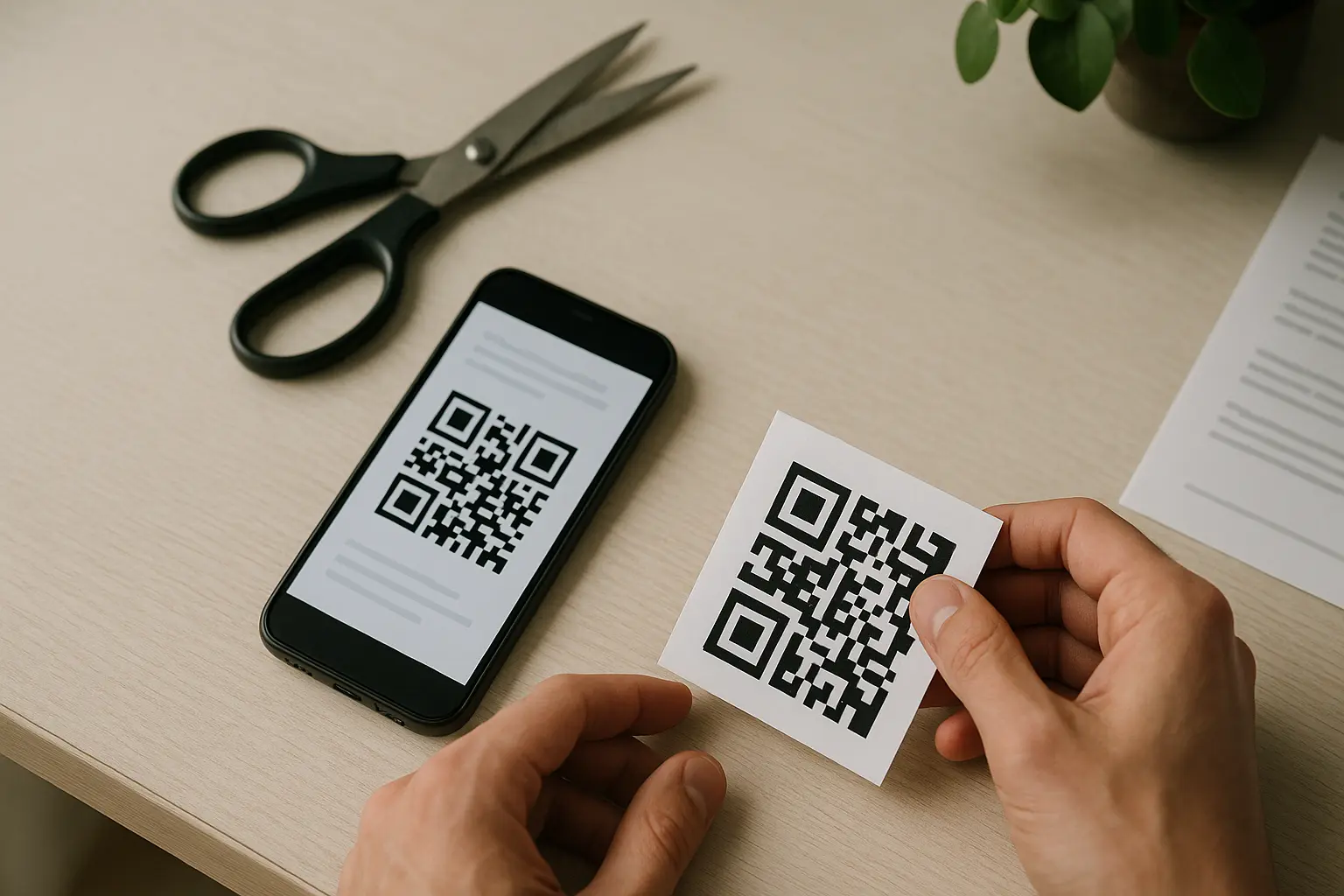
Can I edit or crop a QR code screenshot and still have it scan? Sometimes, but cropping is the fastest way to break scanning because it can remove the quiet zone or clip the code. If you must crop, leave a clear border around all sides and avoid rotating or applying filters.
Cropping too tight and losing the quiet zone
The quiet zone is the blank margin around the QR code. Many scanning guidelines recommend a quiet zone of about four module widths on each side, but exact tolerance varies by scanner. If your crop trims the white border too closely, scanning reliability drops fast.
Secondary keyword check (cropping): do screenshots of qr codes work after cropping? They can, but only if the full code and enough quiet zone remain.
Visual suggestion: Annotated diagram showing quiet zone/border and what happens when cropped (full code with border vs crop cutting into the border).
Blur, pixelation, and low resolution
A screenshot should be sharp, but it can still end up unreadable if:
- The original QR was small on screen.
- You zoomed in and re-screenshot the zoomed view (digital zoom can blur edges).
- The QR code was already low quality.
Look for module edges. If the black and white blocks are not clean squares, decoding gets harder.
Lossy compression from sharing apps
Even if your original screenshot is fine, re-sharing can degrade it. Messaging and social apps often apply lossy compression that changes the module pattern.
Secondary keyword check (compression): do screenshots of qr codes work after compression? Sometimes, but lossy compression can distort modules enough to break scanning.
Visual suggestion: Before/after example of compression artifacts on a QR screenshot (clean edges vs blocky ringing artifacts around modules).
Example: Sharing a QR screenshot through messaging and it fails to scan. The original image in your camera roll works, but the received copy does not.
Glare and reflections when scanning off a screen
Scanning a QR code displayed on a screen is not the same as scanning a printed code. Glare/reflections, moiré patterns, and focus hunting can prevent a lock.
Common fixes:
- Turn up brightness.
- Angle the screen slightly.
- Avoid direct overhead lighting.
- Clean the screen.
Low contrast, custom colors, and inverted designs
Scanners expect strong color contrast between dark and light modules. If the code uses custom colors with weak contrast, scanning can fail even if the image is otherwise sharp.
Also watch for inverted QR code designs (light modules on a dark background). Some scanners handle them, others do not, so support is less consistent than standard dark-on-light patterns.
Pass/fail diagnostic flow (fast)
Use this simple flow to find the root cause:
- Crop and border: Is the quiet zone intact on all sides?
- Image quality: Are the modules crisp, not pixelated or blurred?
- Compression: Is this the original file, not a re-sent copy?
- Display issues: Are glare/reflections or low brightness blocking focus?
- Code behavior: Could it be dynamic or expired even if the image looks perfect?
Static vs dynamic QR codes: will a screenshot still work later?
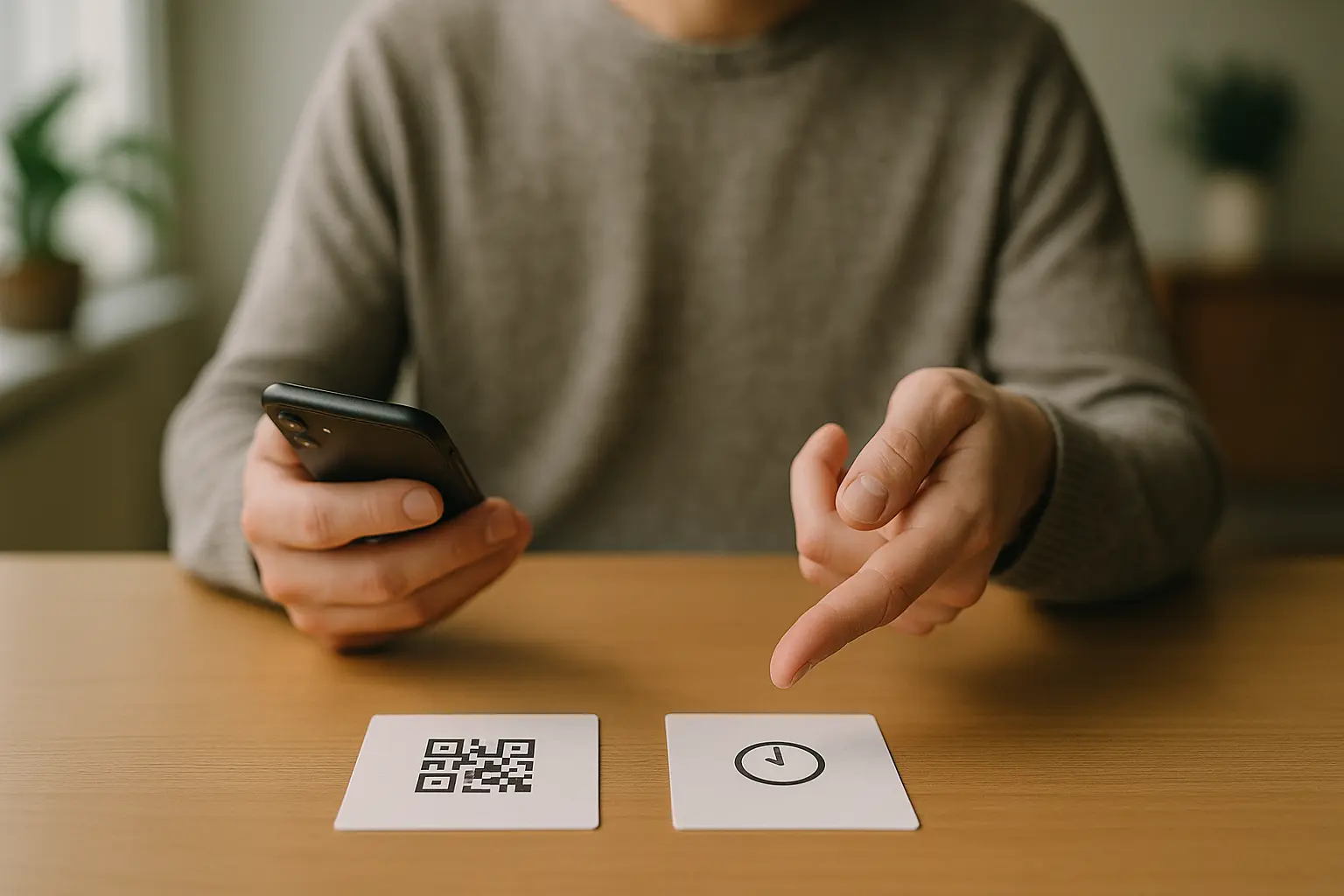
A screenshot can be perfect and still stop working later if the QR code is not truly fixed.
A static QR code contains a fixed payload. If the data is something like plain text or a stable link, a saved QR code screenshot that is clear and complete should keep working like the original.
A dynamic QR code usually points to a destination controlled by a service. This varies by tool. The image pattern might not change, but the destination can be updated, paused, or made inactive if the backing service, account, or subscription changes.
Will a screenshot of a dynamic QR code still work? Sometimes, but it depends on whether the backing destination remains active and whether the code is time-sensitive. Even with a perfect screenshot, a dynamic setup can be disabled or updated so the old scan no longer behaves the same.
How long does a QR code screenshot remain valid? It depends on what the QR code does. Static codes can remain valid as long as the encoded data stays relevant, while dynamic or time-based codes can stop working when the destination changes, access expires, or a service deactivates it.
Secondary keyword check (dynamic): do screenshots of qr codes work for dynamic codes? Sometimes, but a screenshot cannot prevent the destination from changing or being turned off.
A practical way to think about it:
- Static info (menu, a note, Wi‑Fi details): A screenshot is often fine if the image stays readable.
- Time or access controlled (login, tickets, authentication): A screenshot can become obsolete because the system may rotate or invalidate codes.
Tickets and boarding passes: why screenshots can become obsolete
Tickets and boarding passes are a special case because many systems treat the QR code as an access token, not just a label. Some issuers regenerate security codes or invalidate older ones to reduce fraud, which can make a screenshot stop validating even if it still scans.
Does screenshot of qr code work for tickets? Sometimes, but it is riskier than saving a static QR because ticketing systems may update or invalidate the code. If you must rely on a screenshot, test it close to the time you will use it.
Best practice when possible:
- Use the official wallet or app for the ticket or boarding pass, since it is more likely to show the current valid code.
If you must screenshot:
- Take the screenshot as late as practical.
- Test the screenshot shortly before you need it, ideally on the same type of scanner context you expect.
Example: A ticket/boarding pass QR screenshot that no longer validates. The screenshot still opens and scans, but the gate rejects it because the issuer rotated or invalidated the token.
Tickets vs static info decision note:
- Static info QR: Screenshot is often a reasonable backup.
- Ticket or login QR: Screenshot is a weaker backup because the access rules can change without warning.
Can you print a QR screenshot and have it work?
Can I print a QR code screenshot and have it work? Yes, it can work if the printed code preserves sharp edges, strong contrast, and an intact quiet zone. Printing problems usually come from resizing, resampling, or low-quality print settings that blur the modules.
Secondary keyword check (printing): do screenshots of qr codes work when printed? They can, but print quality and sizing matter.
This varies by tool, printer, and scanning distance, but a commonly cited minimum recommended QR size for reliable scanning is 2 cm × 2 cm. If you print smaller than that, you are more likely to run into focus and module-clarity issues.
Print-readiness checks:
- Print in high contrast (dark code on light background).
- Avoid “fit to page” resizing that introduces blur.
- Keep the quiet zone visible and untrimmed.
- Do not paste the screenshot into an app that recompresses it before printing.
Test method:
- Try scanning with multiple devices and at a couple of distances.
- If one phone scans but another fails, the print is near the edge of readability.
Troubleshooting: quick fixes to try in 2 minutes
What should I do if a QR code screenshot won’t scan? Start by ruling out cropping and glare, then test the original image (not a re-shared copy), and finally consider whether the code is dynamic or time-based. Most fixes are quick once you know which category the failure falls into.
Use this short sequence:
- Re-capture the QR without cropping, and keep the full border and quiet zone.
- Open the screenshot full-screen and do not zoom in.
- Try scanning it from a second device to avoid same-screen glare/reflections.
- Increase brightness on the screen showing the code and change the angle to reduce glare.
- Re-share using the original image file when possible, and avoid apps that apply lossy compression.
- If it might be a dynamic or ticket code, get a fresh QR from the original source and try again.
Quick checks to keep handy:
- Open the screenshot full-screen; do not zoom/crop.
- Try scanning from a second device to avoid same-screen glare.
- Re-share using the original image (avoid re-compression).
- If it is a ticket or authentication code, refresh the QR from the official source.
Screenshot issue triage table
| Screenshot issue | Likely cause | Quick fix |
|---|---|---|
| Code area was cropped tightly | Quiet zone removed | Re-screenshot with full border visible |
| Looks fuzzy when zoomed | Low resolution or blur | Capture the code larger on screen, avoid zooming |
| Worked before sending, fails after | Lossy compression | Send the original file, not an in-app forwarded copy |
| Scans on laptop screen, not phone screen | Glare/reflections or focus issues | Increase brightness, tilt screen, change distance |
| Custom colored code fails | Low color contrast | Use a standard dark-on-light version if available |
| Inverted QR code fails | Scanner support varies | Try a different device or obtain standard contrast code |
| Ticket code rejected | Regenerated or invalidated token | Refresh the code in the official app or wallet |
Takeaway: Most screenshot failures are either missing border space, distorted modules, or a code that changed after you saved it.
Use case reality check
| Use case | Does screenshot usually work? | Gotchas |
|---|---|---|
| Menu | Often | Re-shared copies can be compressed and fail |
| Wi‑Fi | Often | Cropping can remove the border and break detection |
| Ticket | Sometimes | Code may regenerate or be invalidated for security |
| Login | Sometimes | It can expire fast and should be treated like a secret |
Takeaway: The more the QR is tied to access control, the less you should assume a screenshot will stay valid.
Visual suggestion: Simple decision tree graphic for troubleshooting (crop/quiet zone → image quality/compression → glare → dynamic/expired).
Safety: is it safe to share a QR code screenshot?
Is it safe to share QR code screenshots with others? It depends on what the QR code grants access to and how you share it. If the screenshot is sent through unencrypted channels or stored on an unsecured device, it can be intercepted or copied, and anyone who has it may be able to use it.
Treat QR code screenshots like the data they unlock:
- If it logs you in, confirms identity, or grants entry, handle it like a password or access token.
- If it is just a public menu or a public website link, the risk is usually lower.
Two practical habits reduce risk:
- Verify the destination before scanning or sharing, especially if a QR will open a login or payment page.
- Avoid sharing authentication or ticket QR screenshots widely, and delete them when they are no longer needed.
Ready to Create Your Own QR Code?
Join thousands of users creating beautiful QR codes.
Try QRplify FreeNo credit card required