
Table of Contents
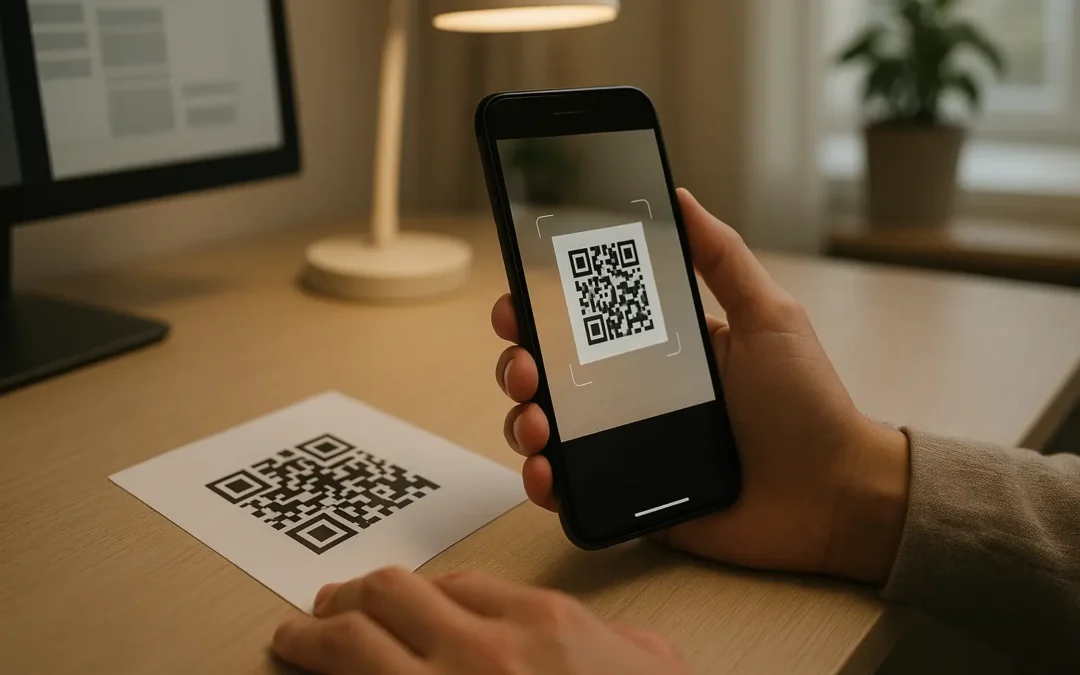
If you are wondering how to scan a qr code with your phone, use this quick flow: 1) Open your camera (or a built-in scanner), 2) Point it at the QR code until a result appears, 3) Tap the banner or on-screen prompt to open it. If it fails, fix lighting, focus, and framing first.
Follow these quick steps to scan a QR code on iPhone or Android. If it won’t scan, use the troubleshooting checklist to fix lighting, focus, size, and print issues.
TLDRUse your phone’s built-in camera or scanner to detect the code, then tap the result prompt. For on-screen codes or screenshots, scan from the image using a supported option like Photos or Google Lens. If scanning fails, fix glare, distance, and code damage before trying again.
What happens when you scan a QR code
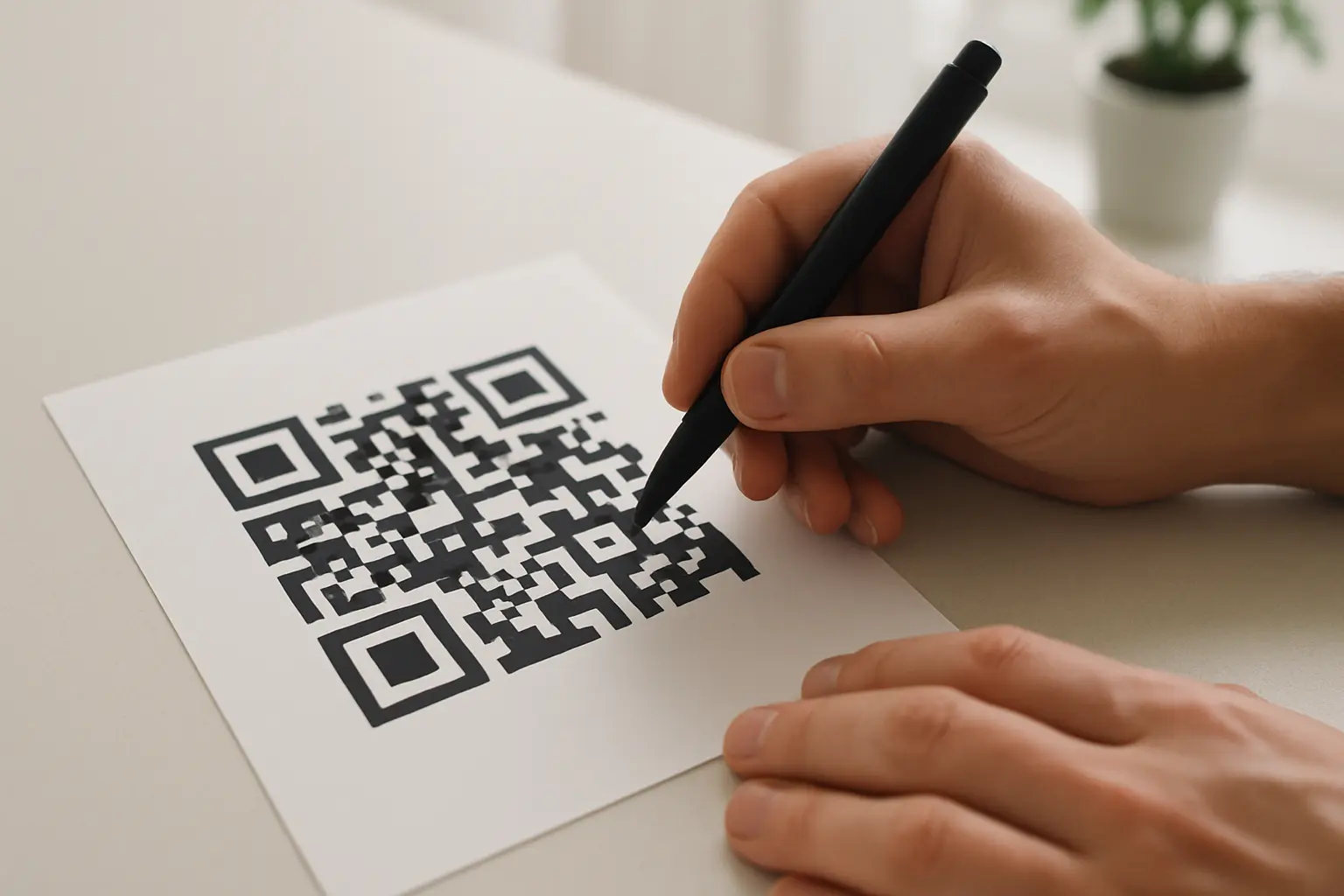
A QR code is a Quick Response code designed to be read fast by a camera. When you scan one, your phone captures the pattern, the software decodes the data, then it suggests an action, often opening a web link, joining a Wi‑Fi network, or showing text. QR codes were invented in 1994 by Masahiro Hara of Denso Wave and later standardized as ISO/IEC 18004.
A QR code is built for reliable detection even when rotated. The three large squares in the corners are finder patterns, which help your phone locate and orient the code. Many codes also include a smaller alignment pattern that helps with perspective and distortion. Around the outside, you need a clear border called the quiet zone so the camera can separate the code from the background.
Annotated diagram (parts you should keep visible when scanning):
- Finder patterns: Three corner squares used for detection and orientation.
- Alignment pattern: Smaller square that helps with distortion correction (common in larger codes).
- Quiet zone: Empty margin around the code (no text, borders, or graphics).
Simple layout sketch (not to scale):
[Finder]  ■■■■■■■■■■■■■■■■■  [Finder]
          ■  Data modules  ■
Quiet     ■  (small dots)  ■   Quiet
Zone      ■  + alignment   ■   Zone
          ■  pattern       ■
[Finder]  ■■■■■■■■■■■■■■■■■
How to scan a QR code (method comparison)
This varies by phone model and software version, but these are the common built-in paths.
| Method | Where you start | What you look for | Best when |
|---|---|---|---|
| iPhone Camera | Camera app | Banner/notification to tap | You are scanning a printed code or another screen |
| iPhone Control Center | Control Center Scan Code | Full-screen scanner prompt | You want a dedicated scanner view |
| Android camera | Camera app (or built-in QR mode) | Pop-up, chip, or prompt | Your camera supports QR detection |
| Google Lens | Lens app or Lens inside Google app | Detected result card | You are scanning from images or your camera struggles |
Takeaway: Start with the default camera, then switch to Control Center (iPhone) or Google Lens (Android) if detection is not appearing.
How to scan a QR code on iPhone (Camera app)
To scan a qr code on iphone camera, you usually just use the built-in Camera app. This varies by iPhone model and iOS version, but the interaction is commonly a banner or notification you tap.
- Open the Camera app.
- Point the camera at the QR code so it is fully in the frame, including all corners.
- Hold your phone steady while the camera focuses.
- Tap the banner or on-screen notification that appears to open the result.
Screenshot-style callout (where the result shows): This varies by iOS version (for example, iOS 11 vs iOS 16), but the QR result commonly appears as a banner near the top of the screen or as a notification-style prompt over the camera view.
Common gotchas (quick fixes):
- Move slightly closer or farther until the code looks sharp.
- Tilt the phone to reduce glare on glossy paper or screens.
- Keep the code flat in view. Avoid extreme angles that skew the squares.
Example walkthrough: scan a QR code that opens a website link (hypothetical example)
You point your iPhone camera at a QR code on a poster. A banner appears with a web address preview. You read the domain, confirm it matches what the poster claims, then tap the banner to open the page in your browser.
How to scan a QR code on iPhone (Control Center “Scan Code”)
If your Camera app is busy (video mode, low light, or you want a dedicated scanning view), you can often scan a qr code using control center. This varies by your Control Center setup.
- Open Control Center on your iPhone.
- Tap Scan Code (you may need to add it to Control Center in settings first).
- Aim the scanner at the QR code until a result appears.
- Tap the prompt to open the content.
When this option is useful:
- You want fewer distractions than the Camera interface.
- You are scanning multiple codes in a row.
- Your Camera view is not showing the banner reliably.
How to scan a QR code on Android
To scan a qr code on android phone, the most common approach is the built-in camera, but the exact steps vary by manufacturer, camera app, and Android version (including Android 9 and later). Some phones show a small result chip, others show a pop-up.
- Open your phone’s Camera app.
- Point it at the QR code and keep the whole code in frame.
- Wait for the detected result to appear (chip, pop-up, or suggestion).
- Tap the result to open it, then confirm the destination before continuing.
Screenshot-style callout (where the result shows): This varies by device. The result may appear as a small card near the bottom, a notification-style banner, or a tappable overlay on the camera preview.
If nothing appears, look for a QR option in your camera’s modes or settings. Some camera apps have a dedicated QR scanner entry point.
How to scan a QR code with Google Lens
If your camera does not detect the code quickly, you can scan a qr code with google lens. Google Lens can also be helpful when scanning from images.
- Open Google Lens (standalone app on some phones) or open Lens within the Google app.
- Point Lens at the QR code.
- Tap the detected result card.
- Review what it is about to open, then proceed.
Lens can be a good fallback for tricky codes because it is designed for visual recognition tasks beyond standard camera scanning.
How to scan a QR code from a screenshot or image
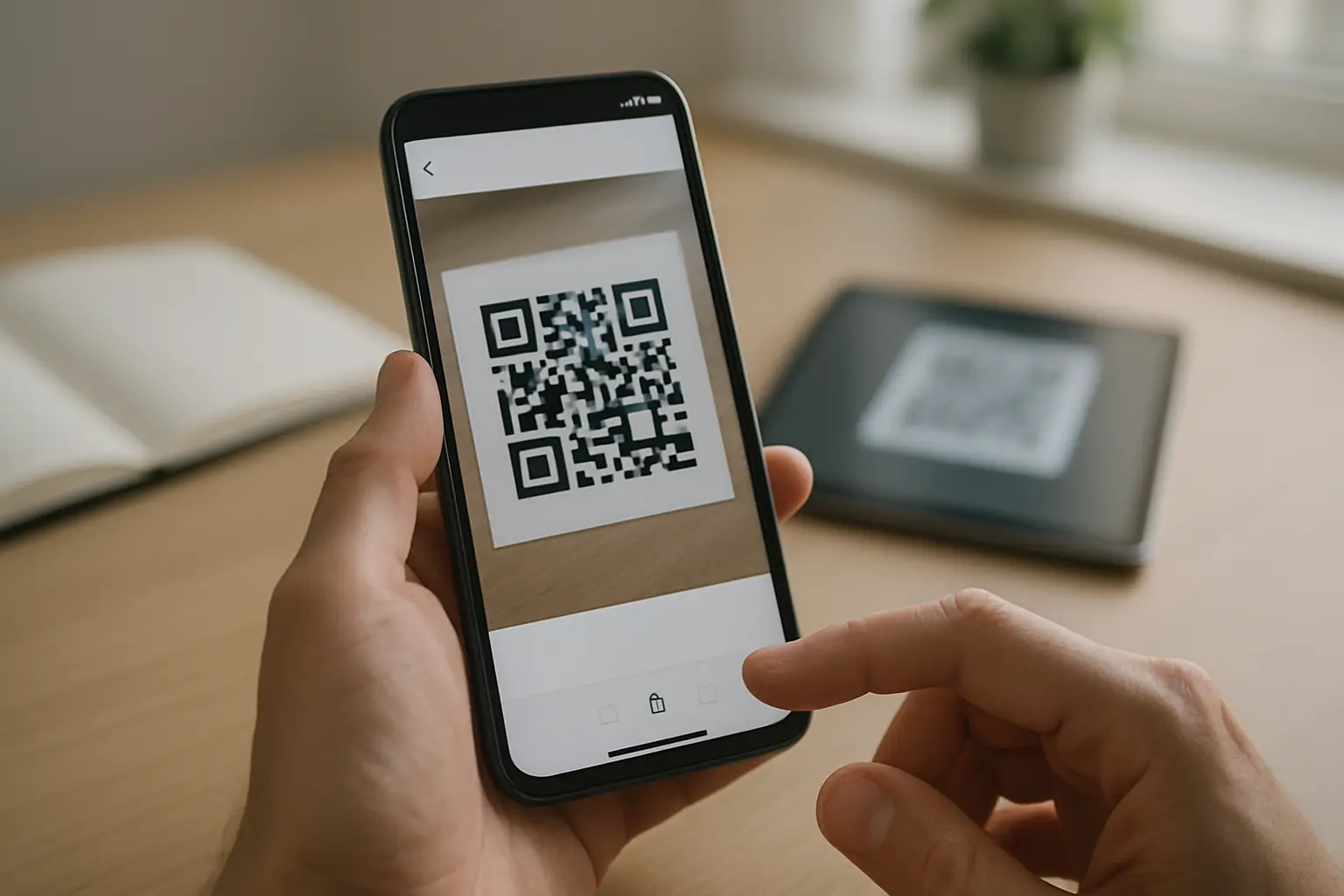
To scan a qr code from a screenshot, you need an image-based scanner because your camera cannot “see” a QR code that is already on the same screen you are using. If you need to scan a qr code on your screen, use another device, or use a feature that scans from Photos or an image, where supported.
- Take a screenshot (or save the image) that contains the QR code.
- Open the image in your photo gallery app.
- Use an image recognition option (this varies by tool) such as a built-in scan/detect feature or Google Lens from the image view.
- Tap the detected QR result, then review the destination before opening.
Why the normal camera does not work for on-screen codes: The camera app scans what the camera sensor sees. If a QR code is displayed on the same device, you need an image-based detection feature that analyzes the saved screenshot or photo instead.
If a QR code won’t scan: quick troubleshooting checklist
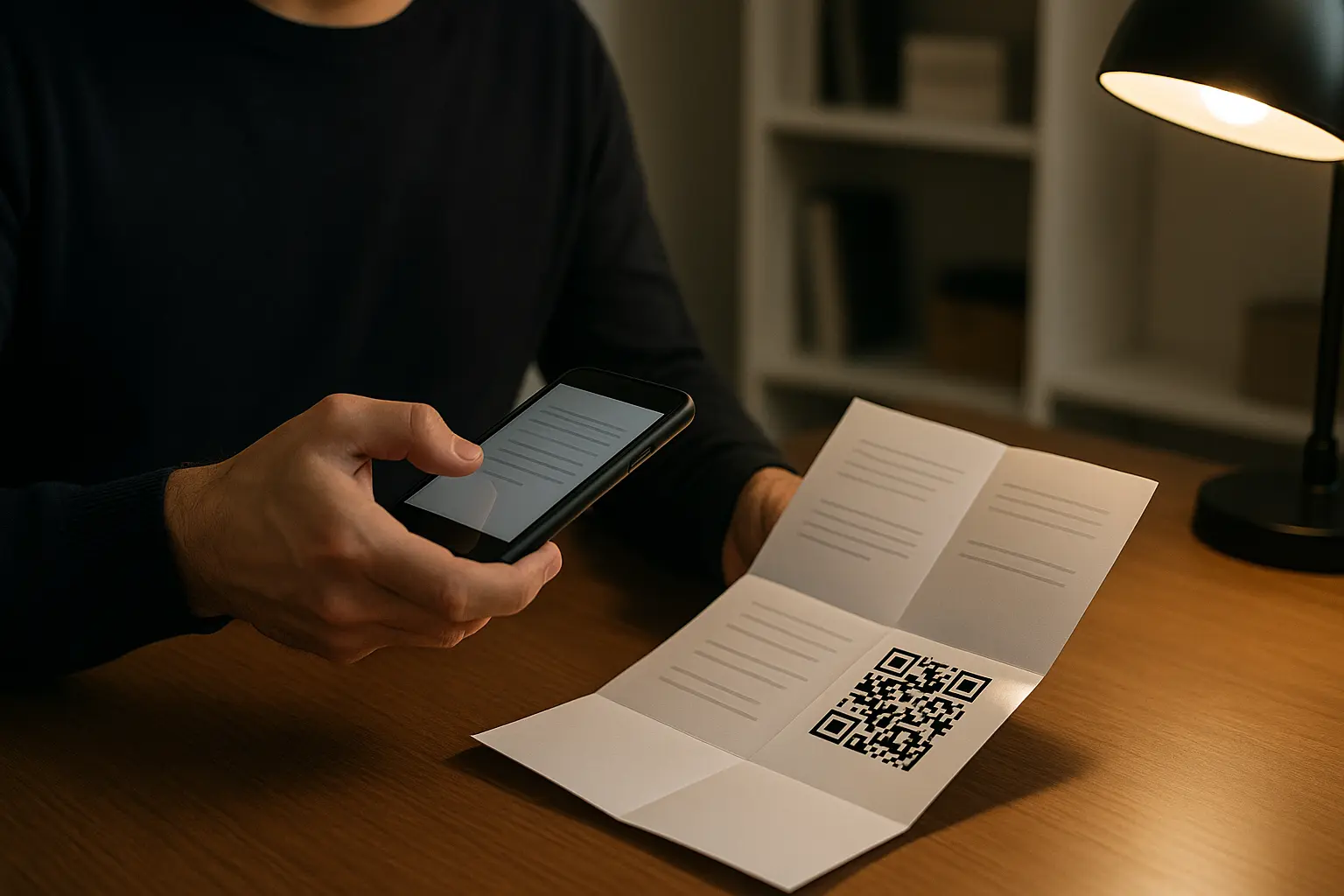
When you are trying to scan a qr code that will not scan, start with the highest-impact fixes first. Many failures come from lighting, focus, framing, or physical damage.
- Fix lighting and glare first. If you are trying to scan a qr code in low light, turn on a light, move toward a brighter area, or use your camera’s flash if it helps.
- Hold steady and let autofocus settle. Move closer, then back up slightly until the code looks sharp.
- Reframe the shot so the entire code is visible. Do not crop corners or cover the quiet zone.
- Reduce distortion. Keep the phone parallel to the code instead of scanning from a steep angle.
- Check the surface quality. Smudges, scratches, folds, and low-contrast printing can block detection.
- Consider density. Codes that contain a lot of data (like very long URLs) have smaller modules and can be harder to read, especially on small prints.
QR code won’t scan: symptom to fix mapping
| Symptom you see | Likely cause | Try this fix |
|---|---|---|
| No prompt appears | Detection not triggered | Switch to a dedicated scanner view or Google Lens |
| Prompt appears then disappears | Focus or movement | Hold steady and adjust distance until sharp |
| Works only at odd angles | Glare or reflections | Tilt slightly and move away from bright reflections |
| Only scans up close | Code is small or dense | Increase light and avoid extreme close-up blur |
| Scans sometimes, fails often | Distortion or cropping | Keep all corners and quiet zone in frame |
| Fails on printed paper | Low contrast or damage | Clean the print, flatten it, or reprint if possible |
| Fails on a screen | Screen glare or brightness | Raise screen brightness and reduce reflections |
Takeaway: If you change only one thing, change lighting and glare first, then correct distance and framing.
Quick checks (run these in order):
- Is the entire QR code in frame (including corners)?
- Is there enough light and low glare?
- Are you close enough for focus but not too close?
- Does the preview show a URL you recognize before tapping?
Example walkthrough: fix a scan failure caused by low light and glare (hypothetical example)
You try scanning a QR code on a glossy flyer near a window at night. The camera keeps hunting for focus and never shows a prompt. You move under a brighter light, tilt the phone slightly to remove the reflection, and hold steady until the code becomes sharp. The scan prompt appears and stays visible long enough to tap.
Why some QR codes are easier to scan than others
Even if you do everything right, some codes are simply harder to read. The main factors are data density, distortion, and how much damage the code can recover from.
Data density and size
A QR code stores data in many tiny squares (modules). If the code contains more data, the pattern gets denser. Denser codes need better focus, more light, and enough pixel detail from your camera. Small prints or low-resolution screens can make those modules blur together.
Error correction and damaged codes
QR codes use Reed-Solomon error correction to recover from missing or damaged parts. The standard defines error correction levels L, M, Q, H, often described as about 7%, 15%, 25%, and 30% recovery capacity. Higher error correction can help a code survive damage, but it also uses extra space, which can increase visual density.
If you are trying to scan a qr code with damaged print, error correction may save you if the damage is limited. If the finder patterns are damaged, or the quiet zone is blocked by a border or text, scanning can fail even with strong correction.
Pattern detection basics (why corners matter)
Those corner finder patterns are the first thing the scanner looks for. If one is obscured by a fold, sticker, or crop, detection may fail. The alignment pattern (when present) helps the scanner correct perspective, which matters when the code is on a curved surface or photographed at an angle.
Safety checks before you tap the result
QR codes are just a way to encode data. They can point to a safe site, or they can point somewhere you did not expect. A few seconds of checking helps reduce risk, especially for codes placed in public.
- Check what your phone shows before opening. Many scanners display a preview, often a URL or domain name.
- Verify the domain matches the context. A code on a restaurant table should not send you to an unrelated domain.
- Be cautious with codes in unexpected places like random stickers over existing signs.
- Avoid entering passwords or sensitive information right after scanning a code you do not trust.
- If you want a simple rule, remember this: scan a qr code safely before tapping by reading the destination first, then deciding whether it makes sense.
Ready to Create Your Own QR Code?
Join thousands of users creating beautiful QR codes.
Try QRplify FreeNo credit card required