
Table of Contents
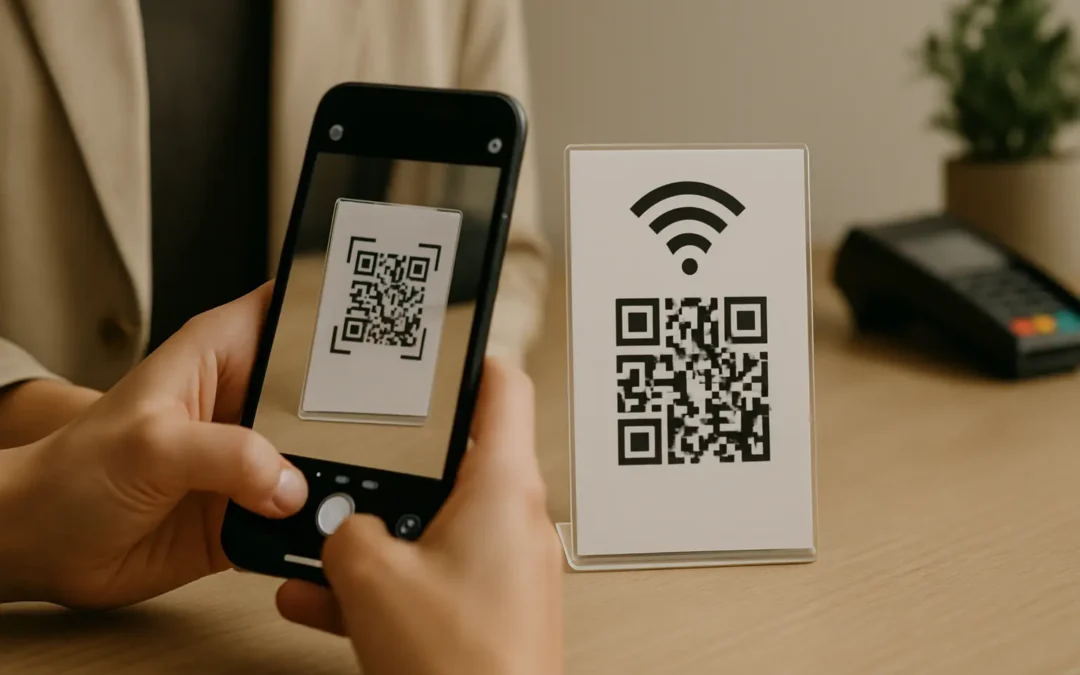
To join WiFi on an iPhone, 1) Open the iPhone Camera app, 2) Point it at the WiFi QR code until a join banner appears, then 3) Tap the banner and confirm. If no banner shows, adjust lighting and distance, and make sure QR scanning is enabled. The same idea applies on Android, with some UI differences.
You can join a WiFi network in seconds by scanning a WiFi QR code, no password typing needed. Here’s how to do it on iPhone and Android, plus fixes if it won’t work. This also covers what the code contains, how to scan from another phone’s screen, and quick safety checks before you connect.
TLDRUse your phone’s native camera first, since it can detect a WiFi QR code and show a join prompt. If your camera does not recognize it, use Google Lens as a fallback. If it still fails, focus on image quality, glare, and whether the WiFi credentials have changed.
| Method | Quickest way to scan | What you should see after scanning | If nothing happens |
|---|---|---|---|
| iPhone (iOS) | Scan with the iPhone Camera app | A banner or notification to join the WiFi network | Try better lighting, fill more of the frame, confirm QR scanning is allowed |
| Android | Scan with the Android Camera app (if supported) | A prompt to connect or join the network | Check camera settings, try a different camera mode, or use Lens |
| Google Lens | Scan inside Lens (or Lens built into Camera/Google app) | A connect/join option for the WiFi network | Reframe the code, remove glare, increase contrast, try a clearer image |
Takeaway: Start with your native camera, then switch to Lens when your device does not offer a WiFi join prompt.
What a WiFi QR code does (and what it contains)
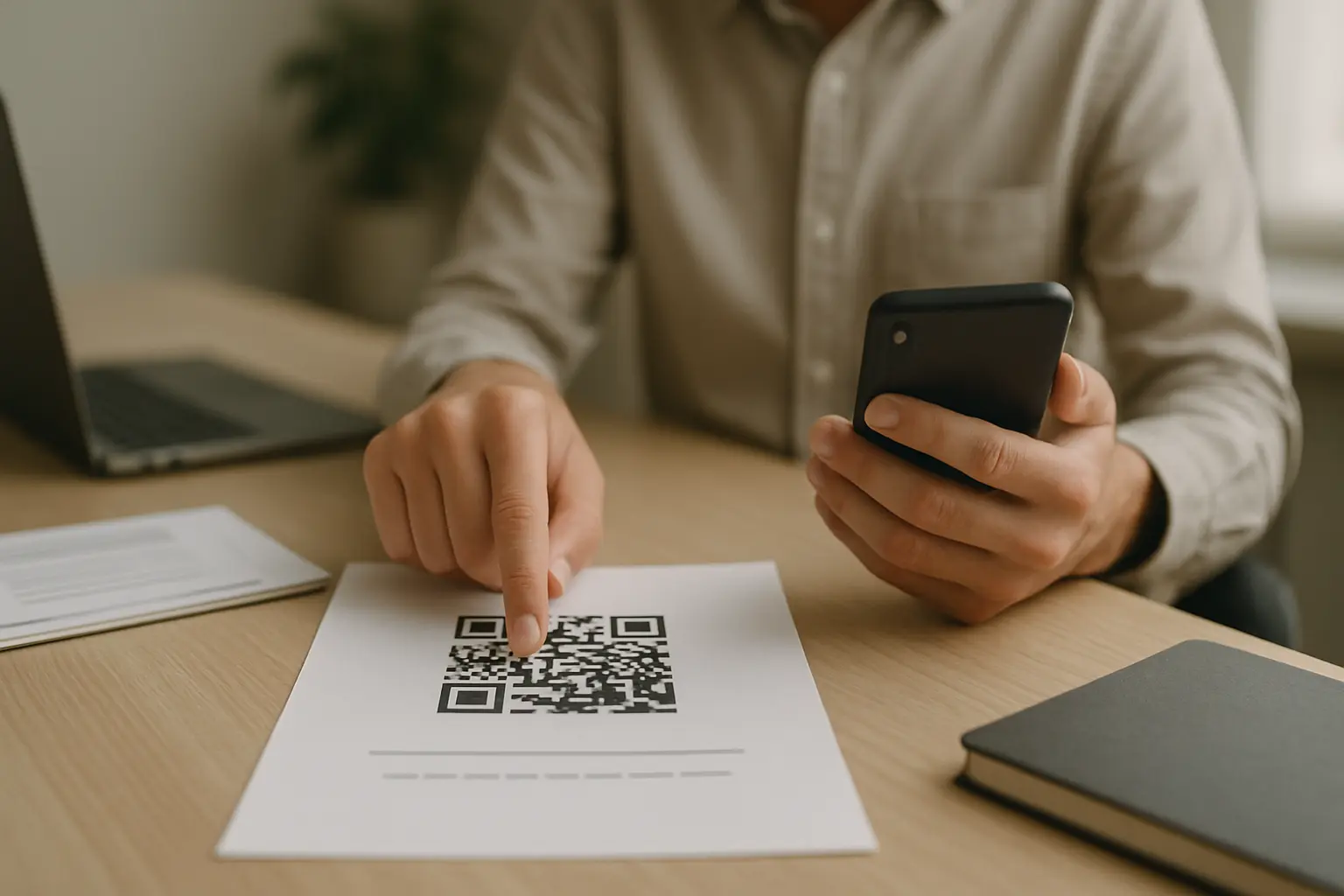
A WiFi QR code stores WiFi login details in a machine readable format, so your phone can read the SSID and WiFi password and offer a one tap join. In most cases, scanning does not automatically connect without your confirmation. Instead, you see a prompt that fills in credentials for you.
Most WiFi QR codes follow a common zxing style payload format:
WIFI:T:<type>;S:<SSID>;P:<password>;H:<true|false>;;
Here is what each field means in plain English, including the hidden network flag used for a hidden SSID.
| Payload field | What it represents | Example value (hypothetical) | Why it matters |
|---|---|---|---|
S: |
SSID (network name) | GuestNetwork |
Your phone must match this exactly |
P: |
WiFi password | ExamplePassword |
Case sensitive, including symbols |
T: |
encryption type | WPA2 |
Must match what the network uses |
H: |
Hidden network flag | true or false |
Tells the phone the SSID is not broadcast |
| Full format | Entire payload wrapper | WIFI:T:...;; |
Helps scanners interpret it as WiFi |
Takeaway: If the SSID, password, or encryption type in the QR payload does not match the router settings, the code can scan correctly but still fail to connect.
Simple diagram: how the WiFi QR encodes credentials (zxing format)
[WiFi QR Code]
      |
      v
WIFI:T:WPA2;S:GuestNetwork;P:ExamplePassword;H:false;;
      |       |            |                 |
      |       |            |                 +--> Hidden SSID flag (H:true / H:false)
      |       |            +--------------------> WiFi password
      |       +---------------------------------> SSID (network name)
      +-----------------------------------------> Encryption type (WEP/WPA2/WPA3)
WiFi QR codes work especially well for guest WiFi because they reduce typos and speed up joining when multiple people need access. They are also common on printed signage where the code stays in one place and lighting is predictable.
How to scan a WiFi QR code on iPhone
On iPhone, the fastest method is usually to scan wifi qr code on iphone camera using the built in camera detection.
What phone operating systems support WiFi QR code scanning? This varies by tool. iPhone devices running iOS 11 or later can scan WiFi QR codes natively using the Camera app, while Android support depends on device and OS version.
- Open the iPhone Camera app.
- Point the camera at the WiFi QR code and hold steady.
- Keep the code fully in view, including its border area (the quiet zone).
- Wait for a banner or notification that shows the network name (SSID).
- Tap the banner, then confirm to join the WiFi network when prompted.
Annotated screenshot style visual: where the join banner appears
+----------------------------------+
| iPhone Camera view               |
|                                  |
|     [   QR CODE IN FRAME   ]     |
|                                  |
|                                  |
|  Banner appears near the top:    |
|  "Join Wi-Fi Network 'SSID'"     |
+----------------------------------+
Example scenario (hotel guest WiFi): You scan a printed guest WiFi QR code at a hotel front desk, see a Join Wi Fi Network banner with the hotel’s guest SSID, then tap it to connect without typing the password.
Do I need to download an app to scan a WiFi QR code? This varies by tool. On many iPhones and some Android phones, you can scan with the native camera and do not need an extra app. If your camera does not detect the code, Google Lens is a common fallback without relying on random third party scanner apps.
If nothing pops up on iPhone, check these common causes before assuming the QR code is bad:
- Move closer so the code fills more of the frame.
- Reduce glare on reflective surfaces, including laminated signs.
- Improve contrast by avoiding shadows across the code.
- Make sure the code is not cropped so the quiet zone is missing.
How to scan a WiFi QR code on Android
Many devices can scan wifi qr code on android camera, but the steps and prompts can vary by brand, Android version, and camera app.
This varies by tool. Android devices running 8.0 or higher may support native WiFi QR scanning in the default Camera app, but not all camera apps expose the same scanning feature.
- Open the Android Camera app.
- Point the camera at the WiFi QR code and hold steady.
- Tap the on screen hint if your camera shows a QR indicator.
- Review the network name (SSID) in the prompt.
- Tap Connect or Join to attempt to join the network.
If scanning is missing or disabled, try these quick checks:
- Look for a QR scan toggle in your camera settings.
- Switch camera modes if your camera app separates Photo and Scan features.
- Use Google Lens if your camera never shows a QR hint.
If you get a prompt but the connection fails, the QR code may still be readable while the credentials do not match what the router currently uses. That is common after a WiFi password change.
Use Google Lens if your camera won’t scan
If your phone camera does not recognize the code, scan wifi qr code using google lens as a reliable fallback.
This varies by tool. Google Lens can scan WiFi QR codes on both iOS and Android, either as a standalone app or integrated into the Camera app or the Google app.
- Open Google Lens (or open the Google app and enter Lens, depending on your setup).
- Point at the WiFi QR code, or choose a saved image that contains the code.
- Wait for Lens to detect the QR and show a WiFi connection option.
- Tap the connect or join action when it appears.
- Confirm the connection prompt if your phone asks for approval.
Lens is often the fastest workaround when:
- Your camera app does not support QR detection.
- QR scanning is disabled by a camera setting you cannot find quickly.
- You are scanning from a screenshot or photo and want to select the image directly.
Can you scan a WiFi QR code from another phone screen?
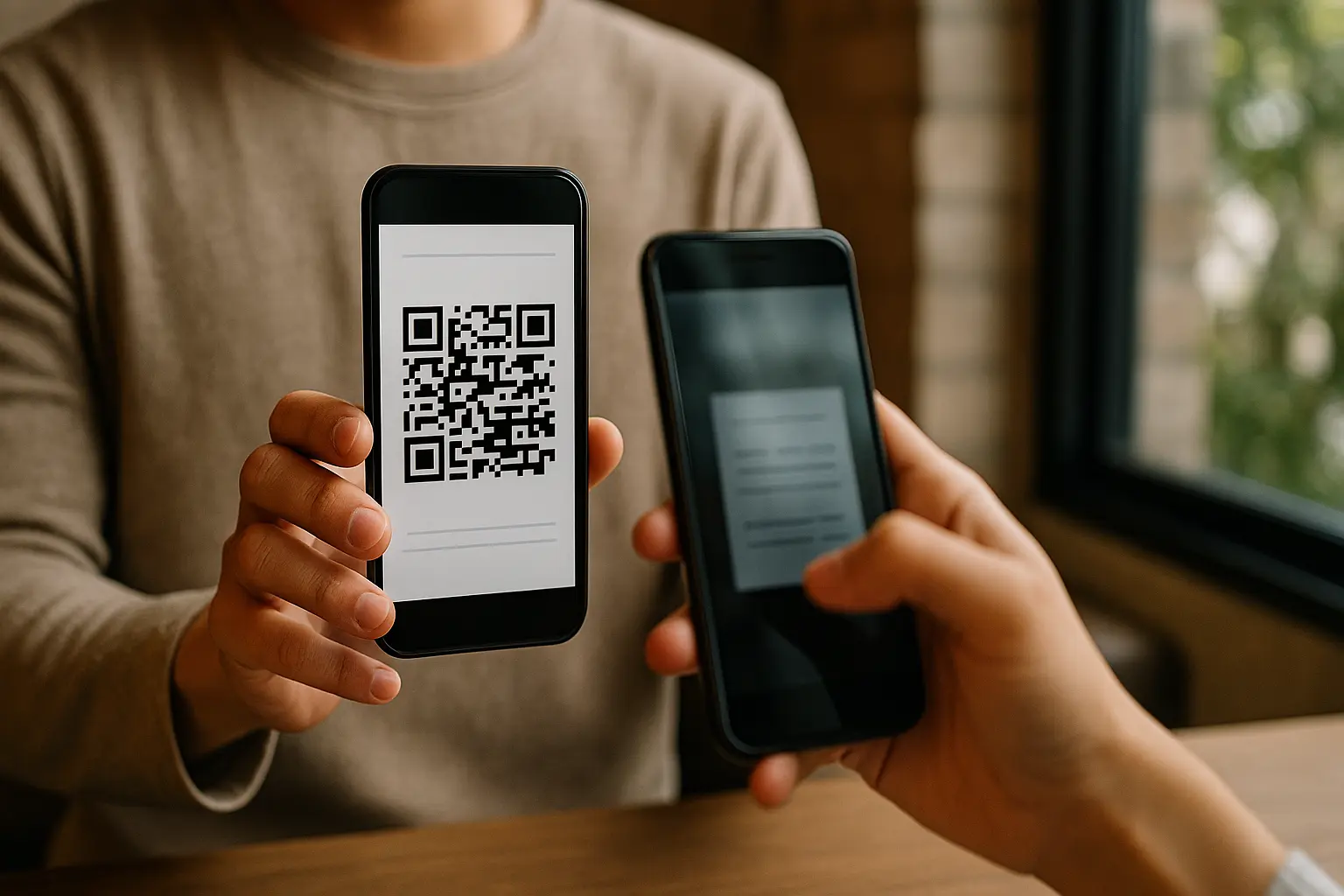
Yes, you can often scan wifi qr code from phone screen if the code is displayed clearly on another phone, tablet, or laptop. It is usually easier if the screen is bright, clean, and not at an angle that creates glare.
Can I scan a WiFi QR code from another person’s phone (displayed on their screen)? Yes, in many cases you can scan from another person’s screen, as long as the QR code is large enough, not blurred, and free of glare. If your camera struggles, increase the other device’s brightness and try Google Lens, which may handle screen scans better.
Practical tips that help when scanning from a screen:
- Increase the screen brightness on the device showing the code.
- Tilt the screen slightly to avoid glare/reflective surfaces effects.
- Hold your phone steady and let the code fill a good portion of the frame.
- Avoid zooming too much, since it can introduce blur.
Example scenario (friend’s phone): Your friend opens their WiFi QR code on their phone, you hold your camera about a hand’s length away, and you tap the join prompt after it reads the SSID.
Compatibility notes: hidden networks and encryption types
Two common compatibility issues are hidden networks and mismatched security settings. A WiFi QR code can include a hidden network flag, and it also tells your phone what encryption type to expect.
If you ever see a payload like WIFI:T:...;S:...;P:...;H:true;;, the H:true part indicates the QR code is meant for a hidden SSID (a network name that is not broadcast).
Can WiFi QR codes work with hidden (non-broadcast) networks? Sometimes. If the QR code includes the hidden flag (H:true) and your device supports it, your phone may still offer a join prompt. If it fails, you may need to add the network manually, because hidden SSID handling is not consistent across devices.
In this section, you may see guidance described as scan wifi qr code hidden ssid h true. That phrase refers to QR codes that explicitly set the hidden network flag.
What encryption types (WPA, WEP, WPA2, WPA3) are supported? This varies by tool. Many devices can join networks using WPA2 and WPA3 when the QR code specifies them correctly, while WEP is legacy and may fail or be blocked by newer devices.
For encryption type compatibility, think in terms of expectations:
- WPA2 and WPA3 are common on modern routers and phones.
- WEP is older and may not be accepted, even if the QR scans.
- If the join prompt appears but the connection fails, the encryption type in the QR might not match the router setting, or the router may be using a mode your phone does not accept.
This section also covers cases described as scan wifi qr code wpa2 wpa3 encryption, where the QR code and the router must agree on WPA2 versus WPA3 behavior.
Is it safe to scan a WiFi QR code?
It can be safe, but treat unknown QR codes with caution. A WiFi QR code should only join a network, but a QR image in the real world could also link to a website or trigger other actions depending on what your scanner decides to do.
Is it safe to scan a WiFi QR code from an unknown source? It is safer to scan only when you trust the source and the location where it is posted. Prefer your native camera or Google Lens, and do not install random scanner apps just to connect to WiFi.
If you are thinking about scan wifi qr code safely avoid scams, use this short pre flight checklist before joining:
- Verify the QR code’s source before joining (posted by staff, on official signage, or shared directly by someone you trust).
- Use the native Camera app (or Google Lens) instead of random scanner apps.
- Confirm the SSID matches what you expect for that location.
- Avoid joining if the prompt looks like a web link instead of a WiFi join action.
- Prefer guest network credentials when sharing WiFi, so your main network is not exposed.
Quick note for shared access: If you manage the network, share a guest SSID and guest WiFi password through the QR code instead of your primary network credentials.
Troubleshooting: WiFi QR code won’t scan or won’t connect
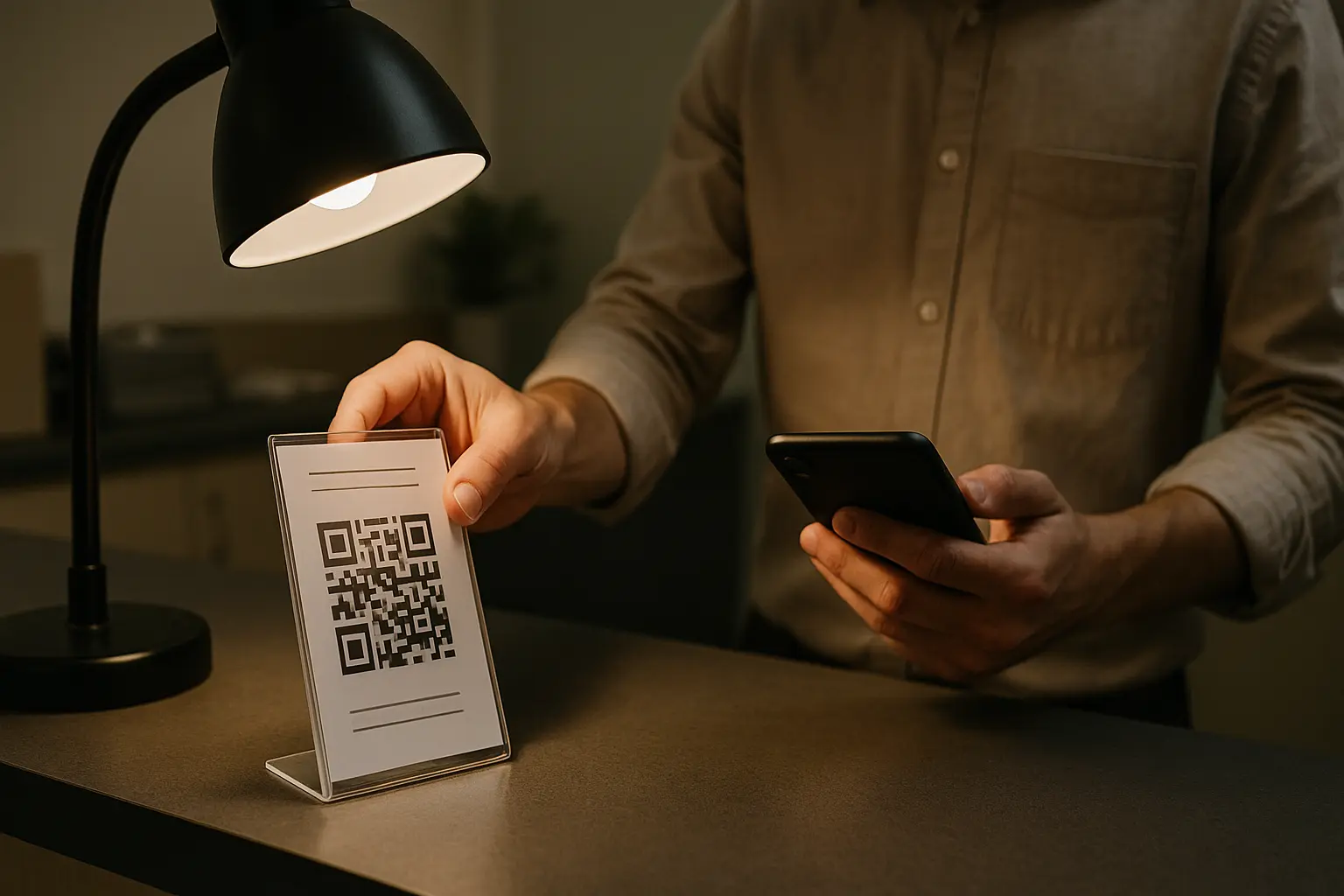
If you are searching for scan wifi qr code not working troubleshooting, split the problem into the symptom you see. A code can fail at three different stages: the camera cannot read it, the phone reads it but cannot connect, or you connected but it is the wrong network.
How do I troubleshoot a WiFi QR code that won’t scan? Start with the camera basics: improve focus, lighting, and framing, and remove glare. Then check the QR itself for low contrast, missing quiet zone, or being too small. If your camera still does not detect it, try Google Lens or scan a clearer copy.
| Symptom | Likely cause | Fix |
|---|---|---|
| Camera will not detect any QR | QR scanning disabled in camera settings | Enable QR detection, or use Google Lens |
| Camera detects QR sometimes | Blur, motion, or low light | Hold steady, add light, clean the lens |
| Detects QR but not as WiFi | Code is not a WiFi payload | Confirm the code is meant for WiFi, not a link |
| Scans but will not connect | Password changed since printing | Update the QR code source to match current credentials |
| Scans but will not connect | Case sensitivity mismatch in SSID or password | Confirm exact capitalization of SSID and WiFi password |
| Scans but will not connect | Special characters not handled as expected | Recreate the code with correct escaping, or enter credentials manually |
| Joins the wrong network | Multiple similar SSIDs nearby | Verify the SSID shown in the join prompt before confirming |
| Struggles on printed sign | Glare or poor contrast | Reduce glare, improve contrast, avoid reflections |
Takeaway: Most failures come down to image quality (scan stage) or mismatched credentials (connect stage).
Scan stage fixes (camera cannot read the code)
Focus on the physical and visual properties of the QR code:
- Contrast: Dark code on a light background scans best. Avoid gray on gray prints.
- Quiet zone: The blank border around the QR must be visible. If it is cropped tight, detection often fails.
- Glare/reflective surfaces: Laminated paper and glass frames can reflect light and hide parts of the pattern.
- Size: This varies by tool. Very small QR codes can be hard to scan, and one cited minimum is 2 × 2 cm (0.8 × 0.8 in).
Before/after examples of scannable contrast and size (conceptual)
Low contrast (hard):        High contrast (easier):
[light gray QR on gray]     [black QR on white]

Too tight (quiet zone cut): Enough quiet zone:
[QR touches edges]          [blank border around QR]
Connect stage fixes (it scans, but will not join)
If the join prompt appears but connection fails, check credential and network settings:
- Confirm the SSID shown in the prompt is the one you want.
- Make sure the WiFi password has not changed since the code was printed or shared.
- Watch for case sensitivity in both SSID and password.
- Consider special characters. Some QR payloads may not be interpreted the same way across devices.
Example scenario (capitalization mismatch): The QR code encodes an SSID as GuestWifi, but the real network name is GuestWiFi. Your phone scans the code, shows a join prompt, then fails to connect because the SSID does not match exactly.
How long a WiFi QR code stays valid (static vs dynamic)
A WiFi QR code can be static or dynamic, depending on how it was created and hosted.
How long does a WiFi QR code remain valid? This varies by tool. Static WiFi QR codes do not expire as long as the router credentials stay the same, but dynamic QR codes may depend on a third party service and can change behavior if that service changes or is disabled.
If you are revisiting how to scan wifi qr code and it suddenly stops working, the most common reason is simple: the SSID, WiFi password, or encryption type on the router changed, so the old QR payload no longer matches. Static codes keep working only while those network details remain unchanged.
Ready to Create Your Own QR Code?
Join thousands of users creating beautiful QR codes.
Try QRplify FreeNo credit card required