
Table of Contents
To learn how to make a qr code for amazon wish list, you only need the shareable URL for your Amazon Wish List and a QR code generator. 1) Copy the list’s share link, 2) Paste it into a generator, 3) Download the QR image, then test it on iPhone and Android before you print or post it.
You can turn your Amazon Wish List link into a scannable QR code in a few minutes. The part that usually causes problems is not the QR code itself. It is the share settings, the wrong link, or a print file that is too blurry or low-contrast to scan.
TLDRCopy the shareable URL for your Amazon Wish List, generate a QR code from that link, then test it on both iPhone and Android. Keep the design high-contrast with a clean border, and export a sharp image before printing invitations or posting online.
What is a QR code for an Amazon Wish List?
A QR code for Amazon Wish List is a QR code that encodes a shareable URL to your Amazon Wish List. When someone scans it with a phone camera, it opens the wish list link instead of making them type a long address.
It is often better than sharing a long link when:
- You are printing (invitations, table cards, flyers, posters).
- You are sharing in person (signage at events, gift drives).
- You want fewer typos and fewer missed clicks in group chats.
A bit of background helps explain why this works well. QR codes were invented by DENSO Wave in 1994 and are standardized under ISO/IEC 18004. A standard QR code (version 40) can hold up to 4,296 alphanumeric characters, which is plenty for a typical wish list URL.
Before you start: create your Wish List and get the share link

A QR code can only open what you encode into it, so the first task is getting the correct Amazon Wish List shareable URL and making sure it is accessible.
What privacy settings do I need to enable so anyone with the QR code can access my wish list? In your Amazon Wish List settings, enable sharing so the list can be viewed by people with the link, and confirm it is not set to private. Then open the share option and copy the shareable URL that Amazon provides for that list.
In practice, check these items before you generate anything:
- Confirm you are using an Amazon Wish List (not a single product page).
- Use the list’s share option to copy the shareable URL, instead of copying from an address bar mid-navigation.
- Re-check amazon wish list qr code privacy settings after copying the link, especially if you changed the list name or sharing options.
If you are searching for how to create amazon wish list qr code link, this is the key idea: the QR code is just a wrapper around the share link. If the share link is wrong or not public enough for your audience, the QR code will “work” but still lead to an error or an access screen.
Step-by-step: how to make a qr code for amazon wish list
This is the end-to-end workflow: wish list link → QR code → light styling → download → test → share/print.
- Copy the shareable URL for your Amazon Wish List from the list’s share option.
- Open a QR code generator (this varies by tool).
- Paste the wish list URL into the generator’s URL field.
- Generate the QR code and preview it.
- Customize lightly (optional) without hurting scanning:
- Keep strong color contrast between the code and background.
- Avoid busy patterns behind the code.
- If you add a logo, keep it small and do not cover key blocks.
- Consider using a higher error correction level (
L,M,Q,H) if you add a logo, since it can help with readability. This varies by tool and design.
- Export the QR code as a sharp image suitable for your use:
- Use a high-resolution raster export for screens if needed.
- Prefer a vector format when printing, if your tool offers it.
- Save the image somewhere you can reuse later.
If your goal is to get amazon wish list qr code image that stays sharp in print, focus on export quality. A QR code that looks fine on your laptop can become blurry after being resized inside a design template.
End-to-end checklist (copy → generate → test → print/share)
- Copy the Amazon Wish List shareable URL from the share menu.
- Confirm the list is viewable with the link (not private).
- Generate the QR code from the URL in a QR code generator.
- Keep the design simple with strong color contrast.
- Export a non-blurry image (or vector for print, if available).
- Run Scan testing on iPhone and Android.
- Print a small proof and scan again under normal lighting.
- Distribute digitally or place on print with a clean border.
Static vs dynamic QR codes (and which to choose for invitations)
A QR code can be static or dynamic. The right choice depends on whether you might need to change the destination later, and whether you care about analytics/tracking.
What is the difference between static and dynamic QR codes for wish lists? A static QR code contains the full wish list URL inside the code and cannot be edited later. A dynamic QR code typically points to a short redirect link you can update, which can also enable analytics/tracking, but it can add dependency on the service that hosts the redirect.
Here is a practical way to think about amazon wish list qr code static vs dynamic for printed items:
- Static is simplest and has fewer moving parts.
- Dynamic is useful if you might need to change where the code points after printing, or if you want amazon wish list qr code track scan analytics, but it relies on the tool’s redirect staying active.
Can I edit a QR code after I’ve printed it on invitations? Only if you used a dynamic QR code and the service allows changing the destination link. If you printed a static QR code, changing the destination means generating a new code and reprinting.
What happens if I update my Amazon Wish List after I’ve shared the QR code? If the QR code opens the same Amazon Wish List URL, normal edits to items on the list usually do not require a new QR code. If you replace the list, change sharing access, or share a different list, you may need a new link and a new QR code.
This varies by tool: dynamic QR codes can stop working if a subscription or free trial ends, which is a real risk for anything already printed. If you are sending invitations or printing signage, weigh that risk before relying on a dynamic QR code.
Static vs dynamic comparison
| QR code type | Edit destination after printing | Analytics/tracking | Service dependency risk | Best for print invitations |
|---|---|---|---|---|
| Static QR code | No | Usually no | Low | Often a safer pick when you do not need changes |
| Dynamic QR code | Yes (via provider) | Often yes | This varies by tool; codes can stop if access ends | Only if you accept the dependency and have a backup plan |
Takeaway: For invitations, static is often the lowest-risk option, while dynamic is mainly for editability and analytics if you can keep the redirect active.
Test your QR code before sharing
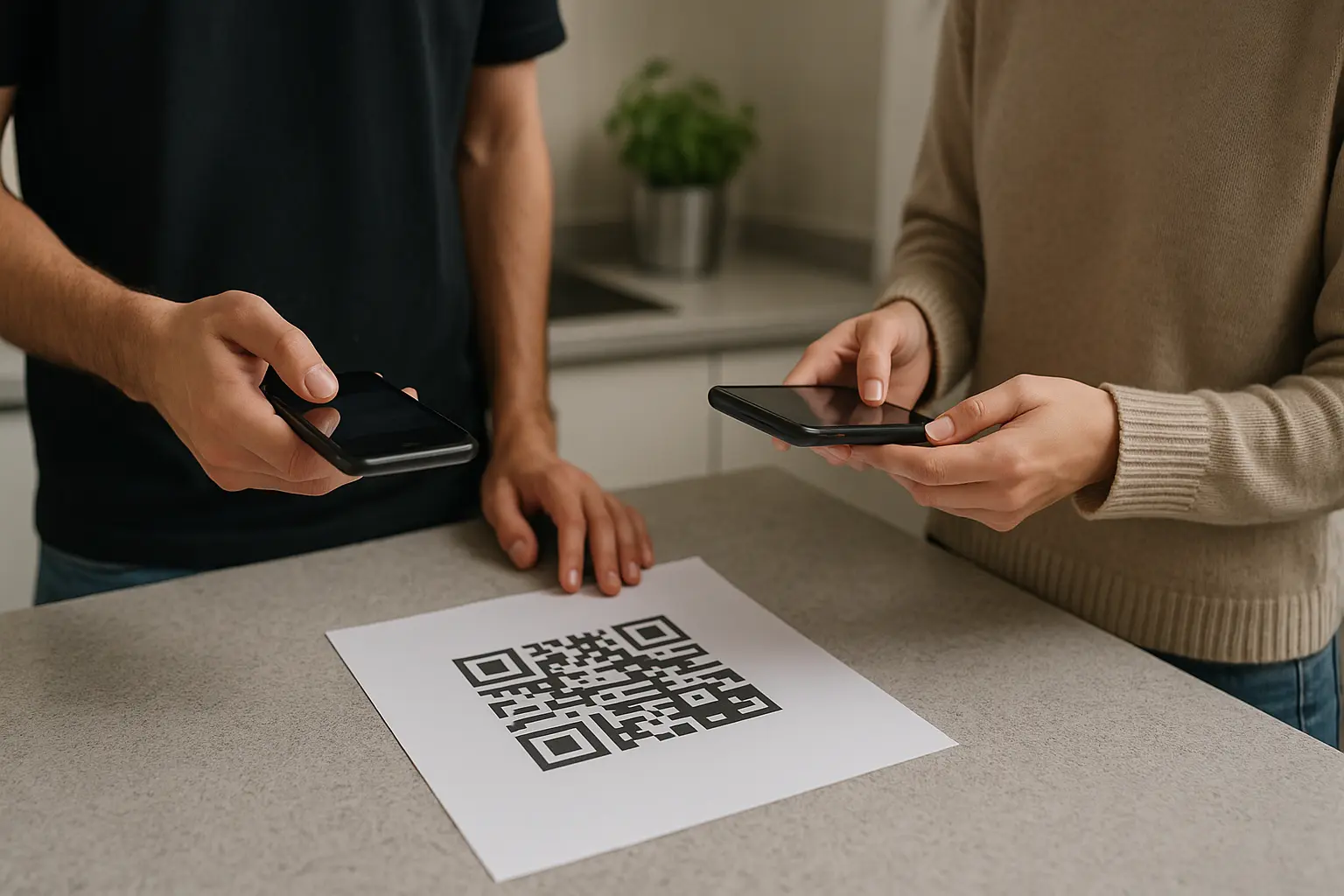
Scan testing is what separates a QR code that looks good from one that works for guests under real conditions.
How do I test my QR code to make sure it works on both iPhone and Android? Test with at least one iPhone and one Android phone by scanning in the native camera app (or a trusted scanner), then confirm the browser opens the correct Amazon Wish List page. Repeat after you place the QR code into the final design file or print proof, since resizing can blur it.
Run a simple test routine:
- Test the QR code as a standalone image first.
- Test again after you insert it into an invitation, card, or flyer design.
- Test from different distances and angles, and under dim indoor lighting.
Add these quick checks before you distribute:
- Scans correctly on iPhone and Android.
- Opens the correct wish list (no error page).
- High contrast and clean background.
- Quiet zone present.
- Image/export is not blurry.
- Placement avoids glare/curves.
Print & design checklist: make it easy to scan
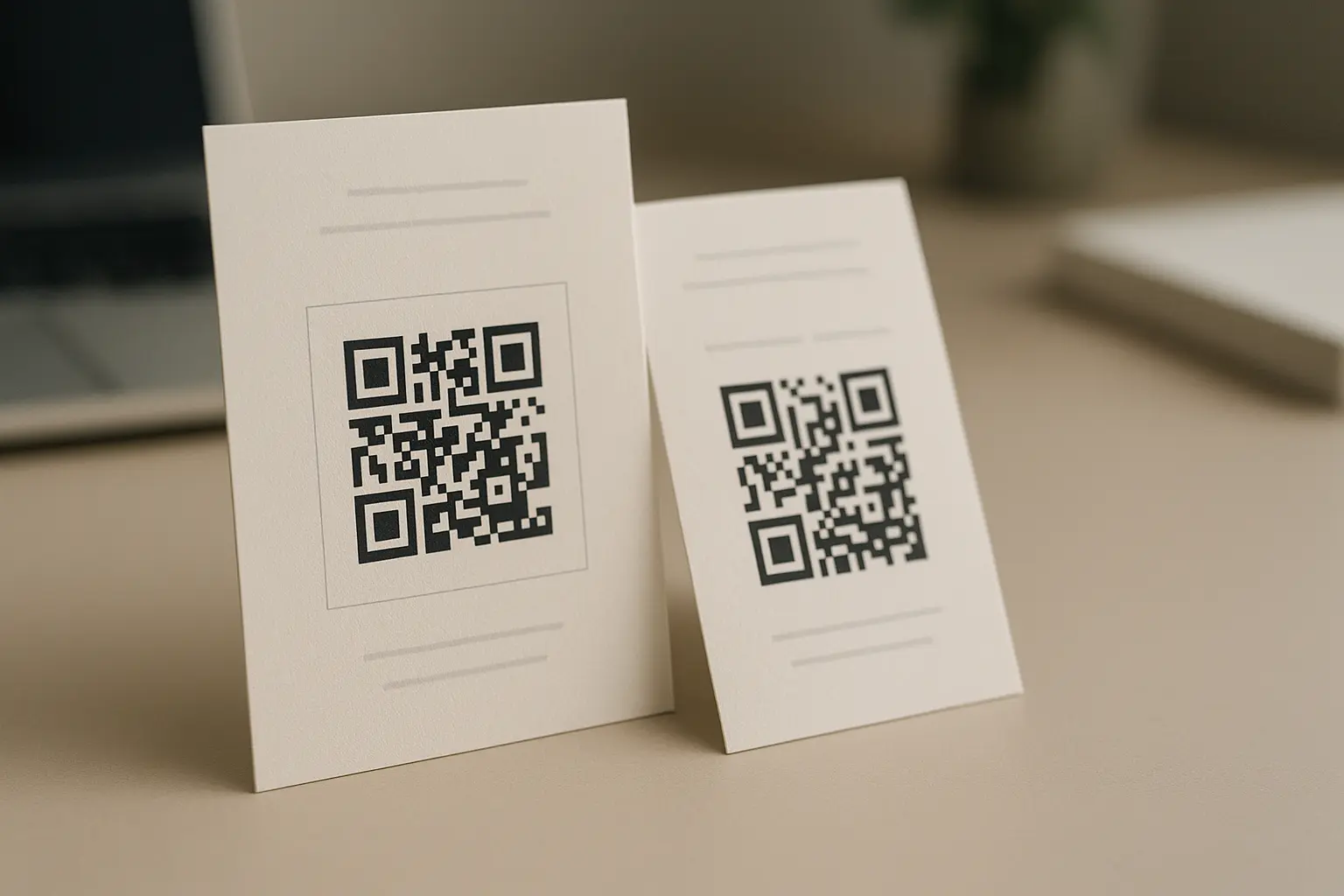
Most scan failures come from printing and layout choices, not from the Amazon link itself. The big blockers are missing border space (quiet zone), poor contrast, and low-quality exports.
What size should my QR code be to ensure guests can scan it easily? Many print guides suggest starting around 2 x 2 centimeters (about 0.8 x 0.8 inches) as a baseline, then sizing up if scanning distance is longer or lighting is poor. If you shrink the code, test it in the final printed size, because phone cameras vary.
For amazon wish list qr code print size, think in terms of distance:
- Handheld items (invitations, cards) can often be smaller.
- Posters and signs should be larger since people scan from farther away.
Quiet zone (border) and contrast basics
- Quiet zone: The QR code needs a clean margin around it. Many guidelines describe this as a white border at least four “modules” thick (a module is one small square in the QR grid). Treat that as a rule of thumb and always test in your final layout.
- Color contrast: Dark code on a light background is the easiest to scan. Avoid light gray codes, pastel-on-white, or placing the code over patterns.
- Export quality: Do not screenshot a QR code and then stretch it. Export a clean file from the QR code generator.
- Physical placement: Avoid curved surfaces (bottles, rounded favor jars) and reflective finishes (glossy paper, laminated glare) when possible.
Annotated example (text-only) showing quiet zone and safe contrast
Good layout (high contrast + quiet zone)

[ White background / clean space ]
    ████████████████████████
    █  ▓▓▓▓▓▓▓▓▓▓▓▓▓▓▓▓▓▓  █   <- Quiet zone (clean border all around)
    █  ▓  QR code area  ▓  █
    █  ▓▓▓▓▓▓▓▓▓▓▓▓▓▓▓▓▓▓  █
    ████████████████████████
[ No pattern behind the code ]
If your QR code sits on top of confetti graphics, textured paper scans, or a photo, expect more scan failures. Move the code onto a plain light box, and keep the quiet zone intact.
Simple flow graphic (text-only)
Amazon Wish List URL
        ↓
QR code generator
        ↓
Generate QR code
        ↓
Scan testing (iPhone + Android)
        ↓
Export image (non-blurry)
        ↓
Print/share
Troubleshooting: QR code not working (common fixes)
Treat failures as two different problems:
1) It will not scan at all.
2) It scans, but opens the wrong thing or a broken page.
Include the keyword once naturally: If you are searching for amazon wish list qr code not working fixes, start by separating scan problems from link problems. The fix is usually different.
Troubleshooting decision tree
- If the phone cannot detect the QR code:
- Check for blur or pixelation in the image.
- Check for low contrast or a busy background.
- Check that the quiet zone is not cropped.
- Check for glare, curvature, or extreme viewing angle.
- If it scans but does not open the wish list correctly:
- Confirm the encoded URL is the shareable URL for the correct list.
- Re-check sharing and privacy settings on the list.
- Open the URL manually in a browser to confirm it is still valid.
- If you used a dynamic QR code, confirm the redirect is still active (this varies by tool).
Common symptoms and fixes
| Symptom | Likely cause | Fix |
|---|---|---|
| Camera will not recognize the code | Blurry or low-resolution image | Re-export from the generator, avoid screenshots, and do not stretch the code in your design |
| Scans sometimes, fails for some guests | Low color contrast | Use dark-on-light, avoid tinted backgrounds, and re-test under indoor lighting |
| Scans only when very close | Code printed too small for the use distance | Increase print size and test from the expected scanning distance |
| Scans, but opens an error or access screen | Wish list sharing not set for link viewing | Adjust list sharing settings and copy a fresh shareable URL |
| Scans, but opens the wrong list | Wrong link was encoded | Regenerate using the correct share link |
| Worked before, now fails on printed pieces | Link changed or a dynamic service stopped | For static: reprint with the new URL. For dynamic: check provider status and settings (varies by tool) |
Takeaway: Fix scan quality first (border, contrast, sharp export), then verify the link and sharing settings.
Ways to share your Wish List QR code (use cases)
Where you place the code affects scan success. Give it enough room, keep it flat, and avoid glossy glare.
If you are trying to make amazon wish list qr code invitations, put the code where people naturally pause:
- Near the bottom of the invitation or details card.
- On a separate insert card that stays flat.
- In an email invite as a large, high-contrast image with the link also included as text (for accessibility).
Practical ideas by scenario:
- Birthdays, baby showers, weddings: Add the QR code to a details card and keep it away from heavy graphics.
- Holiday cards and group messages: Include the QR image plus the plain link, so nobody is blocked if scanning fails.
- Office gift drives: Put a larger code on posters near entryways, break rooms, or sign-up sheets.
- Fundraising materials: Place the code on a flat, matte surface and test for glare under overhead lighting.
- Social media posting: Use a clean background image and add a short note about verifying the destination.
Hypothetical example (fundraiser flyer placement guidance): Place the QR code in a white box at the bottom-right, at least a finger-width away from the flyer edge, with a short label above it. Avoid placing it across a fold line or on a glossy photo background.
Safety: reduce QR code phishing risk when sharing
QR codes are convenient, but they can also hide a destination link. That is why malicious codes are sometimes used for phishing.
Is it safe to share my Amazon Wish List via QR code on social media? It can be, but it depends on what information your list reveals and how widely you share it. Use the most restrictive wish list sharing that still lets your intended audience view it, and avoid posting publicly if you are not comfortable with strangers viewing the list.
Security mini-checklist (creator and scanner)
For the creator:
- Only share a code you generated from a link you control.
- Re-check the shareable URL and privacy settings right before posting.
- If privacy is a concern, limit distribution to private channels instead of public feeds.
For the scanner:
- Preview the destination URL before proceeding if your phone shows it.
- Avoid scanning codes posted in random public places or altered stickers over existing signs.
- If the page looks off, stop and do not sign in.
FAQ: Amazon Wish List QR codes
Do QR codes for Amazon Wish Lists expire? The QR pattern itself does not “expire,” but access can change if the wish list URL changes, the list is deleted, or sharing settings are tightened. If you used a dynamic QR code, this varies by tool and the redirect can stop if service access ends.
Can I edit a QR code after I’ve printed it on invitations? A static QR code cannot be edited, so changes require a new code and reprint. A dynamic QR code may be editable through the provider, but it depends on the tool and whether your account stays active.
Can I add a custom logo or colors to match my event theme? Yes, but keep strong color contrast and leave the quiet zone intact. Use light customization and then re-run scan testing after the code is placed into the final invitation design.
How many people have scanned my QR code (analytics and tracking)? This varies by tool. Scan analytics/tracking is commonly offered with dynamic QR codes, while static QR codes often have no built-in analytics unless you use a trackable link before generating the code.
Which QR code generators are free versus paid? This varies by tool and terms change. Some services offer unlimited static QR codes on free plans, while dynamic codes and analytics are more likely to be paid features or limited trials. For example, Bitly’s free tier allows 2 QR codes per month, RecodeQR offers 3 dynamic codes free for 3 days, and QRCodeChimp’s free tier includes unlimited static codes.
Ready to Create Your Own QR Code?
Join thousands of users creating beautiful QR codes.
Try QRplify FreeNo credit card required